How to Connect Komga to Shiori on Android
Covers, Metadata & Reading Progress Sync

วิธีเชื่อมต่อ Komga เข้ากับ Shiori บน Android
พร้อมภาพปก รายละเอียดหนังสือ และการซิงค์ความคืบหน้าการอ่าน

AndroidでKomgaをShioriに接続する方法
表紙・メタデータ・読書進捗の完全同期ガイド

如何在 Android 上将 Komga 连接至 Shiori
支持封面、完整元数据与阅读进度同步

Como Conectar o Komga ao Shiori no Android
Com Capas, Metadados e Sincronização de Progresso

Cómo Conectar Komga a Shiori en Android
Con Portadas, Metadatos y Sincronización de Progreso

📚

If you run Komga at home, your whole library already lives on your own server — but reading it on your phone usually means either a browser tab or an app that shows you a bare list of filenames with no covers.

Shiori connects to Komga directly. Done the right way, you get your covers, your authors, your series structure, and your reading position synced back to the server. This guide shows the exact steps, and — more importantly — which of Shiori's three Komga options you should actually pick.

🚀
Native REST API
📖
Full Book Details
🔄
Progress Sync
💾
Offline Reading

Komga, OPDS, or Komga API? Pick the right one first

When you add a server, Shiori offers several quick-fill options, and three of them mention Komga. They are not equivalent:

OptionProtocolFeatures
KomgaOPDS v1Browsing & downloading only
Komga v2OPDS v2Browsing & downloading only
Komga APINative REST APICovers, full book details & reading-progress sync

OPDS is a generic catalog standard, so it works with almost any server — Calibre, Calibre-Web, Standard Ebooks, Project Gutenberg. That generality is also its limit: it carries just enough information to list and download a file.

Komga's own API knows about series, metadata and read progress, so Shiori can show you a real library instead of a file list, and tell Komga where you stopped reading.

Use "Komga API" unless you have a specific reason not to.

What you need

  • Komga running and reachable on your network
  • Your Komga username and password (or an API key, if you prefer)
  • Your server's LAN address — not localhost
  • Shiori installed on your Android device
Why not localhost?
localhost means this device. Typed into your phone, it points at the phone, not at your server. You need the address your server has on your network — something like 192.168.1.33.

หากคุณรัน Komga ไว้ที่บ้าน คลังหนังสือทั้งหมดของคุณจะอยู่บนเซิร์ฟเวอร์ส่วนตัวอยู่แล้ว — แต่การอ่านบนโทรศัพท์มักจะต้องเปิดผ่านเว็บเบราว์เซอร์หรือแอปที่แสดงเพียงรายชื่อไฟล์เปล่าๆ โดยไม่มีภาพปก

Shiori สามารถเชื่อมต่อกับ Komga ได้โดยตรง หากตั้งค่าอย่างถูกต้อง คุณจะได้ทั้งภาพปก รายชื่อผู้แต่ง โครงสร้างซีรีส์ และตำแหน่งการอ่านที่ซิงค์กลับไปยังเซิร์ฟเวอร์ คู่มือนี้จะแนะนำขั้นตอนอย่างละเอียด และที่สำคัญที่สุดคือ ควรเลือกตัวเลือก Komga ตัวไหนจากทั้งหมด 3 ตัวเลือกใน Shiori

🚀
REST API หลักโดยตรง
📖
ภาพปกและเมทาดาตาครบ
🔄
ซิงค์ความคืบหน้าการอ่าน
💾
ดาวน์โหลดอ่านออฟไลน์

Komga, OPDS หรือ Komga API? เลือกตัวเลือกที่ถูกต้องก่อนเป็นอันดับแรก

เมื่อคุณเพิ่มเซิร์ฟเวอร์ Shiori จะมีตัวเลือกเติมข้อมูลด่วนให้เลือกหลายแบบ ซึ่งในนั้นมี 3 ตัวเลือกที่พูดถึง Komga แต่ละตัวเลือกไม่ได้เหมือนกัน:

ตัวเลือกโปรโตคอลความสามารถ
KomgaOPDS v1สำหรับเรียกดูและดาวน์โหลดเท่านั้น
Komga v2OPDS v2สำหรับเรียกดูและดาวน์โหลดเท่านั้น
Komga APIREST API หลักภาพปก, ข้อมูลหนังสือครบถ้วน และซิงค์ความคืบหน้าการอ่าน

OPDS เป็นมาตรฐานแคตตาล็อกทั่วไป จึงใช้งานได้กับเซิร์ฟเวอร์เกือบทุกประเภท ไม่ว่าจะเป็น Calibre, Calibre-Web, Standard Ebooks หรือ Project Gutenberg แต่ความครอบคลุมทั่วไปนี้ก็คือข้อจำกัดเช่นกัน เพราะมันส่งข้อมูลเพียงพอสำหรับการแสดงรายการและดาวน์โหลดไฟล์เท่านั้น

API ของ Komga โดยเฉพาะนั้นเข้าใจเรื่องซีรีส์ ข้อมูลเมทาดาตา และความคืบหน้าการอ่าน Shiori จึงสามารถแสดงคลังหนังสือจริงๆ แทนที่จะเป็นแค่รายการไฟล์ และยังแจ้ง Komga ได้ว่าคุณอ่านค้างไว้ที่ตรงไหน

แนะนำให้เลือก "Komga API" เว้นแต่คุณจะมีเหตุผลเฉพาะเจาะจงในการเลือกตัวเลือกอื่น

สิ่งที่คุณต้องเตรียม

  • Komga ที่กำลังทำงานและสามารถเข้าถึงได้บนเครือข่ายของคุณ
  • ชื่อผู้ใช้และรหัสผ่าน Komga ของคุณ (หรือ API key หากคุณสะดวกใช้มากกว่า)
  • ที่อยู่ LAN ของเซิร์ฟเวอร์ — ไม่ใช่ localhost
  • แอป Shiori ที่ติดตั้งอยู่บนอุปกรณ์ Android ของคุณ
ทำไมถึงไม่ใช้ localhost?
localhost หมายถึง อุปกรณ์เครื่องนี้ หากพิมพ์ลงในโทรศัพท์ จะเป็นการชี้กลับมาที่ตัวโทรศัพท์เอง ไม่ใช่เซิร์ฟเวอร์ของคุณ คุณต้องใช้ที่อยู่ IP ที่เซิร์ฟเวอร์ได้รับในเครือข่ายของคุณ เช่น 192.168.1.33

自宅で Komga を運用していれば、ライブラリ全体がすでに自分のサーバー上に構築されているはずです。しかし、スマートフォンで読むとなると、ブラウザのタブを開くか、表紙も表示されない単純なファイル名のリストを表示するアプリを使うことになりがちです。

ShioriはKomgaに直接接続できます。正しく設定すれば、表紙、著者名、シリーズ構造、そして読書の進捗状況までサーバーと同期できます。この記事では、具体的な手順と、Shioriで提供されている3つのKomgaオプションのうちどれを選ぶべきかについて詳しく解説します。

🚀
ネイティブ REST API
📖
表紙・詳細メタデータ
🔄
読書進捗の自動同期
💾
オフライン読書対応

Komga、OPDS、それとも Komga API? まずは正しい接続方法を選ぼう

サーバーを追加する際、Shioriはいくつかの自動入力オプション(クイックフィル)を提供しており、そのうち3つにKomgaの名前が含まれています。これらは機能が異なります:

選択肢通信プロトコル対応機能
KomgaOPDS v1閲覧とダウンロードのみ
Komga v2OPDS v2閲覧とダウンロードのみ
Komga APIネイティブ REST API表紙、詳細な本情報、読書進捗の同期

OPDSは汎用的なカタログ規格であるため、Calibre、Calibre-Web、Standard Ebooks、Project Gutenbergなど、ほぼすべてのサーバーで動作します。しかし、その汎用性の高さゆえに限界もあり、ファイルをリスト表示してダウンロードするための最小限の情報しか保持できません。

一方、Komga独自のAPIはシリーズ、メタデータ、読書進捗を識別できるため、Shioriはファイル一覧ではなく本物のライブラリを表示でき、どこまで読んだかをKomgaに伝えることができます。

特別な理由がない限り、「Komga API」を使用してください。

必要なもの

  • ネットワーク上で稼働しており、アクセス可能なKomgaサーバー
  • Komgaのユーザー名とパスワード(またはAPIキー)
  • サーバーのLANアドレスlocalhost ではないもの)
  • Androidデバイスにインストールされた Shiori
なぜ localhost ではダメなのか?
localhost は「このデバイス自身」を意味します。スマホでこれを入力すると、サーバーではなくスマホ自身を指してしまいます。ネットワーク上でのサーバーのアドレス(例: 192.168.1.33)を入力する必要があります。

如果你在家运行 Komga,你的整个书库就已经托管在自己的服务器上了——但在手机上阅读通常意味着要使用浏览器标签页,或者使用只能显示无封面文件名列表的软件。

Shiori 可以直接连接至 Komga。采用正确的设置方式,你可以获得封面、作者信息、系列结构,并将阅读进度实时同步回服务器。本指南将展示具体的设置步骤,更重要的是——告诉你应该在 Shiori 提供的三种 Komga 选项中选择哪一个。

🚀
原生 REST API
📖
封面与完整元数据
🔄
双向阅读进度同步
💾
离线畅读支持

Komga、OPDS 还是 Komga API?首先选择正确的选项

添加服务器时,Shiori 会提供几个快捷填充选项,其中有三个涉及 Komga。它们并不相同:

选项协议类型支持功能
KomgaOPDS v1仅支持浏览与下载
Komga v2OPDS v2仅支持浏览与下载
Komga API原生 REST API封面、完整图书详情与阅读进度同步

OPDS 是一种通用的目录标准,因此它几乎兼容所有服务器——Calibre、Calibre-Web、Standard Ebooks、Project Gutenberg 等。但通用性也是它的局限所在:它包含的信息仅够列出和下载文件。

而 Komga 的原生 API 了解系列、元数据和阅读进度,因此 Shiori 可以为你展示一个真正的书库,而不是单纯的文件列表,并能将你的阅读进度反馈给 Komga。

除非你有特定原因,否则请始终使用 "Komga API"。

准备工作

  • Komga 正在运行且可以在你的网络中访问
  • 你的 Komga 用户名和密码(或者你更倾向使用的 API 密钥)
  • 服务器的局域网地址(LAN 地址)——而不是 localhost
  • 在 Android 设备上安装好 Shiori
为什么不能使用 localhost
localhost 代表“本机”。如果在手机上输入它,它指向的是手机本身,而不是你的服务器。你需要的是服务器在局域网中的 IP 地址——例如 192.168.1.33

Se você executa o Komga em casa, toda a sua biblioteca já fica no seu próprio servidor — mas lê-la no seu celular geralmente significa usar uma aba do navegador ou um aplicativo que mostra apenas uma lista simples de nomes de arquivos sem capas.

O Shiori se conecta ao Komga diretamente. Feito da maneira certa, você obtém suas capas, seus autores, a estrutura das suas séries e sua posição de leitura sincronizada de volta ao servidor. Este guia mostra os passos exatos e — mais importante — qual das três opções do Komga no Shiori você realmente deve escolher.

🚀
REST API Nativa
📖
Capas e Metadados
🔄
Progresso Sincronizado
💾
Leitura Off-line

Komga, OPDS ou Komga API? Escolha a opção certa primeiro

Quando você adiciona um servidor, o Shiori oferece várias opções de preenchimento rápido, e três delas mencionam o Komga. Elas não são equivalentes:

OpçãoProtocoloRecursos
KomgaOPDS v1Apenas navegação e download
Komga v2OPDS v2Apenas navegação e download
Komga APIREST API NativaCapas, detalhes completos do livro e sincronização do progresso

O OPDS é um padrão de catálogo genérico, por isso funciona com quase qualquer servidor — Calibre, Calibre-Web, Standard Ebooks, Project Gutenberg. Essa generalidade também é o seu limite: ele carrega apenas informações suficientes para listar e baixar um arquivo.

A própria API do Komga conhece séries, metadados e progresso de leitura, permitindo que o Shiori mostre uma biblioteca de verdade em vez de uma lista de arquivos, e informe ao Komga onde você parou de ler.

Use "Komga API" a menos que você tenha um motivo específico para não usar.

O que você precisa

  • O Komga em execução e acessível na sua rede
  • Seu nome de usuário e senha do Komga (ou uma chave de API, se preferir)
  • O endereço de rede local (LAN) do seu servidor — não localhost
  • O Shiori instalado no seu dispositivo Android
Por que não localhost?
localhost significa este dispositivo. Digitado no seu celular, ele aponta para o próprio celular, não para o seu servidor. Você precisa do endereço que seu servidor possui na sua rede — algo como 192.168.1.33.

Si tienes Komga en casa, toda tu biblioteca ya vive en tu propio servidor; sin embargo, leerla en el teléfono suele significar abrir una pestaña del navegador o usar una aplicación que solo muestra una lista básica de nombres de archivo sin portadas.

Shiori se conecta directamente a Komga. Si lo configuras de la forma correcta, obtendrás tus portadas, autores, la estructura de las series y la sincronización de tu posición de lectura con el servidor. Esta guía muestra los pasos exactos y, lo que es más importante, cuál de las tres opciones de Komga que ofrece Shiori deberías elegir.

🚀
REST API Nativa
📖
Portadas y Metadatos
🔄
Progreso Sincronizado
💾
Lectura Sin Conexión

¿Komga, OPDS o Komga API? Elige primero la opción correcta

Al añadir un servidor, Shiori ofrece varias opciones de autocompletado, y tres de ellas mencionan a Komga. No son equivalentes:

OpciónProtocoloCaracterísticas
KomgaOPDS v1Solo navegación y descargas
Komga v2OPDS v2Solo navegación y descargas
Komga APIREST API NativaPortadas, detalles completos de libros y sincronización de lectura

OPDS es un estándar genérico de catálogos, por lo que funciona con casi cualquier servidor: Calibre, Calibre-Web, Standard Ebooks o Project Gutenberg. Esa universalidad es también su límite: solo transporta la información justa para listar y descargar un archivo.

La propia API de Komga gestiona series, metadatos y progreso de lectura, permitiendo que Shiori te muestre una biblioteca real en lugar de una lista de archivos y le comunique a Komga dónde dejaste de leer.

Utiliza «Komga API» a menos que tengas un motivo concreto para no hacerlo.

Lo que necesitas

  • Komga en funcionamiento y accesible en tu red
  • Tu nombre de usuario y contraseña de Komga (o una clave API, si lo prefieres)
  • La dirección LAN de tu servidor (no localhost)
  • Shiori instalado en tu dispositivo Android
¿Por qué no localhost?
localhost significa este dispositivo. Si lo escribes en tu teléfono, apuntará al propio teléfono, no a tu servidor. Necesitas la dirección que tiene tu servidor en tu red local, como por ejemplo 192.168.1.33.
Step-by-Step Guide (7 Steps)

ขั้นตอนการเชื่อมต่ออย่างละเอียด (7 ขั้นตอน)

接続手順ガイド(7つのステップ)

图文连接指南(7 个步骤)

Guia Passo a Passo (7 Passos)

Guía Paso a Paso (7 Pasos)

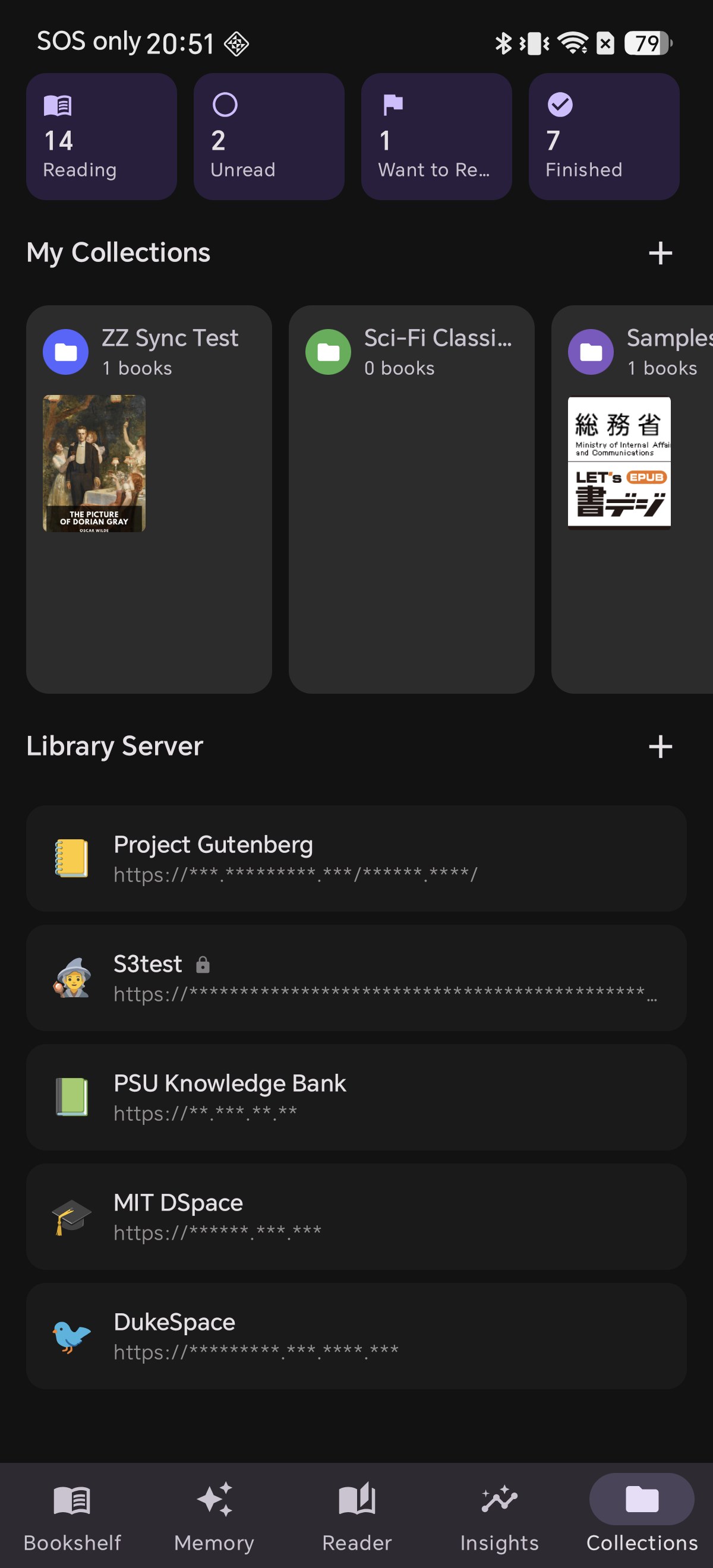
1Open the Library Server List

In Shiori, tap Collections in the bottom navigation bar. Scroll to the Library Server section and tap the + button on its right.

This is the same place every online library lives — OPDS catalogs, Kavita, S3 buckets, WebDAV shares — so once Komga is added it sits alongside the rest of your sources.

1เปิดรายการ Library Server

ในแอป Shiori ให้แตะที่แถบ Collections ที่เมนูด้านล่าง สกรอลล์ลงมาที่ส่วน Library Server แล้วแตะปุ่ม + ทางด้านขวา

นี่คือศูนย์รวมของคลังหนังสือออนไลน์ทุกประเภท ไม่ว่าจะเป็นแคตตาล็อก OPDS, Kavita, S3 buckets หรือ WebDAV ดังนั้นเมื่อเพิ่ม Komga แล้ว Komga จะไปปรากฏอยู่เคียงข้างกับแหล่งข้อมูลอื่นๆ ของคุณ

1Library Server リストを開く

Shioriで、下部ナビゲーションバーの Collections(コレクション)をタップします。Library Server(ライブラリサーバー)セクションまでスクロールし、その右側にある + ボタンをタップします。

ここはOPDSカタログ、Kavita、S3バケット、WebDAVシェアなど、あらゆるオンラインライブラリを追加する場所です。一度追加すれば、Komgaも他の情報源と並んで表示されます。

1打开 Library Server 列表

在 Shiori 中,轻触底部导航栏的 Collections(收藏)。滚动到 Library Server(图书服务器)区域,然后轻触其右侧的 + 按钮。

所有在线书库都位于此处——无论是 OPDS 目录、Kavita、S3 存储桶还是 WebDAV 共享——因此添加 Komga 后,它会与其他来源并列显示。

1Abra a Lista Library Server

No Shiori, toque em Collections (Coleções) na barra de navegação inferior. Role até a seção Library Server (Servidor de biblioteca) e toque no botão + à sua direita.

Este é o mesmo lugar onde ficam todas as bibliotecas online — catálogos OPDS, Kavita, buckets S3, compartilhamentos WebDAV — portanto, assim que o Komga for adicionado, ele ficará ao lado de suas outras fontes.

1Abre la Lista Library Server

En Shiori, toca en Collections (Colecciones) en la barra de navegación inferior. Desplázate hasta la sección Library Server (Servidor de biblioteca) y toca el botón + a la derecha.

Este es el lugar donde residen todas las bibliotecas en línea: catálogos OPDS, Kavita, buckets S3, recursos compartidos WebDAV... Así que, una vez añadido, Komga se ubicará junto al resto de tus fuentes.

The Collections tab in Shiori, showing the Library Server section with its add button
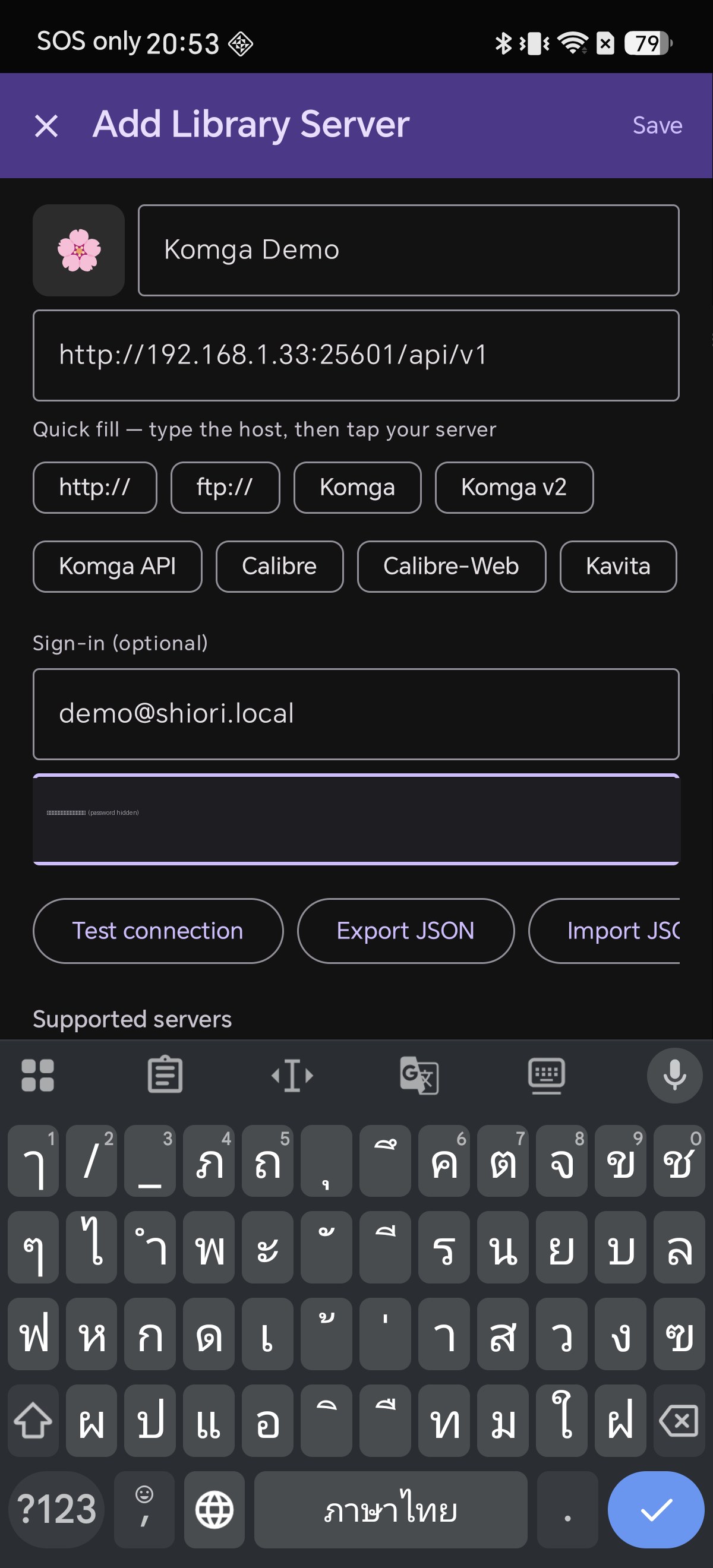
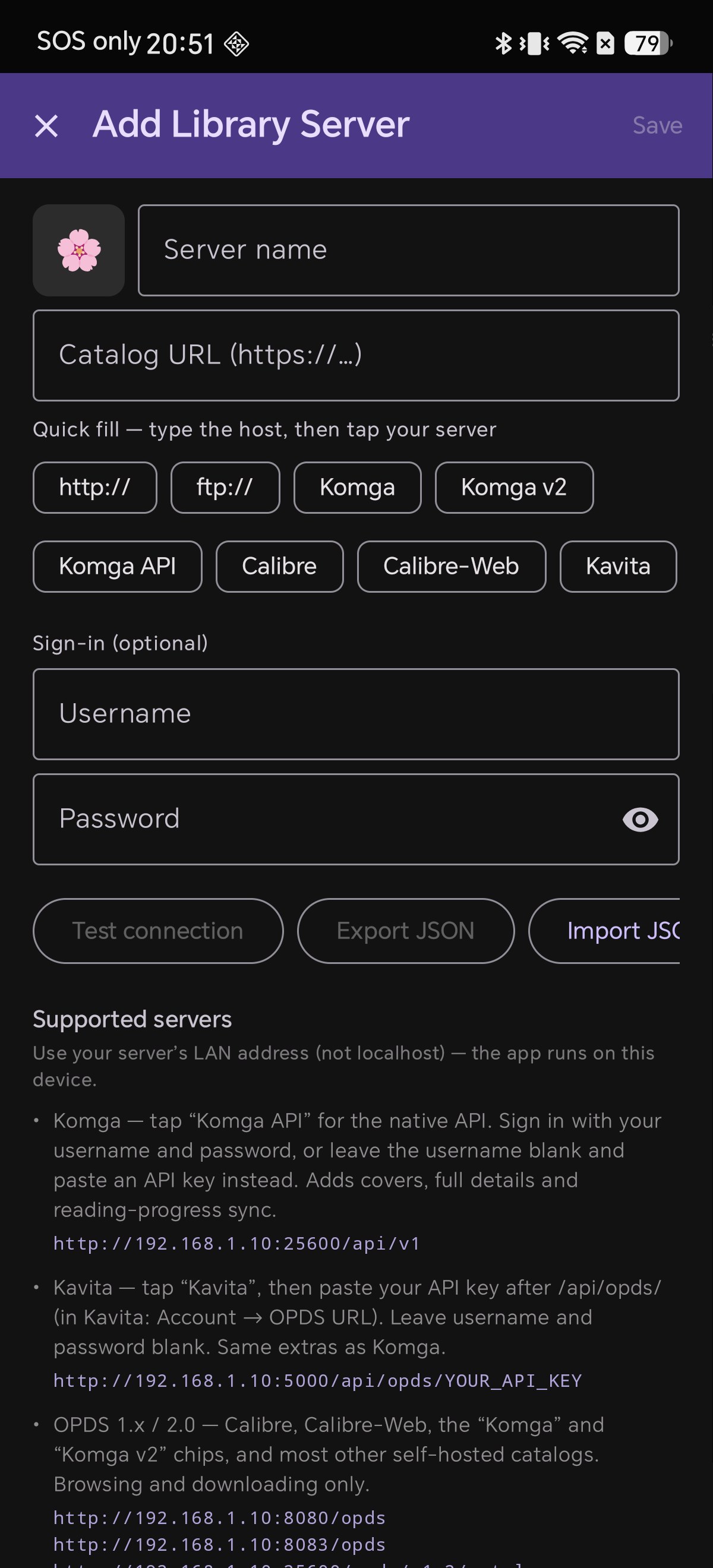
2Meet the Add Library Server Screen

The Add Library Server screen has a name field, a catalog URL, a row of quick-fill chips, and an optional sign-in.

Scroll down and Shiori documents each supported server type inline, including the exact URL shape it expects. It is worth reading once — it is the same information this article is built on.

2ทำความรู้จักหน้า Add Library Server

หน้า Add Library Server จะมีช่องใส่ชื่อ, URL แคตตาล็อก, แถบปุ่มเติมข้อมูลด่วน (quick-fill chips) และส่วนเข้าสู่ระบบแบบไม่บังคับ

เมื่อสกรอลล์ลงมา Shiori จะแสดงคำอธิบายประเภทเซิร์ฟเวอร์ที่รองรับแต่ละแบบ รวมถึงรูปแบบ URL ที่ถูกต้อง ควรอ่านทำความเข้าใจสักครั้ง ซึ่งเป็นข้อมูลเดียวกับที่ใช้อธิบายในบทความนี้

2Add Library Server 画面の確認

Add Library Server 画面には、名前フィールド、カタログURL、自動入力チップの行、およびオプションのサインイン項目があります。

下にスクロールすると、Shioriがサポートする各サーバータイプと期待される正確なURL形式が記載されています。一度目を通しておくと良いでしょう。この記事もその情報に基づいています。

2了解 Add Library Server 界面

Add Library Server(添加图书服务器)界面包含名称输入框、目录 URL、一行快捷填充标签(quick-fill chips)以及可选的登录信息输入框。

向下滚动,Shiori 在页面内详细说明了每种支持的服务器类型及其所需的具体 URL 格式。这值得阅读一遍——本文也是基于这些信息编写的。

2Conheça a Tela Add Library Server

A tela Add Library Server (Adicionar servidor de biblioteca) tem um campo de nome, uma URL do catálogo, uma fileira de chips de preenchimento rápido e um logon opcional.

Role para baixo e o Shiori documenta cada tipo de servidor suportado diretamente na tela, incluindo o formato exato da URL esperada. Vale a pena ler uma vez — são as mesmas informações nas quais este artigo foi baseado.

2Conoce la Pantalla Add Library Server

La pantalla Add Library Server (Añadir servidor de biblioteca) tiene un campo de nombre, una URL de catálogo, una fila de botones de autocompletado y una sección opcional de inicio de sesión.

Si te desplazas hacia abajo, verás que Shiori documenta de forma integrada cada tipo de servidor compatible, incluyendo el formato exacto de URL que requiere. Vale la pena leerlo: es la misma información en la que se basa este artículo.

The Add Library Server screen showing the quick-fill chips and the supported servers help text
3Enter Server Address & Tap "Komga API"

The order matters here. The hint above the chips says "type the host, then tap your server":

1. Type just your server's address into the Catalog URL field — for example 192.168.1.33
2. Then tap the Komga API chip

Shiori wraps what you typed into the full URL Komga expects: http://192.168.1.33:25600/api/v1

25600 is Komga's default port. If you changed it, correct the port number. Now fill in Sign-in: your Komga username and password (or paste an API key). Give the server a name at the top.

3ใส่ที่อยู่เซิร์ฟเวอร์ แล้วแตะ "Komga API"

ลำดับขั้นตอนตรงนี้มีความสำคัญ ข้อความแนะนำเหนือปุ่มชิประบุว่า "type the host, then tap your server" (พิมพ์โฮสต์ จากนั้นแตะเลือกเซิร์ฟเวอร์ของคุณ):

1. พิมพ์เฉพาะที่อยู่เซิร์ฟเวอร์ของคุณลงในช่อง Catalog URL — ตัวอย่างเช่น 192.168.1.33
2. จากนั้นแตะที่ปุ่ม Komga API

Shiori จะแปลงเป็น URL เต็มให้ทันที: http://192.168.1.33:25600/api/v1

25600 คือพอร์ตเริ่มต้นของ Komga หากเปลี่ยนพอร์ตให้แก้ไขตัวเลขให้ตรง จากนั้นกรอก Sign-in (ชื่อผู้ใช้และรหัสผ่าน หรือ API key) แล้วตั้งชื่อเซิร์ฟเวอร์ด้านบน

3サーバーアドレスを入力し、「Komga API」をタップ

ここでは手順の順序が重要です。チップの上のヒントには "type the host, then tap your server"(ホストを入力してからサーバーをタップ)と書かれています:

1. Catalog URL フィールドにサーバーのアドレスだけを入力します(例: 192.168.1.33
2. 次に Komga API チップをタップします

Shioriが完全なURL形式に変換します: http://192.168.1.33:25600/api/v1

ポートを変更している場合は修正し、Sign-in 項目にユーザー名とパスワード(またはAPIキー)を入力し、わかりやすい名前をつけます。

3输入服务器地址,然后轻触 "Komga API"

这里的操作顺序很重要。标签上方的提示写着 "type the host, then tap your server"(先输入主机地址,再点击你的服务器类型):

1. 仅在 Catalog URL 输入框中输入服务器地址——例如 192.168.1.33
2. 然后轻触 Komga API 快捷标签

Shiori 会自动补全为完整 URL:http://192.168.1.33:25600/api/v1

填写 Sign-in 登录账号和密码(或 API 密钥),并在顶部为服务器起一个便于识别的名称。

3Digite o Endereço e Toque em "Komga API"

A ordem importa aqui. A dica acima dos chips diz "digite o host e depois toque no seu servidor":

1. Digite apenas o endereço do servidor no campo Catalog URL — por exemplo, 192.168.1.33
2. Em seguida, toque no chip Komga API

O Shiori converte na URL completa: http://192.168.1.33:25600/api/v1

Preencha o Sign-in com usuário e senha (ou chave API) e dê um nome reconhecível ao servidor.

3Introduce la Dirección y Toca «Komga API»

El orden de los pasos es importante. La indicación dice «type the host, then tap your server»:

1. Escribe solo la dirección en Catalog URL; por ejemplo, 192.168.1.33
2. Toca el botón Komga API

Shiori completará la URL: http://192.168.1.33:25600/api/v1

Completa el Sign-in con usuario y contraseña (o clave API) y asigna un nombre al servidor.

The completed form with the Komga API URL and sign-in filled in
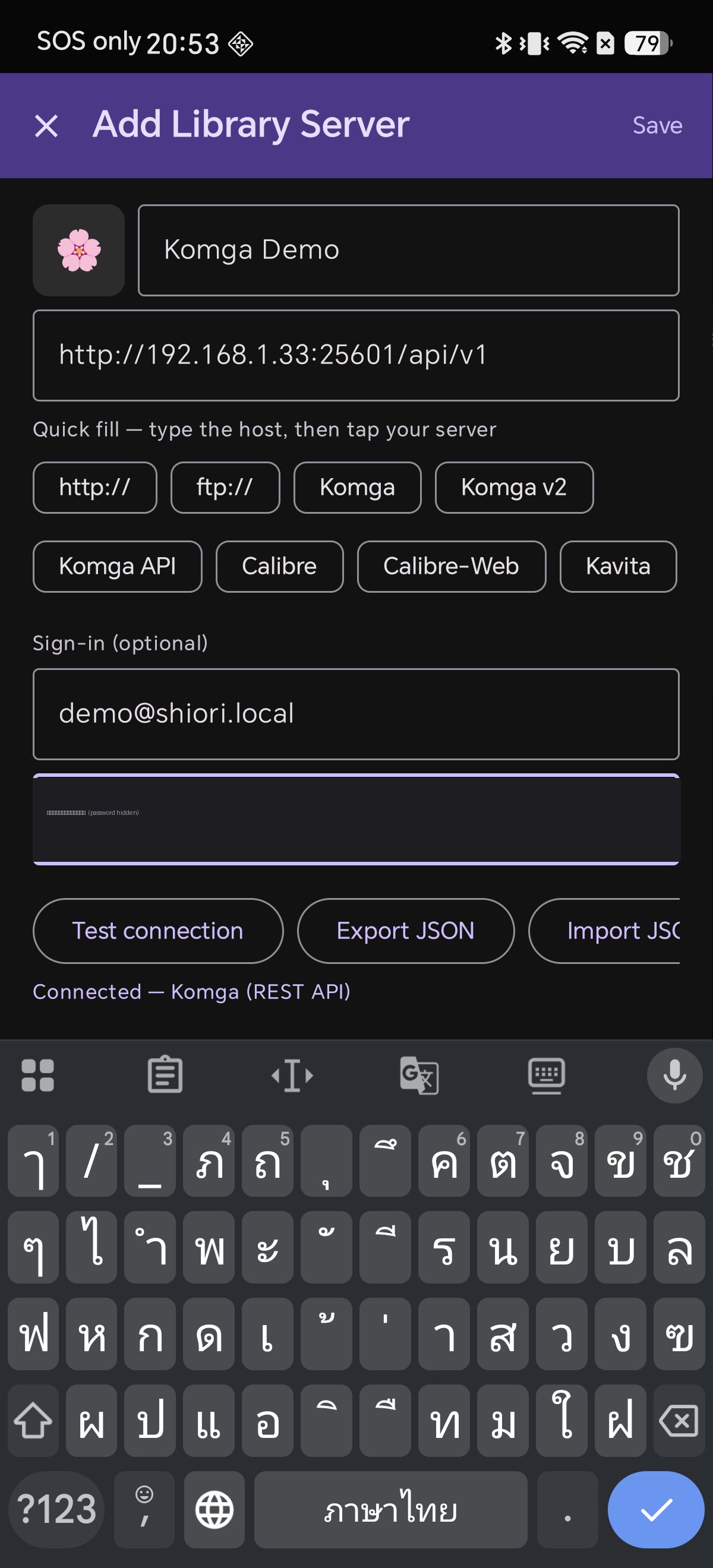
4Test Connection Before Saving

Tap Test connection. This tells you whether the address, port and credentials are all correct before you commit them.

You want to see: Connected — Komga (REST API)

That message confirms Shiori reached the server and detected the native REST API. If it fails, check whether your IP is correct, the phone is on the same Wi-Fi, and credentials are valid. Then tap Save in the top-right corner.

4ทดสอบการเชื่อมต่อก่อนบันทึก

แตะที่ Test connection (ทดสอบการเชื่อมต่อ) นี่คือขั้นตอนที่ไม่ควรข้าม เพื่อตรวจสอบความถูกต้องก่อนกดบันทึก

ข้อความที่คุณควรเห็นคือ: Connected — Komga (REST API)

ข้อความนี้ยืนยันว่า Shiori เชื่อมต่อถึงเซิร์ฟเวอร์และตรวจพบ REST API หลัก เรียบร้อยแล้ว หากทดสอบผ่าน ให้แตะ Save (บันทึก) ที่มุมขวาบน

4保存前に接続をテストする

Test connection(接続テスト)をタップします。保存する前にアドレス、ポート、認証情報が正しいかを確認できます。

成功表示: Connected — Komga (REST API)

このメッセージはネイティブ REST APIが検出されたことを示します。確認できたら右上隅の Save(保存)をタップします。

4保存前测试连接

轻触 Test connection(测试连接)。这可以在保存设置之前验证地址、端口和凭据是否全部正确。

成功提示:Connected — Komga (REST API)

这确认了 Shiori 已检测到原生 REST API。确认无误后,轻触右上角的 Save(保存)。

4Teste a Conexão Antes de Salvar

Toque em Test connection (Testar conexão). Ele informa se tudo está correto antes de salvar.

Você deve ver: Connected — Komga (REST API)

Essa mensagem confirma que o Shiori detectou a REST API nativa. Em seguida, toque em Save (Salvar) no canto superior direito.

4Prueba la Conexión Antes de Guardar

Toca en Test connection (Probar conexión) para validar la conexión antes de guardar.

Deberías ver: Connected — Komga (REST API)

Esto confirma la detección de la REST API nativa. Luego, toca en Save (Guardar) en la esquina superior derecha.

Test connection reporting: Connected — Komga (REST API)
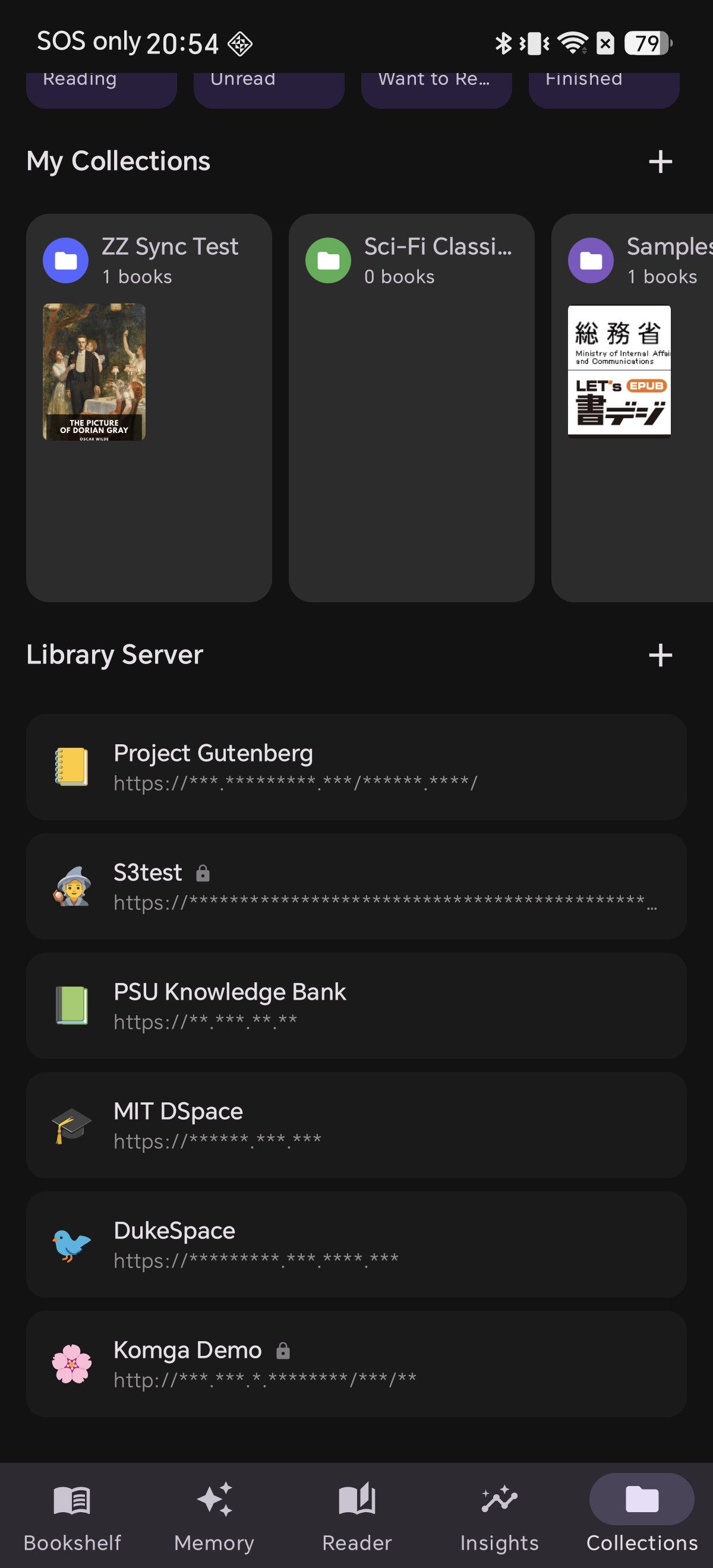
5Your Server Appears in the List

Komga now sits in your Library Server list with a padlock, showing that credentials are stored for it.

Notice that Shiori masks the server address in this list. That is deliberate — it keeps your internal network layout off the screen when you hand someone your phone or share a screenshot.

5เซิร์ฟเวอร์จะปรากฏในรายการ

ตอนนี้ Komga จะเข้ามาอยู่ในรายการ Library Server พร้อมไอคอนแม่กุญแจ ซึ่งแสดงว่ามีการบันทึกข้อมูลประจำตัวไว้เรียบร้อยแล้ว

Shiori ซ่อนที่อยู่เซิร์ฟเวอร์ในรายการนี้ไว้ เพื่อความปลอดภัยและไม่ให้โครงสร้างเครือข่ายภายในของคุณรั่วไหลเมื่อแชร์ภาพหน้าจอ

5リストにサーバーが表示される

Komgaが Library Server リストに追加され、認証情報が保存されていることを示す南京錠のアイコンが表示されます。

Shioriがこのリストでサーバーアドレスをマスクしているのは、スクリーンショットの共有時などに内部ネットワークの構成を保護するための仕様です。

5服务器已显示在列表中

现在,Komga 已显示在你的 Library Server 列表中,旁边带有挂锁图标,表示已为其存储登录凭据。

Shiori 在此列表中打码隐藏了服务器地址,以防在分享屏幕截图时泄露内网网络布局。

5Seu Servidor Aparece na Lista

O Komga agora aparece na sua lista Library Server com um cadeado, mostrando que as credenciais estão salvas para ele.

O Shiori oculta o endereço do servidor nesta lista para proteger a estrutura da sua rede interna ao compartilhar capturas de tela.

5Tu Servidor Aparece en la Lista

Komga aparecerá ahora en tu lista de Library Server con el icono de un candado, lo que indica que tiene credenciales guardadas.

Shiori enmascara la dirección del servidor para proteger la estructura de tu red privada al compartir capturas de pantalla.

The saved Komga server in the Library Server list with its URL masked
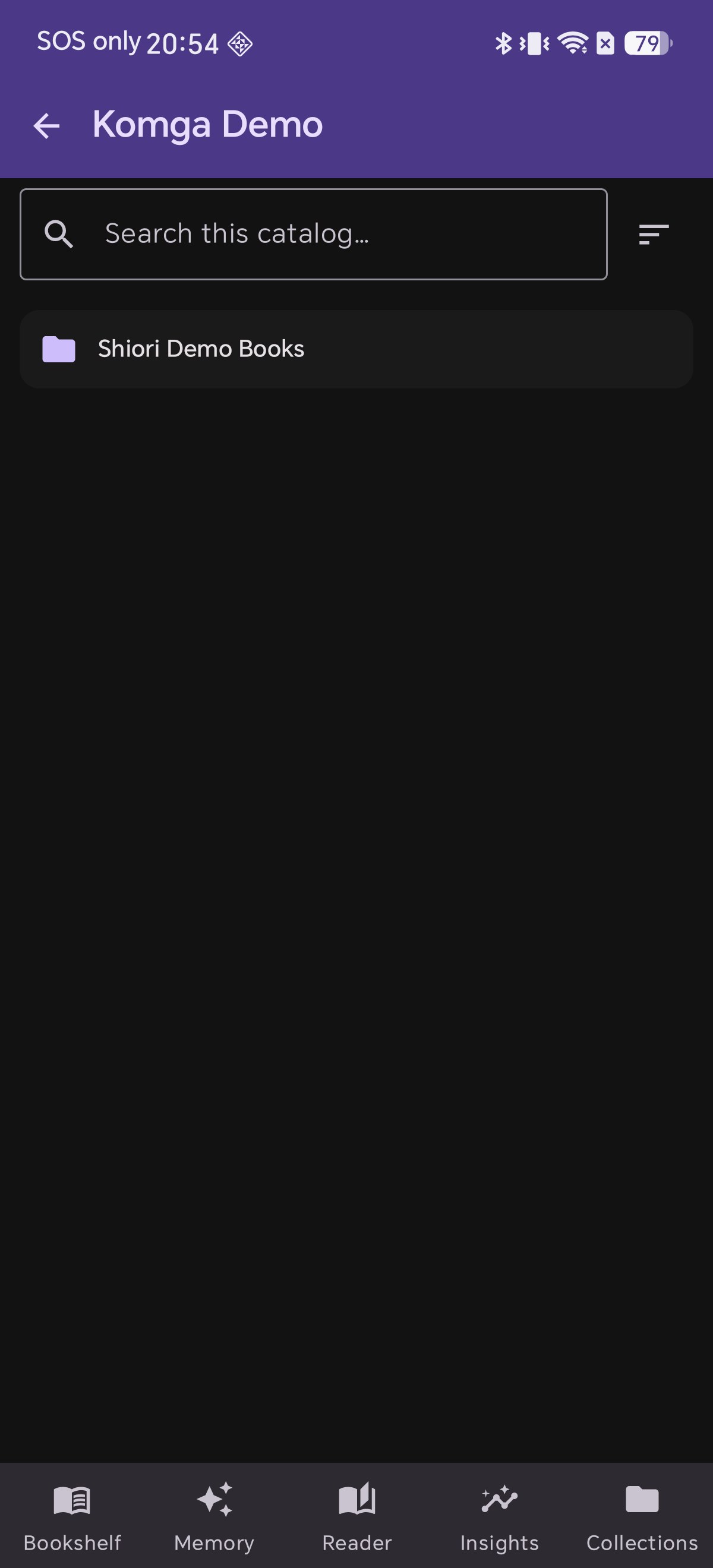
6Browse Your Library

Tap the server to open it. You get your Komga libraries, a search box that queries the catalog itself, and a sort control.

Breadcrumbs across the top track where you are, so you can jump back several levels in one tap instead of pressing Back repeatedly.

6เรียกดูคลังหนังสือของคุณ

แตะที่เซิร์ฟเวอร์เพื่อเปิดใช้งาน คุณจะพบกับคลังหนังสือ Komga ช่องค้นหาที่ส่งคำค้นหาไปยังแคตตาล็อกโดยตรง และตัวเลือกการจัดเรียง

แถบนำทาง (Breadcrumbs) ด้านบนจะแสดงตำแหน่งปัจจุบันของคุณ ช่วยให้คุณย้อนกลับไปหลายระดับได้ในแตะเดียวโดยไม่ต้องกดปุ่มย้อนกลับซ้ำๆ

6ライブラリを閲覧する

サーバーをタップして開きます。Komgaのライブラリ、カタログ自体を検索する検索ボックス、および並び替え機能が表示されます。

上部に表示されるパンくずリスト(ブレッドクラム)で現在地を確認でき、戻るボタンを何度も押すことなく1タップで数階層前に戻ることができます。

6浏览你的书库

轻触该服务器即可将其打开。你将看到 Komga 中的图书库、可以直接查询目录的搜索框以及排序选项。

顶部的面包屑导航会记录你当前所在的位置,只需轻触一下即可返回上层几级目录。

6Navegue Pela Sua Biblioteca

Toque no servidor para abri-lo. Você verá suas bibliotecas do Komga, uma caixa de busca que pesquisa diretamente no catálogo e um controle de ordenação.

A navegação estruturada (breadcrumbs) no topo mostra onde você está, permitindo voltar vários níveis com um único toque.

6Explora Tu Biblioteca

Toca el servidor para abrirlo. Verás tus bibliotecas de Komga, un cuadro de búsqueda que consulta directamente el catálogo y controles de ordenación.

La barra de navegación superior muestra tu ubicación mediante rutas de navegación (breadcrumbs), permitiéndote retroceder varios niveles con un solo toque.

Browsing the Komga catalog, showing the library and the catalog search box
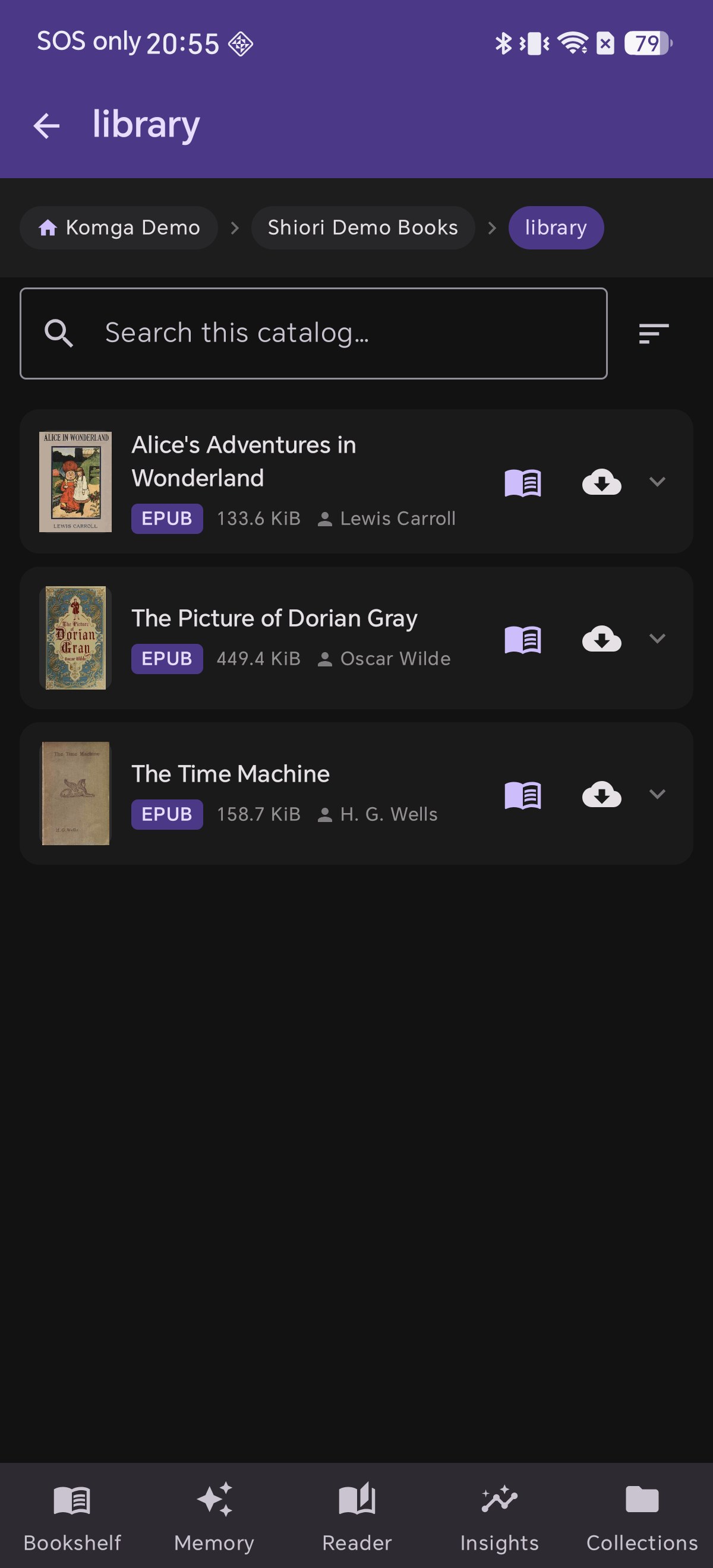
7Covers, Authors & One-Tap Reading

Open a library and you can see what the native API buys you:

Every book arrives with its cover art, title, author, format and file size. Each row has two actions: Read (the book icon) to stream instantly, and Download (the cloud icon) to keep an offline copy.

Because you connected through the REST API, your reading position travels back to Komga. Stop halfway through a chapter on your phone, and Komga knows — so the next device you pick up starts in the right place.

7ภาพปก ผู้แต่ง และการกดอ่านในแตะเดียว

เมื่อเปิดเข้ามาในคลังหนังสือ คุณจะเห็นประโยชน์ของการใช้ REST API หลัก:

หนังสือทุกเล่มจะแสดง ภาพปก, ชื่อเรื่อง, ผู้แต่ง, ฟอร์แมต และ ขนาดไฟล์ โดยมี 2 ปุ่มการทำงาน: Read (อ่านทันที) และ Download (ดาวน์โหลดเก็บไว้อ่านออฟไลน์)

ตำแหน่งการอ่านของคุณจะถูกส่งกลับไปยัง Komga อัตโนมัติ ทำให้เมื่อคุณเปลี่ยนไปใช้อุปกรณ์เครื่องอื่น ก็สามารถอ่านต่อจากจุดเดิมได้ทันที

7表紙、著者情報、ワンタップでの読書

ライブラリを開くと、ネイティブAPIを使用するメリットがよく分かります:

すべての作品について、Komgaのメタデータから直接取得された表紙画像タイトル著者名フォーマットファイルサイズが表示されます。Read(読書開始)とDownload(端末へ保存)の2つの操作に対応しています。

REST API経由で接続しているため読書位置がKomgaに同期され、別の端末で開いたときも続きからシームレスに読書を再開できます。

7封面、作者信息与一键阅读

打开图书库即可体验原生 API 带来的完整体验:

每本书都会显示封面书名作者格式文件大小。每行提供两个操作:Read(在线即读)与 Download(离线下载保存)。

阅读进度会实时同步回 Komga,换到另一台设备也能无缝接续上次阅读的位置。

7Capas, Autores e Leitura com Um Toque

Abra uma biblioteca e veja as vantagens que a API nativa oferece:

Cada livro é exibido com sua capa, título, autor, formato e tamanho de arquivo. Use Read para começar a ler ou Download para guardar uma cópia off-line.

Sua posição de leitura é enviada de volta ao Komga, permitindo retomar de onde parou em qualquer outro dispositivo.

7Portadas, Autores y Lectura con Un Toque

Abre una biblioteca y verás las ventajas de usar la API nativa:

Cada libro se muestra con su portada, título, autor, formato y tamaño de archivo. Incluye dos acciones: Read para leer de inmediato y Download para guardar una copia sin conexión.

Tu posición de lectura se sincroniza con Komga, permitiéndote continuar en el punto exacto desde cualquier dispositivo.

The book list showing cover art, titles, authors, format and size

Pro Tips & Frequently Asked Questions

เคล็ดลับและคำถามที่พบบ่อย (FAQ)

お役立ちヒント&よくある質問(FAQ)

实用技巧与常见问题解答(FAQ)

Dicas Úteis e Perguntas Frequentes (FAQ)

Consejos Prácticos y Preguntas Frecuentes (FAQ)

Can I read my downloaded Komga books completely offline?
Yes. Tap the cloud icon before a flight or commute with poor signal; the book lands directly on your normal Shiori bookshelf, complete with TTS narration, custom fonts, highlights and notes.
หนังสือที่ดาวน์โหลดจาก Komga สามารถอ่านแบบออฟไลน์ได้หรือไม่?
อ่านได้ 100% ครับ เพียงแตะไอคอนรูปก้อนเมฆเพื่อดาวน์โหลดก่อนออกเดินทาง หนังสือจะถูกบันทึกลงในชั้นหนังสือหลักของ Shiori พร้อมให้ใช้งานทั้งเสียงอ่านสังเคราะห์ TTS ไฮไลต์ และการจดโน้ตได้โดยไม่ต้องต่อเน็ต
ダウンロードした本は完全オフラインで読めますか?
はい。飛行機に乗る前などにクラウドアイコンをタップしてダウンロードしておけば、通常の本棚に保存され、オフラインでもTTS音声読み上げやハイライト、メモを存分に活用できます。
下载的 Komga 图书支持完全离线阅读吗?
完全支持。在出行或无网络环境下,只需提前点击云端下载图标,图书就会保存到 Shiori 常规书架中,离线同样支持语音朗读(TTS)与高亮笔记。
Posso ler os livros baixados do Komga totalmente off-line?
Sim. Toque no ícone de nuvem antes de viajar; o livro vai direto para a sua estante do Shiori com suporte total a TTS, destaques e anotações sem internet.
¿Puedo leer los libros descargados de Komga sin conexión?
Sí. Pulsa el icono de la nube antes de viajar; el libro se guardará en tu estantería habitual de Shiori con soporte completo para voz (TTS), subrayados y notas sin conexión.
How does search work inside Komga catalogs?
The search box queries Komga directly on the server, not just the visible items on screen. This lets you quickly locate any title across thousands of books in seconds.
การค้นหาหนังสือในแคตตาล็อก Komga ทำงานอย่างไร?
ช่องค้นหาจะส่งคำค้นหาไปสืบค้นบนเซิร์ฟเวอร์ Komga โดยตรง ไม่ได้ค้นหาแค่รายการที่แสดงอยู่บนหน้าจอ ทำให้ค้นหาหนังสือเล่มที่ต้องการจากคลังขนาดใหญ่ที่มีหนังสือหลายพันเล่มได้อย่างรวดเร็ว
Komgaカタログ内での検索機能はどのように動作しますか?
検索ボックスは画面上の表示項目だけでなく、Komgaサーバー全体を直接検索します。膨大な蔵書の中から目的の作品を瞬時に見つけることができます。
在 Komga 书库中的搜索功能是如何运作的?
搜索框会直接向 Komga 服务器发起检索,而不仅限于当前屏幕加载的内容,即便藏书成千上万也能秒级定位。
Como funciona a busca dentro do catálogo do Komga?
A caixa de busca consulta diretamente o servidor Komga, não apenas os itens visíveis na tela, facilitando encontrar títulos em bibliotecas com milhares de volumes.
¿Cómo funciona la búsqueda en el catálogo de Komga?
El cuadro de búsqueda consulta directamente al servidor Komga, no solo los elementos visibles, lo que permite localizar cualquier título en segundos entre miles de libros.
How can I access Komga when reading away from home?
A LAN address (like 192.168.1.33) works within your home Wi-Fi. For remote access outside home, connect through a VPN back to your network (e.g. WireGuard, Tailscale) or configure a secure reverse proxy with HTTPS.
ต้องการเชื่อมต่อ Komga เมื่ออยู่นอกบ้านต้องทำอย่างไร?
ที่อยู่ LAN (เช่น 192.168.1.33) จะใช้งานได้เฉพาะในเครือข่าย Wi-Fi บ้าน หากต้องการอ่านนอกบ้าน แนะนำให้ต่อ VPN กลับมาที่บ้าน (เช่น WireGuard หรือ Tailscale) หรือตั้งค่า Reverse Proxy ร่วมกับ HTTPS ครับ
外出先からKomgaにアクセスして読むには?
LANアドレス(例: 192.168.1.33)は自宅Wi-Fi内専用です。外出先からアクセスする場合は、VPN(WireGuardやTailscale等)で自宅NWに接続するか、HTTPS付きのリバースプロキシを経由して接続してください。
在外出时如何访问家中的 Komga 书库?
局域网 IP(如 192.168.1.33)仅在连接家庭 Wi-Fi 时有效。在外阅读建议配置 VPN(如 WireGuard、Tailscale)连接回家中局域网,或配置带 HTTPS 的反向代理。
Como acessar o Komga quando estiver fora de casa?
O endereço LAN funciona apenas no Wi-Fi doméstico. Para acesso externo, utilize uma VPN para sua rede (como WireGuard ou Tailscale) ou configure um proxy reverso seguro com HTTPS.
¿Cómo puedo acceder a Komga fuera de casa?
La dirección LAN solo funciona dentro de tu Wi-Fi. Para acceder desde el exterior, usa una VPN hacia tu red doméstica (como WireGuard o Tailscale) o un proxy inverso con HTTPS.

Related Reading

บทความที่เกี่ยวข้อง

関連記事

相关阅读

Leitura Relacionada

Lecturas Relacionadas