Connecting Shiori EPUB Reader to a self-hosted media server like Kavita opens up your entire digital book catalog directly inside the app. By setting up a connection via OPDS, you can browse all your library items and sync your reading progress seamlessly back to Kavita.
Here is a step-by-step guide to get everything configured in minutes.
Video Walkthrough (YouTube Shorts)
For a quick, detailed look at the interface and configuration steps, watch this short video guide:
Part 1: Setting up Kavita (Web Dashboard)
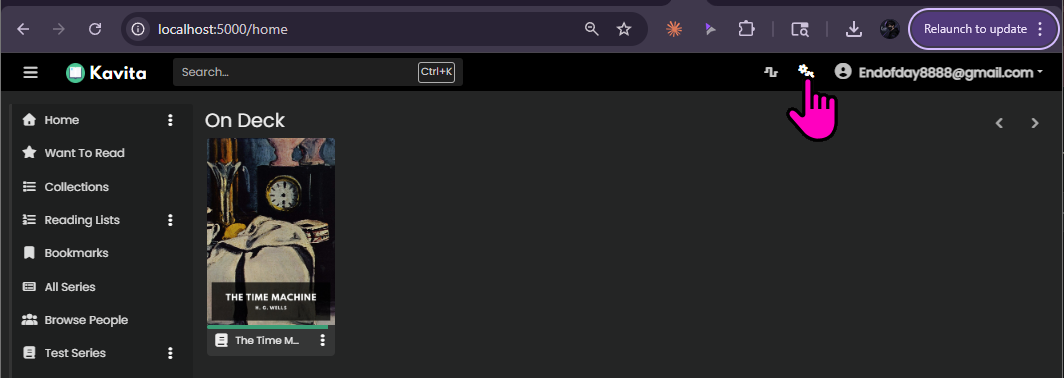
1Access Dashboard
Log in to your Kavita server interface via your web browser. Go to your dashboard or user settings panel.
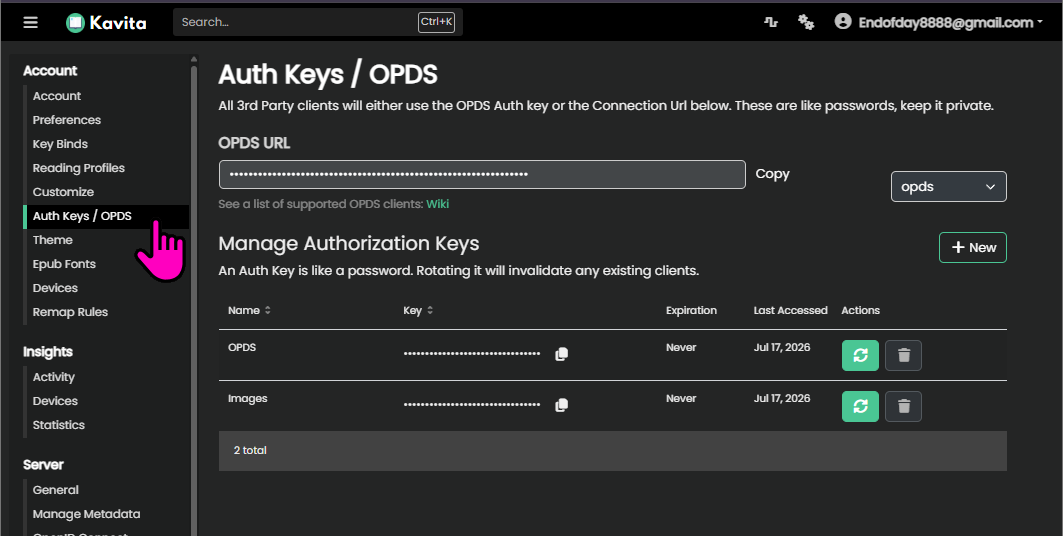
2Open Auth Keys / OPDS
In your user settings, look for the Auth Keys / OPDS tab. Kavita uses this section to generate unique tokens for third-party client integrations.
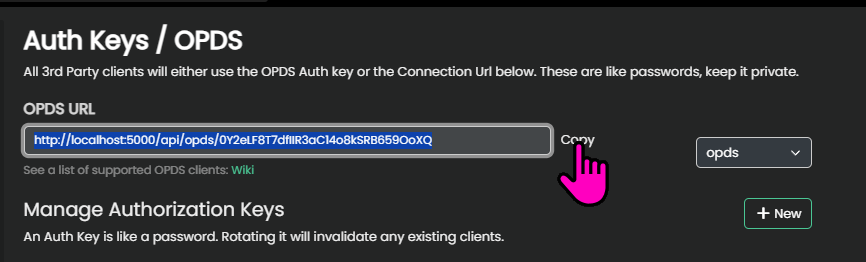
3Copy OPDS URL
Scroll down to locate your unique OPDS URL. Copy this full URL address to your clipboard. This contains the authentication token Shiori needs to communicate with Kavita.
Part 2: Configuring Shiori App
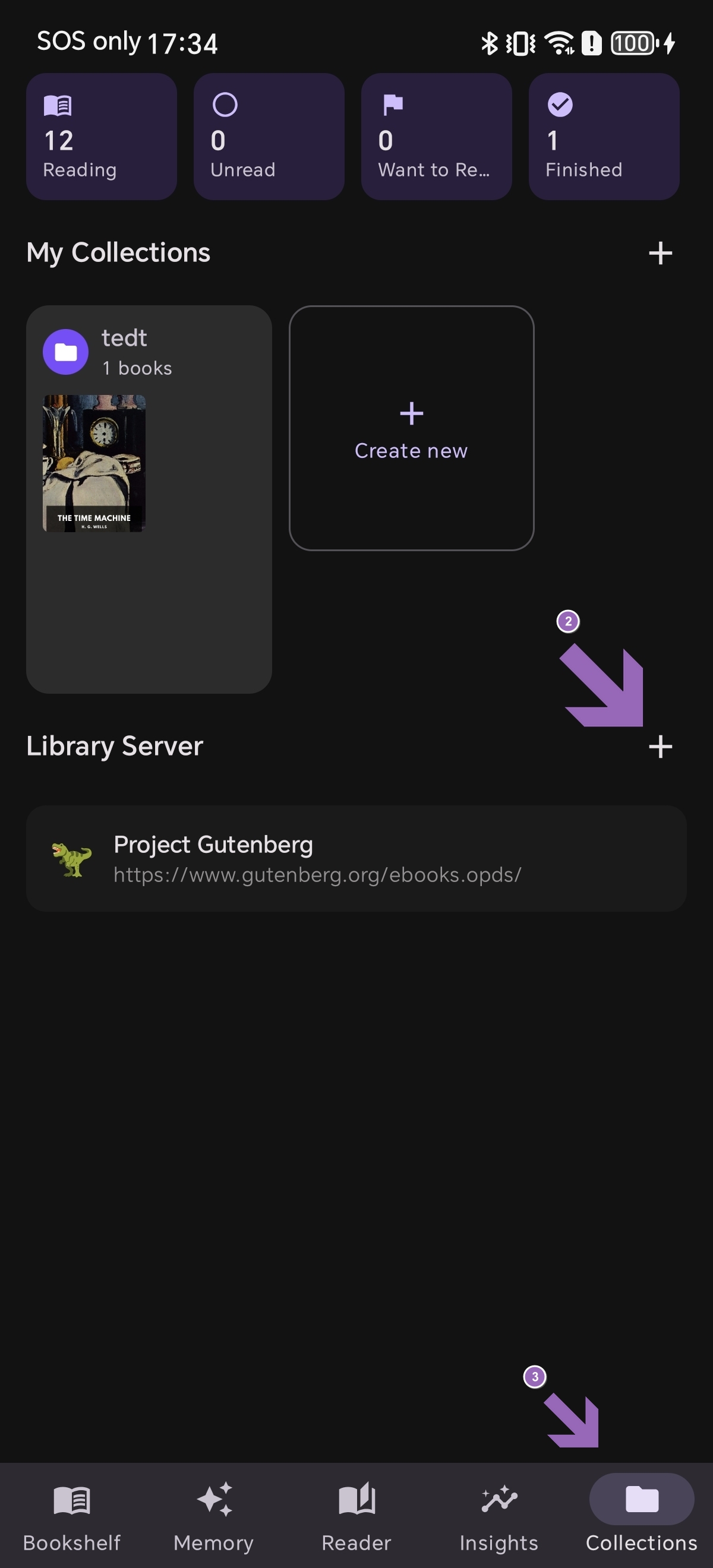
4Add Library Server
Open Shiori EPUB Reader on your Android device. Tap the Collection icon in the bottom-right corner. In the Library Server section, tap the ➕ (Add) icon.
5Input OPDS URL
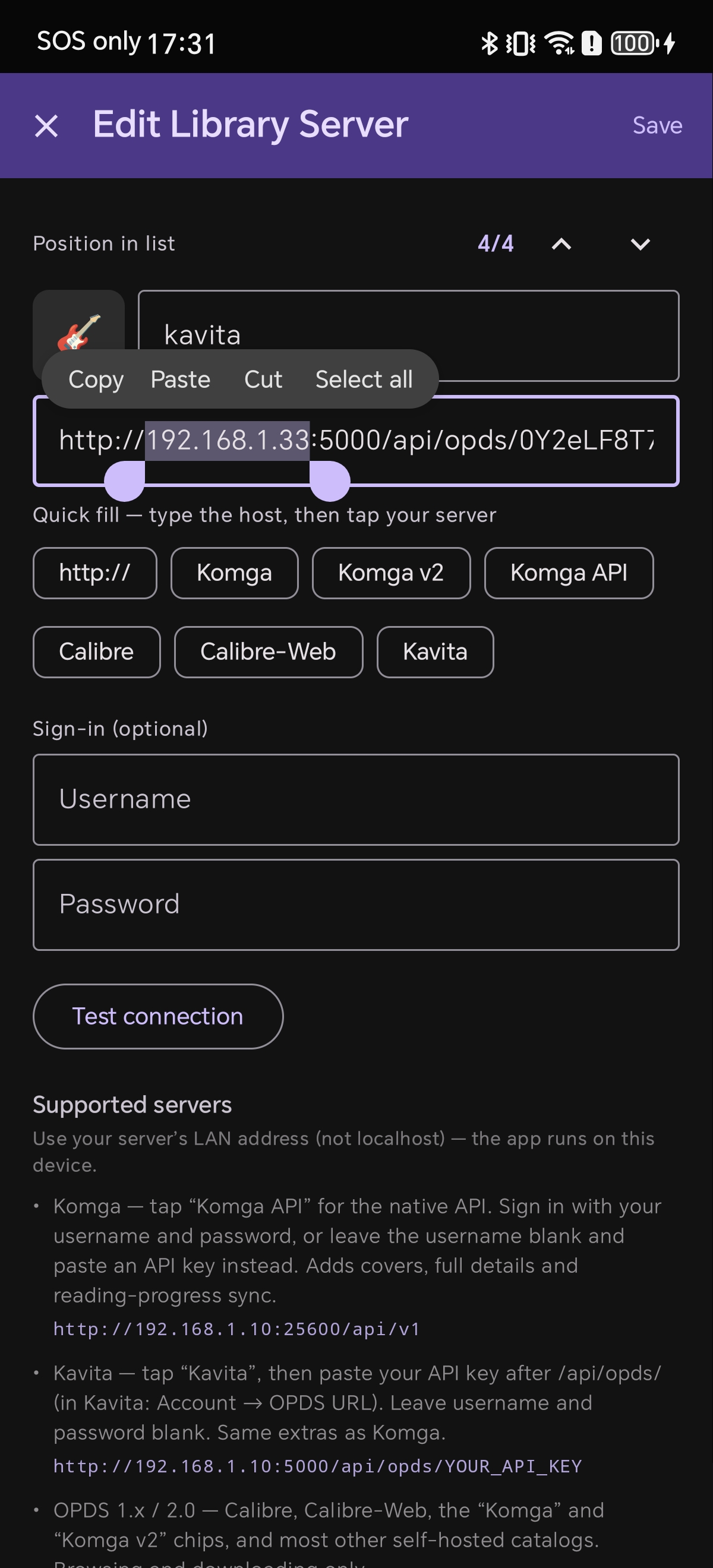
Paste the copied OPDS URL into the input box.
Important Note: If your Kavita server runs locally, ensure you replace localhost in the URL with the actual local IP address of your server machine so your Android device can reach it.
6Test & Save
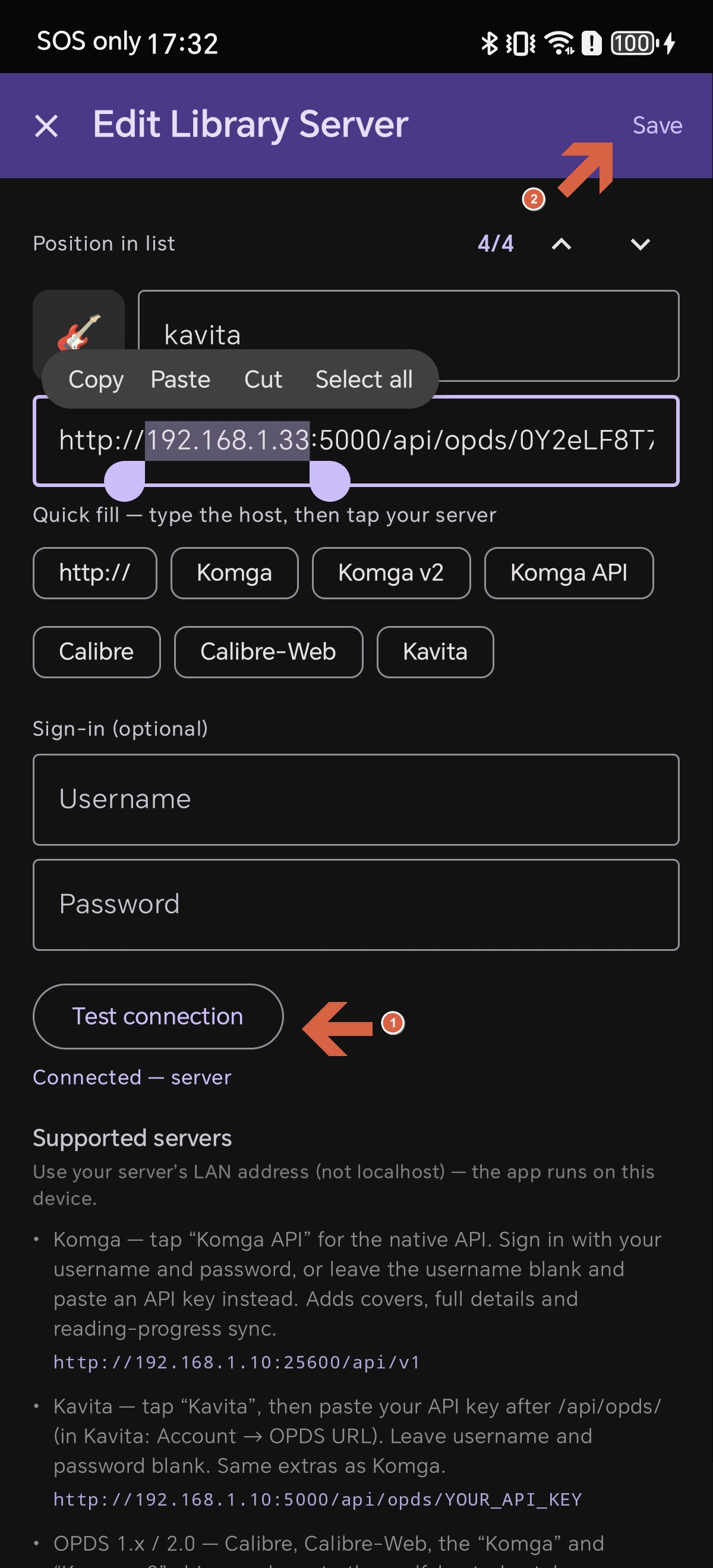
Tap the Test Connection button. Once connection succeeds, a green "connected server" message will appear below. Tap Save at the top-right corner to save the server configuration.
7Verify Listing
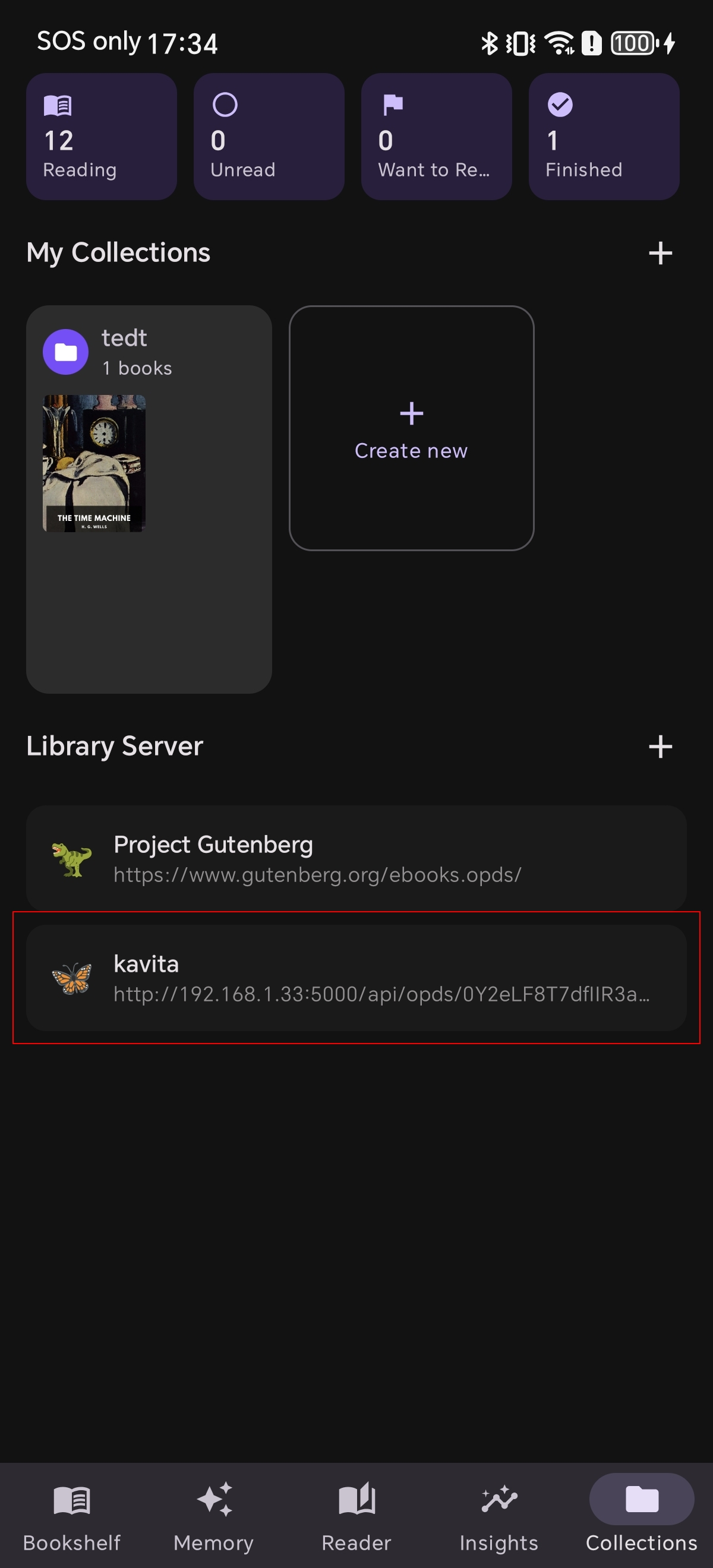
Your Kavita server will now show up in the Library Server catalog list in your collections tab.
8Enjoy Seamless Reading
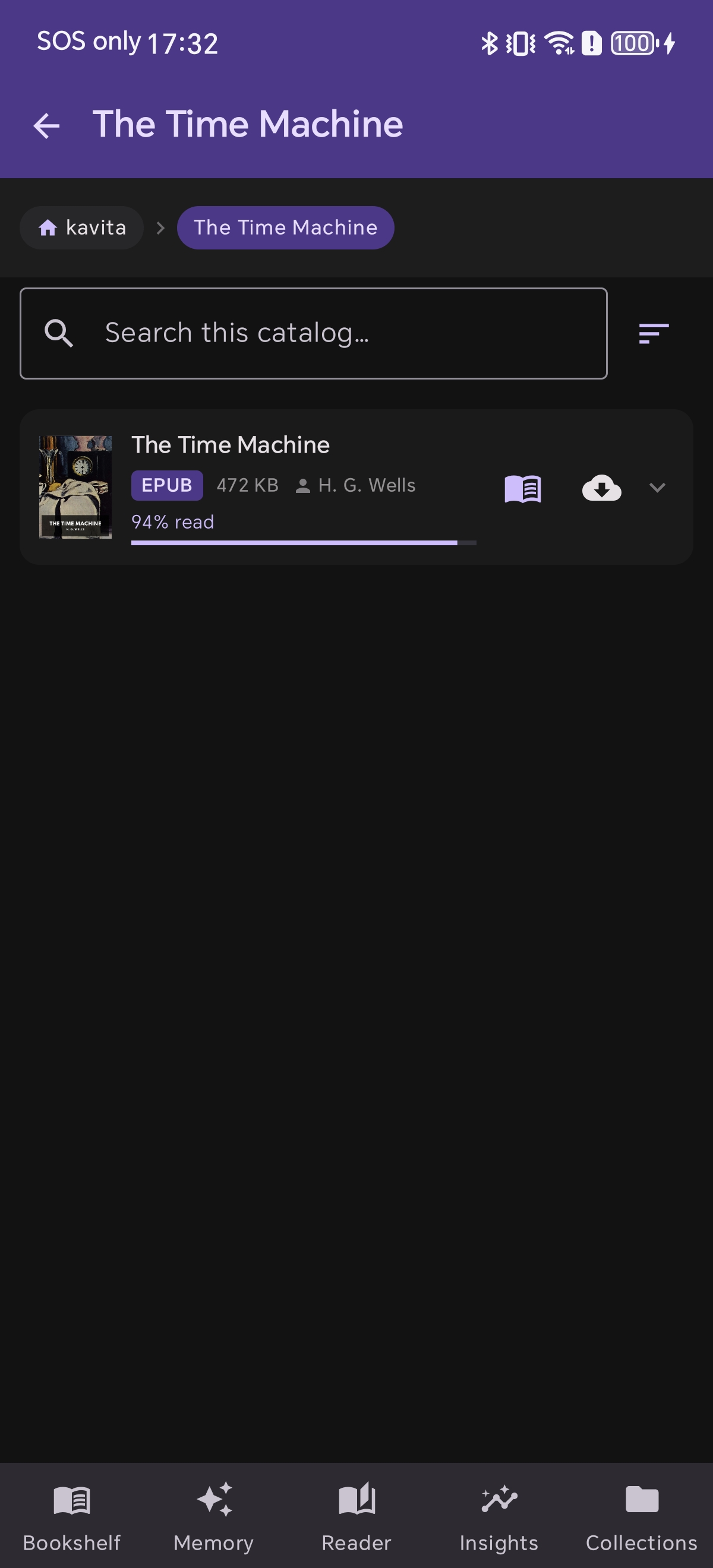
Tap your Kavita server from the list to browse all your books. Selecting any book will stream it directly. Your reading position and progress will sync back to Kavita automatically and invisibly.
การเชื่อมต่อ Shiori EPUB Reader เข้ากับมีเดียเซิร์ฟเวอร์ส่วนตัวอย่าง Kavita จะช่วยดึงหนังสือทั้งหมดในคลังของคุณมาเปิดอ่านบนแอปได้ทันที โดยผ่านโปรโตคอล OPDS ซึ่งไม่เพียงแต่นำเข้าหนังสือได้อย่างรวดเร็ว แต่ยังช่วยซิงค์ข้อมูลความคืบหน้าการอ่าน (Reading Progress) กลับไปยัง Kavita โดยอัตโนมัติอีกด้วย
นี่คือคู่มือขั้นตอนการตั้งค่าแบบทีละสเต็ปที่ทำเสร็จได้ง่าย ๆ ในไม่กี่นาทีครับ
วิดีโอแนะนำขั้นตอนการตั้งค่า (YouTube Shorts)
สำหรับผู้ที่ต้องการชมหน้าตาเมนูและวิธีการตั้งค่าแต่ละขั้นตอนอย่างละเอียดแบบวิดีโอ สามารถรับชมได้ที่ด้านล่างนี้ครับ:
ส่วนที่ 1: การตั้งค่าบนหน้าเว็บ Kavita Server
1เข้าสู่หน้าควบคุมเซิร์ฟเวอร์
ล็อกอินเข้าสู่ระบบเซิร์ฟเวอร์ Kavita ของคุณผ่านเว็บเบราว์เซอร์ จากนั้นไปยังหน้าแดชบอร์ดหลักหรือส่วนการตั้งค่าผู้ใช้
2เปิดเมนู Auth Keys / OPDS
ในเมนูตั้งค่าส่วนตัว ให้คลิกเลือกแท็บ Auth Keys / ODPS เพื่อสร้างโทเคนการเข้าถึงของแอปภายนอก
3คัดลอก OPDS URL
เลื่อนหน้าจอลงมาด้านล่างเพื่อค้นหา **OPDS URL** จากนั้นทำการคัดลอก (Copy) ลิงก์ดังกล่าวเก็บไว้ ซึ่งลิงก์นี้จะเป็นโทเคนเฉพาะสำหรับเชื่อมต่อกับแอป Shiori
ส่วนที่ 2: การเชื่อมต่อผ่านแอป Shiori
4เพิ่มเซิร์ฟเวอร์ห้องสมุด
เปิดแอป Shiori บนอุปกรณ์ Android ของคุณ แตะเมนู Collection (คอลเลกชัน) ที่มุมขวาล่าง จากนั้นไปที่หัวข้อ Library Server แล้วแตะไอคอนเครื่องหมาย ➕
5ใส่ค่า OPDS URL
วาง **OPDS URL** ที่คุณคัดลอกไว้ลงในกล่องรับข้อมูล
ข้อแนะนำสำคัญ: หากรันเซิร์ฟเวอร์ในระบบวงแลน (Local Network) ให้เปลี่ยนจาก localhost ในลิงก์ให้เป็นหมายเลข IP Address ของเครื่องเซิร์ฟเวอร์ เพื่อให้อุปกรณ์มือถือสามารถค้นหาเซิร์ฟเวอร์พบ
6ทดสอบเชื่อมต่อและบันทึก
แตะปุ่ม **Test Connection** หากเชื่อมต่อถูกต้องระบบจะแสดงข้อความว่า *"connected server"* แตะปุ่ม **Save** (บันทึก) ที่มุมขวาบนสุดเพื่อยืนยัน
7ตรวจสอบรายการห้องสมุด
เซิร์ฟเวอร์ Kavita ของคุณจะปรากฏอยู่ในรายการ **Library Server** ภายในแถบคอลเลกชันเรียบร้อยแล้ว
8เปิดอ่านและซิงค์ข้อมูล
แตะเข้าเซิร์ฟเวอร์เพื่อเลือกดูหนังสือที่คุณต้องการ เมื่อแตะเปิดเรื่องใด ๆ แอป Shiori จะดึงหนังสือมาสตรีมให้อ่านทันที พร้อมซิงค์ความคืบหน้าการอ่านล่าสุดกลับไปยัง Kavita อัตโนมัติ