Read Your Cloud Bookshelf
Add an S3 Bucket as a Library Server

เปลี่ยน S3 Bucket ให้เป็นคลังหนังสือส่วนตัว
เชื่อมต่อ Cloud Object Storage เข้ากับ Shiori บน Android

クラウド本棚を直接読む
S3バケットをライブラリサーバーとして追加する(AWS S3、MinIO、R2)

将云端书库装进口袋
如何将 S3 存储桶添加为书库服务器(AWS S3、MinIO、R2)

Leia Sua Estante na Nuvem
Adicione um Bucket S3 como Servidor de Biblioteca

Lee Tu Biblioteca en la Nube
Añade un Bucket S3 como Servidor de Biblioteca

☁️

If you love keeping your ebook collection safely stored in cloud object storage, Shiori gives you the freedom to browse and read it directly. Simply point the app at your bucket address, and your entire library appears as organized, browsable folders ready to stream or download — no complex web servers, no third-party sync apps, and no middlemen. It works natively with Amazon S3 as well as any service that speaks the S3 standard: MinIO, Cloudflare R2, Wasabi, and DigitalOcean Spaces.

What Makes an S3 Library Server So Convenient?

S3 object storage has become the global standard for cloud storage because it is fast, durable, and reliable. Shiori communicates with it natively: signing authentication requests securely on your device, displaying your bucket contents in clean folders, and letting you download any EPUB, PDF, or CBZ with a single tap. Your books always remain under your full ownership in your own storage; Shiori simply serves as your personal reader.

What You Will Need to Get Started

  • A cloud bucket containing your books (EPUB, PDF, or CBZ files).
  • The Bucket Address URL (for instance, https://my-books.s3.ap-southeast-1.amazonaws.com/ or a custom MinIO path like https://minio.example.com/my-books/ebooks/).
  • An Access Key and Secret Key for private buckets (or leave credentials empty if your bucket is public).

Complete Privacy — Your Books, Your Storage

Because Shiori establishes a direct, private connection between your phone and your cloud bucket, you maintain absolute control over your digital library. Whether you host a private MinIO server at home on a Raspberry Pi, take advantage of Cloudflare R2's generous free tier with zero egress fees, or store rare volumes in an AWS bucket — the setup process is delightfully identical.

Connect Your Bucket in Four Simple Steps

Follow along below to link your storage bucket and start downloading books to your personal shelf.

สำหรับใครที่เก็บสะสมคลังหนังสือ E-Book ไว้บน Cloud Object Storage ข่าวดีคือคุณสามารถเปิดอ่านหนังสือเหล่านั้นบน Shiori ได้โดยตรงอย่างสะดวกสบาย เพียงแค่ระบุที่อยู่ของ Bucket ในแอป คลังหนังสือทั้งหมดของคุณจะถูกแปลงเป็นโฟลเดอร์ที่จัดหมวดหมู่อย่างสวยงาม พร้อมให้เปิดดูและดาวน์โหลดหนังสือลงเครื่องได้ทันที โดยไม่ต้องตั้งค่า Web App หรือพึ่งพาแอปตัวกลางใดๆ รองรับทั้ง Amazon S3 และผู้ให้บริการมาตรฐาน S3 API ยอดนิยมอย่าง MinIO, Cloudflare R2, Wasabi และ DigitalOcean Spaces

S3 Library Server คืออะไร และสะดวกอย่างไร?

S3 ถือเป็นมาตรฐานการจัดเก็บข้อมูลบนคลาวด์ที่ทั่วโลกยอมรับว่าเสถียรและยืดหยุ่นสูง Shiori รองรับการเชื่อมต่อกับ S3 ได้อย่างเป็นธรรมชาติ โดยตัวแอปจะทำการยืนยันสิทธิ์อย่างปลอดภัย แสดงรายชื่อหนังสือและโฟลเดอร์อย่างเป็นระเบียบ และดาวน์โหลดไฟล์ EPUB, PDF หรือ CBZ ที่ต้องการได้ในแตะเดียว หนังสือทั้งหมดจะยังคงอยู่ในพื้นที่จัดเก็บส่วนตัวของคุณ 100% โดยมี Shiori เป็นหน้าต่างบานสวยที่ช่วยเปิดโลกการอ่านของคุณ

สิ่งที่ต้องเตรียมก่อนเริ่มต้น

  • Bucket ที่เก็บไฟล์หนังสือของคุณ (รองรับทั้ง EPUB, PDF และ CBZ)
  • ที่อยู่ Bucket (URL) เช่น https://my-books.s3.ap-southeast-1.amazonaws.com/ หรือลิงก์ MinIO เช่น https://minio.example.com/my-books/ebooks/
  • Access Key และ Secret Key สำหรับ Bucket ส่วนตัว (หากเป็น Bucket สาธารณะ สามารถเว้นว่างไว้ได้เลย)

เป็นส่วนตัว ปลอดภัย อยู่ในพื้นที่ของคุณเอง

เนื่องจาก Shiori เชื่อมต่อไปยัง Bucket โดยตรงจากโทรศัพท์ของคุณ คุณจึงเป็นผู้ควบคุมคลังหนังสือได้อย่างเบ็ดเสร็จ ไม่ว่าจะเปิดเซิร์ฟเวอร์ MinIO ไว้ที่บ้าน, ใช้ Cloudflare R2 ที่ไม่มีค่าแบนด์วิดท์ดาวน์โหลด (Zero Egress Fees), หรือฝากไฟล์ไว้บน AWS — ทุกระบบใช้วิธีตั้งค่าเหมือนกันอย่างง่ายดาย

วิธีเชื่อมต่อ Bucket ใน 4 ขั้นตอนง่ายๆ

มาดูขั้นตอนการเพิ่มคลังหนังสือและการดาวน์โหลดไฟล์เข้าสู่ชั้นหนังสือของคุณกันครับ

クラウドオブジェクトストレージにお気に入りの電子書籍コレクションを保管しているなら、Shioriを使えば余計なサーバー設定なしで直接閲覧・読書が可能です。アプリにバケットのアドレスを登録するだけで、クラウド内のフォルダ構造がそのまま美しい本棚として展開され、読みたい本を瞬時にダウンロードできます。Amazon S3 はもちろん、S3互換プロトコルに対応した MinIO、Cloudflare R2、Wasabi、DigitalOcean Spaces など多彩なストレージに対応しています。

S3ライブラリサーバーの魅力とは?

S3は世界中のクラウドで広く採用されている堅牢なストレージ規格です。Shioriは端末内で安全に署名認証を行い、バケット内のオブジェクトを整理されたフォルダ階層として表示。EPUB、PDF、CBZファイルをワンタップで取得できます。書籍データは常にあなた自身のストレージ内に安全に保たれ、Shioriは読書に専念できる快適なビューアとして機能します。

接続に必要なもの

  • 電子書籍ファイル(EPUB、PDF、CBZ)を保存したクラウドバケット
  • バケットのアドレス(URL)(例:https://my-books.s3.ap-southeast-1.amazonaws.com/ や MinIOの https://minio.example.com/my-books/ebooks/
  • プライベートバケット用の Access KeySecret Key(公開バケットの場合は入力不要)

プライバシーも万全:完全な自己所有ストレージ

Shioriはスマートフォンから直接バケットへ通信するため、第三者の同期サービスを経由しません。自宅のRaspberry Piで立てたMinIOサーバーでも、転送料金無料のCloudflare R2でも、AWS S3でも、まったく同じシンプルな手順で接続できます。

4つのステップでバケットに接続

サーバーの追加から最初の1冊をダウンロードするまでの流れをご案内します。

如果您习惯将电子书藏书保存在云端对象存储中,Shiori 可以让您直接浏览并随时阅读。只需在应用中填入存储桶地址,您的整个云端书库便会化作井然有序的目录文件夹,即点即下——无需搭建复杂的 Web 服务,无需第三方同步中转。全面原生支持 Amazon S3 以及兼容 S3 协议的 MinIO、Cloudflare R2、Wasabi、DigitalOcean Spaces 等各主流服务商。

S3 书库服务器的核心优势

S3 是业界公认的高可用存储标准。Shiori 原生支持 S3 协议签名认证,将存储桶中的内容直观呈现为清晰的文件夹目录,只需轻轻一点即可下载 EPUB、PDF 或 CBZ 格式图书。所有图书始终妥善存放于您自己的云端空间,数据归属全权由您掌控。

连接前需准备的信息

  • 存放了电子书文件的云端存储桶(支持 EPUB、PDF、CBZ)。
  • 存储桶地址(URL)(例如 https://my-books.s3.ap-southeast-1.amazonaws.com/ 或 MinIO 路径 https://minio.example.com/my-books/ebooks/)。
  • 私有存储桶所需的 Access KeySecret Key(若为公开存储桶则无需填写认证信息)。

私密安全,自主掌控

Shiori 直接从手机端安全直连您的存储桶,保护数据隐私。无论是在家中搭建的私有 MinIO 服务,还是享受零出流量费用的 Cloudflare R2,亦或是 AWS 存储桶,配置方式皆同样简明高效。

只需 4 步,轻松连接云端书库

跟随以下图文指引,轻松添加书库服务器并开始下载阅读。

Se você guarda sua coleção de e-books em um armazenamento de objetos na nuvem, o Shiori permite navegar e ler seus livros diretamente. Basta apontar o app para o endereço do seu bucket e toda a sua biblioteca aparecerá organizada em pastas fáceis de explorar e baixar — sem necessidade de servidores web complexos ou intermediários. Funciona perfeitamente com o Amazon S3 e com qualquer serviço compatível com a API S3: MinIO, Cloudflare R2, Wasabi e DigitalOcean Spaces.

Por Que Usar um Servidor de Biblioteca S3?

O S3 é o padrão universal para armazenamento na nuvem por sua velocidade e alta confiabilidade. O Shiori comunica-se diretamente com o bucket: autentica com segurança no seu dispositivo, lista os livros em pastas limpas e permite baixar qualquer EPUB, PDF ou CBZ com um toque. Seus arquivos permanecem sob seu controle absoluto em seu próprio armazenamento.

O Que Você Precisa para Começar

  • Um bucket contendo seus livros (arquivos EPUB, PDF ou CBZ).
  • O endereço URL do bucket (por exemplo https://meus-livros.s3.ap-southeast-1.amazonaws.com/ ou um link MinIO como https://minio.exemplo.com/meus-livros/ebooks/).
  • Uma Access Key e Secret Key para buckets privados (deixe em branco se o bucket for público).

Privacidade Total: Seus Livros, Seu Espaço

Como a conexão é feita diretamente do celular para a nuvem, você mantém total privacidade. Seja hospedando um servidor MinIO em casa, aproveitando o Cloudflare R2 sem taxas de tráfego ou usando a AWS, o processo de configuração é exatamente o mesmo.

Conecte Seu Bucket em Quatro Passos

Veja como é simples adicionar o servidor e baixar seu primeiro livro.

Si guardas tu colección de libros electrónicos en un almacenamiento de objetos en la nube, Shiori te permite explorarla y leerla directamente en tu móvil. Solo tienes que introducir la dirección de tu bucket en la app y toda tu biblioteca aparecerá organizada en carpetas listas para explorar y descargar, sin necesidad de servidores web adicionales ni intermediarios. Compatible con Amazon S3 y cualquier plataforma compatible con la API S3: MinIO, Cloudflare R2, Wasabi y DigitalOcean Spaces.

¿Por Qué Conectar un Servidor S3 en Shiori?

El protocolo S3 es el estándar indiscutible de almacenamiento en la nube por su velocidad y solidez. Shiori se comunica de forma nativa: firma las peticiones de autenticación de forma segura en tu dispositivo, muestra tus libros en carpetas limpias y te permite descargar cualquier archivo EPUB, PDF o CBZ con un toque. Tus libros permanecen siempre en tu propio almacenamiento bajo tu control total.

Qué Necesitas para Empezar

  • Un bucket con tus libros (archivos EPUB, PDF o CBZ).
  • La dirección URL del bucket (por ejemplo https://mis-libros.s3.ap-southeast-1.amazonaws.com/ o una dirección MinIO como https://minio.ejemplo.com/mis-libros/ebooks/).
  • Una Access Key y Secret Key para buckets privados (o déjalo en blanco si el bucket es público).

Privacidad Total en Tu Propia Nube

Al realizar una conexión directa entre tu dispositivo Android y tu bucket, la privacidad de tu biblioteca es absoluta. Ya sea un servidor MinIO en tu red local, Cloudflare R2 sin costes de descarga o un bucket en AWS, la configuración es igual de sencilla.

Conecta tu Bucket en Cuatro Sencillos Pasos

Sigue esta guía paso a paso para vincular tu almacenamiento y disfrutar de tus lecturas.
Step-by-Step Guide (4 Steps)

ขั้นตอนการเชื่อมต่ออย่างละเอียด (4 ขั้นตอน)

設定手順ガイド(4つのステップ)

图文操作指南(4 个步骤)

Guia Passo a Passo (4 Passos)

Guía Paso a Paso (4 Pasos)

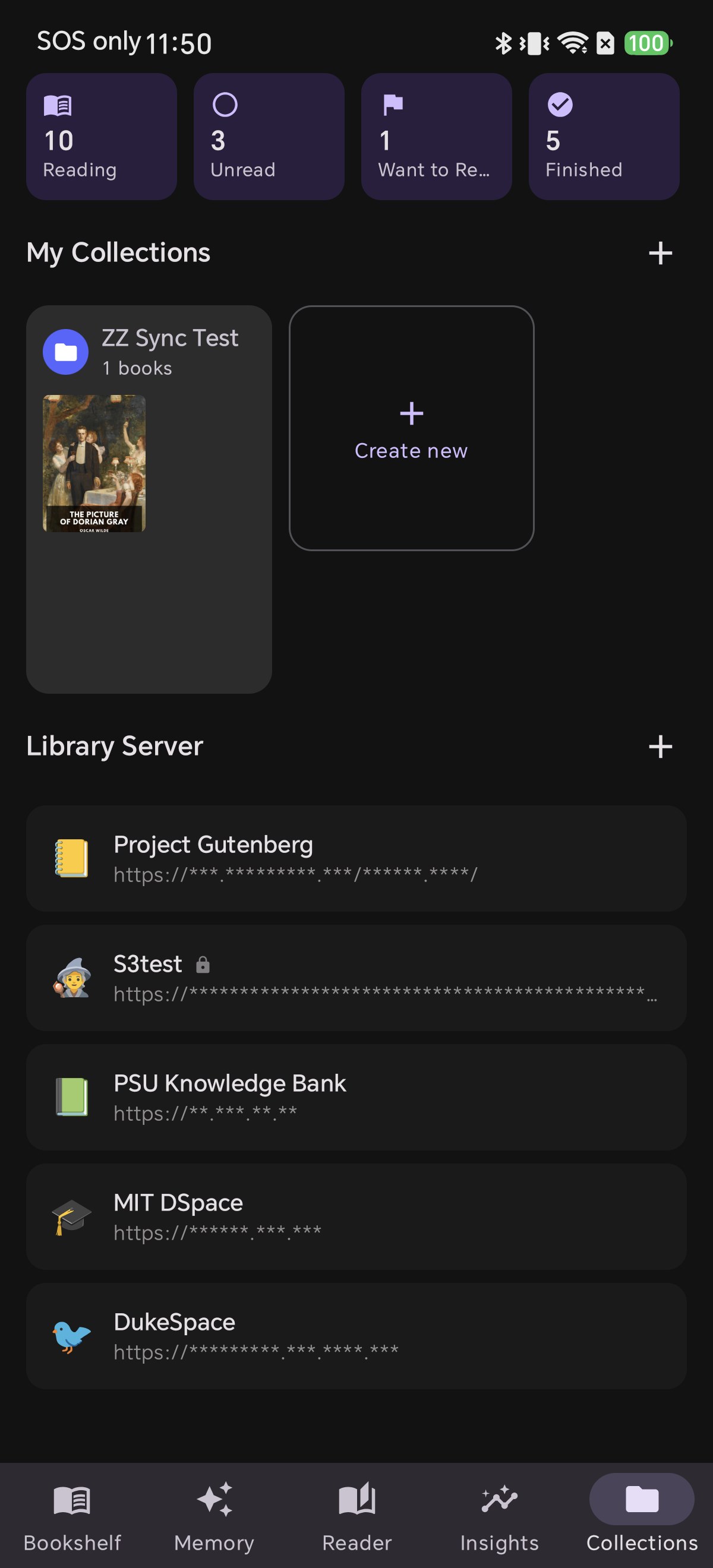
1Open Collections → Library Server

Go to the Collections tab and find the Library Server section. Tap the + button to add a new server. (Any existing servers are listed here with sensitive details safely masked.)

1ไปที่แท็บ Collections → Library Server

เปิดแท็บ Collections (คอลเลกชัน) เลื่อนลงมาที่หัวข้อ Library Server แล้วแตะปุ่ม + เพื่อเพิ่มเซิร์ฟเวอร์ใหม่ (เซิร์ฟเวอร์เดิมที่เคยเพิ่มไว้จะแสดงที่นี่พร้อมปิดบังข้อมูลสำคัญเพื่อความปลอดภัย)

1「コレクション」→「ライブラリサーバー」を開く

Collections(コレクション) タブを開き、Library Server(ライブラリサーバー) セクションを見つけます。+ ボタンをタップして新しいサーバーを追加します。(登録済みのサーバーもここに安全にマスクされて一覧表示されます。)

1进入“藏书” → “书库服务器”

打开 Collections(藏书) 标签页,找到 Library Server(书库服务器) 分组,点击 + 按钮添加新服务器。(已添加的服务器也会在此列出,并妥善隐藏敏感地址信息。)

1Abra Coleções → Servidor de Biblioteca

Acesse a aba Collections (Coleções) e localize a seção Library Server. Toque no botão + para adicionar um novo servidor. (Seus servidores existentes também ficam listados aqui com dados protegidos.)

1Abre Colecciones → Servidor de Biblioteca

Ve a la pestaña Collections (Colecciones) y busca la sección Library Server. Pulsa el botón + para añadir un servidor nuevo. (Tus servidores actuales aparecerán listados con sus datos protegidos.)

The Library Server section in the Collections tab of Shiori with an add button
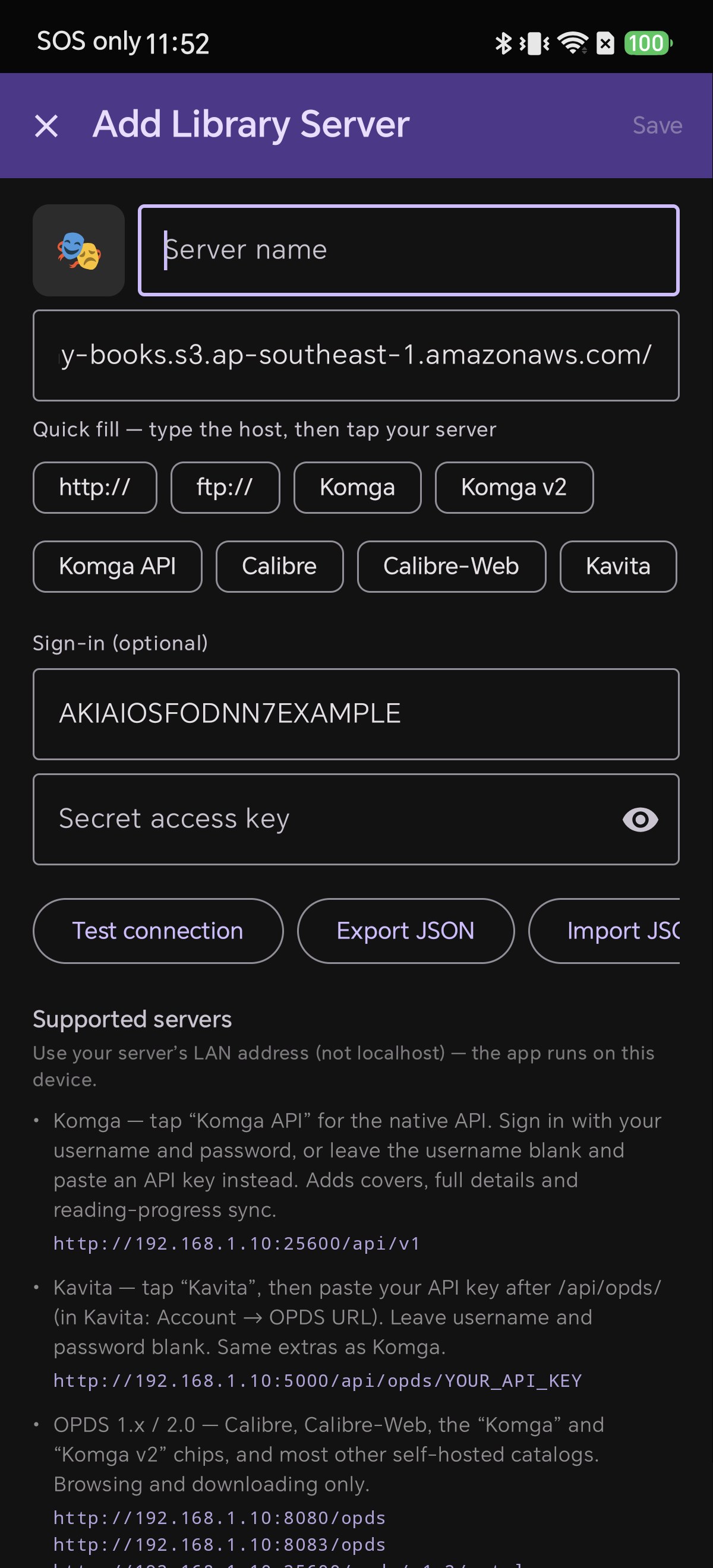
2Enter the Bucket URL and Credentials

Paste your Bucket Address into the Catalog URL field. Put your Access Key in the Username box and your Secret Key in the Password box. Shiori intelligently recognizes S3 URLs — the password label automatically switches to “Secret access key.” For public buckets, simply leave the login fields empty.

2กรอกที่อยู่ Bucket URL และรหัสผ่าน

วาง ที่อยู่ Bucket ลงในช่อง Catalog URL จากนั้นใส่ Access Key ในช่อง Username และใส่ Secret Key ในช่อง Password ระบบของ Shiori จะตรวจจับว่าเป็น S3 อัตโนมัติ โดยช่องรหัสผ่านจะเปลี่ยนป้ายชื่อเป็น “Secret access key” ให้ทันที (หากเป็น Bucket สาธารณะ ไม่ต้องกรอกชื่อผู้ใช้และรหัสผ่าน)

2バケットURLと認証情報を入力

Catalog URL欄に バケットのアドレス を貼り付けます。ユーザー名欄に Access Key、パスワード欄に Secret Key を入力します。ShioriがS3アドレスを自動認識し、パスワード欄の表記が “Secret access key” に変化します。(公開バケットの場合は空欄のままで構いません。)

2输入存储桶 URL 与访问密钥

存储桶地址 粘贴至 Catalog URL 输入框中。在 Username 处填入 Access Key,在 Password 处填入 Secret Key。Shiori 会自动识别 S3 协议,密码栏标签会自动切换为 “Secret access key”。(若为公开存储桶,认证信息留空即可。)

2Insira a URL do Bucket e as Chaves de Acesso

Cole o endereço do bucket no campo Catalog URL. Coloque sua Access Key no campo Username e a Secret Key no campo Password. O Shiori detecta a URL S3 automaticamente — o campo de senha mudará o rótulo para “Secret access key.” Para buckets públicos, deixe os campos de login em branco.

2Introduce la URL del Bucket y tus Claves

Pega la dirección del bucket en el campo Catalog URL. Escribe tu Access Key en Username y tu Secret Key en Password. Shiori reconoce automáticamente la dirección S3 y cambiará el texto del campo a “Secret access key.” Si tu bucket es público, deja los campos de inicio de sesión vacíos.

Adding an S3 bucket URL with access key and secret access key in Shiori
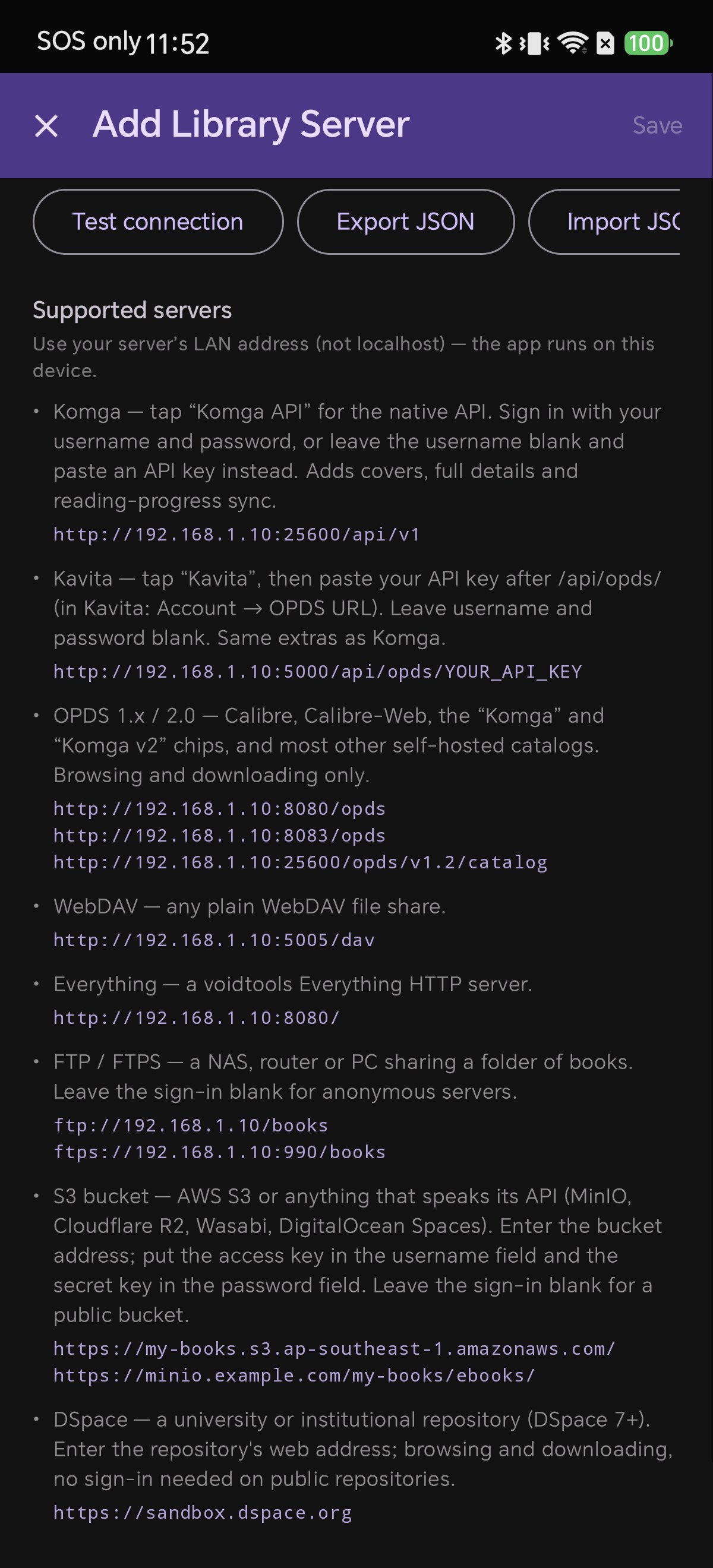
3Works with S3, MinIO, R2 and More

The built-in help guide provides handy examples for popular providers: AWS S3, self-hosted MinIO, Cloudflare R2, Wasabi, and DigitalOcean Spaces. Tap Test connection to confirm everything works, then tap Save.

3รองรับทั้ง AWS, MinIO, R2 และผู้ให้บริการชั้นนำ

หน้าต่างช่วยเหลือมีคำแนะนำและตัวอย่าง URL สำหรับบริการ S3 ทุกค่าย (ทั้ง AWS S3, MinIO, Cloudflare R2, Wasabi, DigitalOcean Spaces) เมื่อกรอกเสร็จแล้ว ให้แตะ Test connection เพื่อทดสอบการเชื่อมต่อ เมื่อขึ้นว่าสำเร็จจึงแตะ Save

3AWS S3、MinIO、R2など多彩なストレージに対応

ヘルプ画面には、AWS S3、自宅のMinIO、Cloudflare R2、Wasabi、DigitalOcean SpacesなどのURL設定例が分かりやすく記載されています。入力後に Test connection をタップして接続を確認し、Save で保存します。

3广泛兼容 AWS S3、MinIO、Cloudflare R2 等主流服务

内置的帮助指南列出了常见服务商的 URL 示例(包括 AWS S3、私有 MinIO、Cloudflare R2、Wasabi 与 DigitalOcean Spaces)。填写完成后点击 Test connection 测试连接,确认无误后点击 Save 保存。

3Compatível com AWS S3, MinIO, R2 e Muito Mais

O guia de ajuda integrado traz exemplos claros para os principais provedores: AWS S3, MinIO próprio, Cloudflare R2, Wasabi e DigitalOcean Spaces. Toque em Test connection para confirmar e depois em Save.

3Compatible con AWS S3, MinIO, R2 y Más

La ayuda integrada incluye ejemplos prácticos para los servicios más populares: AWS S3, MinIO local, Cloudflare R2, Wasabi y DigitalOcean Spaces. Pulsa Test connection para verificar la conexión y luego Save.

Shiori's supported-servers help describing S3 bucket setup and example URLs
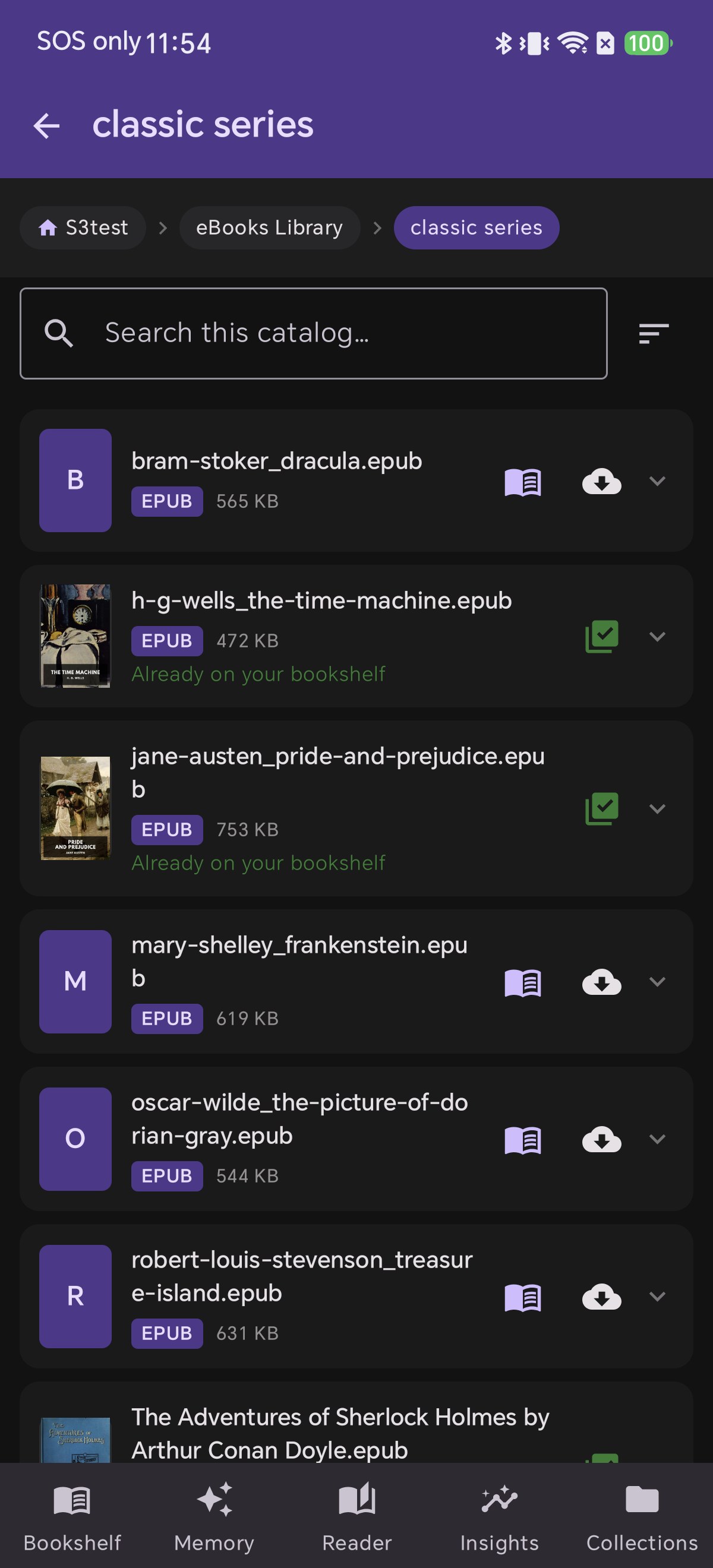
4Browse Folders and Download Your Books

Open the server and your bucket appears as cleanly organized, browsable folders. Tap the Download icon on any title to save it to your bookshelf; books you already have will show “Already on your bookshelf.” You can also search your entire cloud catalog from the top search bar.

💡 Pro Tip
Running MinIO or a home server on your local network? Use your computer's local LAN IP address (such as 192.168.1.x) rather than localhost, since Shiori runs on your mobile device.
4เปิดดูโฟลเดอร์และดาวน์โหลดหนังสือเล่มโปรด

เมื่อเปิดเซิร์ฟเวอร์ขึ้นมา คุณจะเห็นคลังหนังสือเรียงเป็นโฟลเดอร์สะอาดตา แตะไอคอน ดาวน์โหลด เพื่อบันทึกหนังสือเข้าชั้นหนังสือในเครื่องได้ทันที เล่มไหนที่เคยโหลดไว้แล้วระบบจะขึ้นข้อความแจ้งว่า “Already on your bookshelf” และยังมีช่องค้นหาด้านบนให้ค้นหาหนังสือข้ามทั้งคลังได้อย่างรวดเร็ว

💡 เคล็ดลับนักอ่าน
หากคุณรัน MinIO หรือเซิร์ฟเวอร์เองในบ้าน ให้ใช้หมายเลข IP ในวงแลน (เช่น 192.168.1.x) แทนการใช้ localhost เพราะแอปทำงานอยู่บนมือถือของคุณครับ
4フォルダを閲覧して書籍をダウンロード

サーバーを開くと、バケット内の書籍がすっきりとしたフォルダ階層で表示されます。読みたい本の ダウンロード アイコンをタップするだけで、端末の本棚へ直接保存されます。すでに保存済みの書籍には “Already on your bookshelf” と表示され、画面上部からカタログ全体の検索も可能です。

💡 お役立ちメモ
自宅のローカルネットワークでMinIOを運用している場合は、localhost ではなくLAN内のIPアドレス(例:192.168.1.x)を指定してください(アプリはスマホ側で動作するためです)。
4浏览分类目录,一键下载图书

打开服务器后,存储桶内的图书将以结构清晰的文件夹形式呈现。点击任意图书右侧的 下载 图标即可将其保存至本地书架;已下载的图书会贴心标注 “Already on your bookshelf”。顶部还支持全书库快速搜索。

💡 实用小贴士
如果您在局域网内自建了 MinIO 服务,请使用电脑的局域网 IP(如 192.168.1.x)而非 localhost,因为 Shiori 运行在您的手机端。
4Navegue pelas Pastas e Baixe Seus Livros

Ao abrir o servidor, seu bucket é exibido em pastas estruturadas. Toque no ícone de Download em qualquer livro para salvá-lo na sua estante local; títulos já baixados exibirão “Already on your bookshelf.” Você também pode pesquisar títulos no topo do catálogo.

💡 Dica Útil
Executando o MinIO ou outro servidor na sua rede local? Use o endereço IP da rede local (ex: 192.168.1.x) em vez de localhost, pois o app roda no seu smartphone.
4Explora las Carpetas y Descarga tus Libros

Abre el servidor y verás el contenido de tu bucket organizado en cómodas carpetas. Toca el icono de Descarga en cualquier título para guardarlo en tu estantería; los libros ya descargados mostrarán “Already on your bookshelf.” Además, puedes buscar cualquier título desde la barra superior.

💡 Consejo Práctico
¿Utilizas MinIO en tu red local? Usa la dirección IP de tu red local (por ejemplo, 192.168.1.x) en lugar de localhost, ya que Shiori se ejecuta en tu teléfono.
Browsing and downloading EPUB books from an S3 bucket in Shiori

Your Cloud Library, Always in Your Hands

Download Shiori EPUB Reader, connect your S3, MinIO, or Cloudflare R2 bucket, and enjoy your personal cloud collection anywhere.

พกพาคลังหนังสือบนคลาวด์ ไปอ่านได้ทุกที่ทุกเวลา

ดาวน์โหลด Shiori EPUB Reader แล้วเชื่อมต่อกับ Bucket S3, MinIO หรือ Cloudflare R2 ของคุณ เพื่อสัมผัสอิสระในการอ่านจากคลังส่วนตัวบนคลาวด์

クラウドの蔵書を、いつでも手のひらに

Shiori EPUB リーダーをダウンロードして、AWS S3、MinIO、Cloudflare R2バケットを接続し、自分だけのクラウド本棚をお楽しみください。

将云端藏书随身携带,随时随地畅快阅读

立即下载 Shiori EPUB 阅读器,无缝直连您的 S3、MinIO 或 Cloudflare R2 存储桶,尽享私人云端书库的阅读乐趣。

Sua Biblioteca na Nuvem, Sempre com Você

Baixe o Shiori EPUB Reader, conecte seu bucket S3, MinIO ou Cloudflare R2 e aproveite toda a sua coleção na nuvem onde quiser.

Tu Biblioteca en la Nube, Siempre Contigo

Descarga Shiori EPUB Reader, conecta tu bucket S3, MinIO o Cloudflare R2 y disfruta de toda tu colección personal en cualquier lugar.

▶ Get it on Google Play View All Blog Posts