Keep Listening While You Use Other Apps
Shiori's Floating TTS Controls

ฟังหนังสือต่อเนื่องแม้สลับไปใช้แอปอื่น
ปุ่มควบคุม TTS แบบลอย (Floating Controls) ของ Shiori

他のアプリを使いながら音声朗読を継続
ShioriのフローティングTTSコントロール機能

在使用其他应用时持续畅听电子书
Shiori 悬浮窗朗读控制面板全指南

Continue Ouvindo Enquanto Usa Outros Apps
Controles Flutuantes de TTS do Shiori

Sigue Escuchando Mientras Usas Otras Apps
Controles Flotantes de TTS de Shiori

🎧

You are halfway through a chapter with text-to-speech running, and a message arrives. You switch to your messaging app to answer it — and now the narration is somewhere behind you, out of reach. To pause it, skip back a sentence, or check which line is being read, you have to leave what you are doing and return to the reader.

Floating Controls solve that. Once the feature is on, Shiori draws a small card on top of whatever app you are using. The card shows the sentence being spoken with the current word highlighted, and carries full playback buttons — so pausing, skipping, or jumping straight back into the book is one tap away without leaving the app you are in.

🎧
Controls Over Any App
🎙️
Live Karaoke Line
🎯
One-Tap Jump to Position
🎨
Size, Colour & Opacity

What the Floating Card Actually Gives You

The card is not just a play/pause widget. In its default form it contains:

  • A karaoke line — one scrolling line of the text being read, with the current word highlighted so you can follow along without opening the book.
  • Go to position — the leftmost button jumps the reader straight to the exact spot being narrated.
  • Add text replacement — opens the replacement dialog for the passage you are hearing to fix mispronunciations on the fly.
  • Previous / Play-Pause / Next — responsive transport controls sized comfortably for thumb taps.
  • A close button — dismisses the card and stops the narration cleanly.

What You Need

  • Shiori installed on your Android device (tested on v2.3.6)
  • Any book in your library (this walkthrough uses The Picture of Dorian Gray)
  • A working Android text-to-speech engine (the system default is fine)
  • Permission to draw over other apps, requested when you enable the toggle
SettingDefaultWhat it changes
Floating control size×1.0Scales the entire card, buttons and text included
Margin8dpGap between the card and screen boundaries
Padding8dpInternal breathing room inside the card container
Font size13spSize of the live scrolling karaoke line
Background opacity90%Controls how much of the underlying app shows through
Legibility Tip:
Because the floating card sits on top of unpredictable apps (white web pages, colourful chats, dark games), keep opacity around 80%–90% and use high-contrast text and background colors for effortless reading.

ขณะที่คุณกำลังฟังเสียงอ่านสังเคราะห์ (TTS) อย่างเพลิดเพลิน จู่ๆ ก็มีข้อความแจ้งเตือนเข้ามา เมื่อสลับไปแอปแช็ต เสียงอ่านก็ยังคงเล่นอยู่เบื้องหลัง แต่หากต้องการหยุดชั่วคราว ข้ามประโยค หรืออยากรู้ว่าอ่านถึงคำไหน คุณต้องออกจากแช็ตเพื่อสลับกลับมาเปิด Shiori ใหม่ทุกครั้ง

ปุ่มควบคุมแบบลอย (Floating Controls) ช่วยแก้ปัญหานี้ได้อย่างสมบูรณ์แบบ เมื่อเปิดใช้งาน Shiori จะสร้างการ์ดควบคุมขนาดเล็กซ้อนอยู่เหนือทุกแอปที่คุณกำลังใช้งาน แสดงประโยคที่กำลังอ่านพร้อมไฮไลต์คาราโอเกะตามคำ และมีปุ่มควบคุมครบชุด คุณจึงสามารถสั่งหยุด ย้อนประโยค หรือกดแตะครั้งเดียวเพื่อกลับไปยังตำแหน่งที่อ่านในหนังสือได้ทันทีโดยไม่ต้องสลับแอป

🎧
ลอยซ้อนทับเหนือทุกแอป
🎙️
ไฮไลต์คาราโอเกะแบบสด
🎯
แตะครั้งเดียวกลับไปหน้าหนังสือ
🎨
ปรับขนาด สี และความโปร่งแสง

ฟังก์ชันบนการ์ดควบคุมลอยมีอะไรบ้าง

การ์ดควบคุมลอยไม่ได้มีแค่ปุ่มเล่น/หยุด แต่รวบรวมฟังก์ชันระดับมืออาชีพไว้อย่างครบถ้วน:

  • แถบข้อความคาราโอเกะ: แสดงข้อความที่กำลังอ่าน 1 บรรทัด พร้อมไฮไลต์คำที่กำลังเปล่งเสียงแบบเรียลไทม์ ช่วยให้อ่านตามได้โดยไม่ต้องเปิดหน้าหนังสือ
  • ปุ่มกระโดดไปยังตำแหน่งอ่าน: แตะปุ่มซ้ายสุดเพื่อสลับกลับไปยังหน้าหนังสือตรงจุดที่กำลังอ่านอยู่ทันที
  • ปุ่มเพิ่มกฎแทนที่คำ (Text Replacement): กดเพื่อเปิดหน้าต่างแก้ไขคำอ่านที่ไม่ถูกต้องได้ทันทีขณะฟัง
  • ปุ่มย้อนกลับ / เล่น-หยุด / ข้ามประโยค: ปุ่มควบคุมการเล่นขนาดพอดีกับนิ้วหัวแม่มือ
  • ปุ่มปิด (×): ปิดแผงควบคุมลอยและหยุดการอ่านทันที

สิ่งที่คุณต้องเตรียม

  • แอป Shiori ติดตั้งบนอุปกรณ์ Android ของคุณ (ทดสอบบนเวอร์ชัน 2.3.6)
  • หนังสือในคลังเล่มใดก็ได้ (ตัวอย่างนี้ใช้ The Picture of Dorian Gray)
  • เอนจินเสียงสังเคราะห์ Android TTS ที่พร้อมใช้งาน (ใช้เสียงมาตรฐานของเครื่องได้ทันที)
  • สิทธิ์การแสดงทับแอปอื่น (Display over other apps) ซึ่งระบบจะขออนุญาตเมื่อคุณเปิดสวิตช์
การตั้งค่าค่าเริ่มต้นผลลัพธ์ที่เปลี่ยนแปลง
Floating control size×1.0ปรับย่อ/ขยายขนาดของการ์ดควบคุมและปุ่มทั้งหมด
Margin8dpระยะห่างระหว่างตัวการ์ดกับขอบหน้าจอ
Padding8dpระยะช่องว่างภายในรอบตัวอักษรและปุ่ม
Font size13spขนาดตัวอักษรของแถบข้อความคาราโอเกะ
Background opacity90%ระดับความโปร่งแสงของการ์ดควบคุมลอย
คำแนะนำด้านความคมชัด:
เนื่องจากการ์ดจะลอยทับแอปต่างๆ ที่มีพื้นหลังหลากหลาย แนะนำให้ตั้งค่าความทึบแสง (Opacity) ไว้ที่ 80%–90% และเลือกสีข้อความที่ตัดกับสีพื้นหลังของการ์ดอย่างชัดเจน

音声読み上げ(TTS)で章の途切れない朗読を楽しんでいる最中に、SNSやメッセージが届くことがあります。返信のために別アプリを開くと、音声は背後で流れるものの、一時停止や巻き戻しをするには再びリーダー画面に戻らなければなりません。

Shioriの「フローティングコントロール」がこの課題を解決します。 この機能をオンにすると、他のアプリ画面の上に小型の操作カードがオーバーレイ表示されます。現在読み上げられている文と単語がリアルタイムにハイライトされ、再生・スキップ・書籍へのジャンプボタンが指一本で操作できます。

🎧
他アプリ上で常時操作
🎙️
カラオケ歌詞表示
🎯
書籍位置へ1タップ復帰
🎨
サイズ・配色・透明度調整

フローティングカードの主な機能

  • カラオケティッカー: 読書中の1行をスクロール表示し、発声中の単語を別色でハイライト。本を開かずに内容を追跡可能。
  • 位置へジャンプ: 左端のアイコンをタップすると、Shioriリーダーの該当箇所を即座に開きます。
  • 読み上げ単語置換: 誤読を見つけた際、その場ですぐに置換ルールダイアログを呼び出せます。
  • 前へ / 再生・一時停止 / 次へ: 親指で押しやすいトランスポートボタン。
  • 閉じるボタン(×): カードを非表示にし、音声朗読を終了します。

必要な準備

  • Android端末にインストールされたShiori(バージョン2.3.6で検証)
  • ライブラリ内の任意の電子書籍(例:ドリアン・グレイの肖像)
  • 動作するAndroid TTSエンジン(OS標準で問題ありません)
  • 「他のアプリの上に重ねて表示」の権限許可
設定項目初期値変更される内容
Floating control size×1.0カード全体およびボタンの倍率スケール
Margin8dp画面端とカードとの外側マージン
Padding8dpカード内側の余白スペース
Font size13spカラオケ表示テキストのフォントサイズ
Background opacity90%背後のアプリをどの程度透かすかの不透明度
視認性向上のコツ:
背景不透明度を80%〜90%に設定し、暗めのカード色に明るい文字色を選ぶと、白基調のブラウザやカラフルなアプリの上でも常にくっきり文字が読めます。

在后台使用 TTS 听书时,常常需要切换到即时通讯软件回复消息。然而此时音频在后台播放,一旦需要暂停、倒回某一句或确认生词,就必须退出当前应用重新打开阅读器,十分繁琐。

Shiori 的“悬浮窗朗读控制面板”完美解决了这一痛点。 开启该功能后,Shiori 会在任意应用界面上悬浮显示一个精致的控制卡片。卡片不仅实时同步当前正在朗读的句子并精准高亮单词,更集成完整的播放控制器,无需离开当前软件即可随时暂停、跳段或一键返回书中当前位置。

🎧
悬浮于任意应用之上
🎙️
单行卡拉OK同步滚动
🎯
一键直达图书当前页
🎨
尺寸透明度全自由定制

悬浮控制卡片的核心功能

  • 卡拉OK歌词滚动条: 仅显示单行动态滚动文本,并以醒目颜色点亮当前发音词,边用手机边跟读。
  • 跳转至当前位置: 点击最左侧定位图标,即可快速唤醒 Shiori 并直接跳转至正在朗读的书页。
  • 快捷添加词汇替换: 遇到专有名词发音错误时,直接在此打开替换规则弹窗,无需中断后续听书。
  • 上一句 / 播放暂停 / 下一句: 专为大拇指触控优化的大尺寸播控键。
  • 关闭按键(×): 移除悬浮卡片并同步停止朗读播放。

准备工作

  • 已安装 Shiori 电子书阅读器的 Android 设备(推荐 v2.3.6 或更高版本)
  • 书架中的任意电子书(本指南演示采用《道林·格雷的画像》)
  • 可正常发音的系统 TTS 引擎
  • “在其他应用上层显示”的系统悬浮窗权限(开启开关时会自动引导授权)
设置项默认值控制效果
Floating control size×1.0等比缩放整个卡片与按钮尺寸
Margin8dp卡片与屏幕边界的外边距
Padding8dp卡片内部元素内边距
Font size13sp单行滚动歌词的字号大小
Background opacity90%卡片背景透明度,决定底层应用的透出程度
实用排版建议:
由于悬浮窗常用于微信、浏览器等复杂背景之上,建议将透明度设为 80%–90%,并采用深色背景搭配高亮浅色文字以确保全天候清晰易读。

Você está ouvindo um capítulo por TTS e recebe uma mensagem importante. Ao alternar para o app de mensagens, a narração continua tocando ao fundo, mas para pausar, retroceder uma frase ou conferir o texto, você precisava voltar ao leitor.

Os Controles Flutuantes do Shiori resolvem isso. Ao ativar o recurso, o Shiori desenha um pequeno cartão flutuante sobre qualquer aplicativo. O cartão exibe a frase falada com a palavra atual destacada em estilo karaokê e traz botões completos de reprodução.

🎧
Controles Sobre Qualquer App
🎙️
Linha de Karaokê ao Vivo
🎯
Salto Direto para a Posição
🎨
Tamanho, Cores e Opacidade

O Que o Cartão Flutuante Oferece

  • Linha de karaokê: Uma linha de texto rolável com a palavra em reprodução destacada para acompanhar a leitura sem abrir o livro.
  • Ir para a posição: O botão à esquerda leva o leitor diretamente para o trecho narrado.
  • Adicionar substituição de texto: Abre o diálogo para corrigir pronúncias incorretas sem interromper o fluxo.
  • Anterior / Reproduzir-Pausar / Próximo: Botões de controle dimensionados confortavelmente.
  • Botão de fechar (×): Fecha o cartão e interrompe a narração.

O Que Você Precisa

  • Shiori instalado no Android (testado na versão 2.3.6)
  • Qualquer livro na sua biblioteca (ex: O Retrato de Dorian Gray)
  • Mecanismo de TTS configurado no Android
  • Permissão para sobrepor a outros apps
ConfiguraçãoPadrãoO Que Altera
Floating control size×1.0Escala o cartão inteiro e os botões
Margin8dpDistância entre o cartão e a borda da tela
Padding8dpEspaço interno do cartão
Font size13spTamanho do texto na linha de karaokê
Background opacity90%Opacidade do fundo do cartão flutuante
Dica de Legibilidade:
Mantenha a opacidade entre 80% e 90% com fundo escuro e texto claro para garantir ótima leitura sobre qualquer aplicativo.

Estás escuchando la lectura en voz alta (TTS) de un capítulo y recibes un mensaje. Cambias de app para responder y la voz sigue en segundo plano, pero para pausar o comprobar el texto debías volver a abrir el lector.

Los Controles Flotantes de Shiori solucionan esto. Al activarlos, Shiori muestra una tarjeta flotante sobre cualquier aplicación que estés usando, mostrando la frase leída con la palabra resaltada en tiempo real y controles de reproducción completos.

🎧
Controles Sobre Cualquier App
🎙️
Línea de Karaoke en Vivo
🎯
Salto Directo a la Lectura
🎨
Tamaño, Colores y Opacidad

Qué Incluye la Tarjeta Flotante

  • Línea de karaoke: Texto deslizante con la palabra leída resaltada para seguir la narración sin abrir el libro.
  • Ir a la posición: El botón izquierdo abre el lector exactamente en la línea narrada.
  • Añadir sustitución de texto: Corrige palabras mal pronunciadas al instante desde la tarjeta.
  • Anterior / Reproducir-Pausar / Siguiente: Botones táctiles cómodos para el pulgar.
  • Botón cerrar (×): Cierra la tarjeta flotante y detiene la narración.

Requisitos Previos

  • Shiori instalado en tu dispositivo Android (probado en v2.3.6)
  • Cualquier libro en tu estantería (ej: El Retrato de Dorian Gray)
  • Motor de síntesis de voz (TTS) de Android en funcionamiento
  • Permiso de superposición sobre otras aplicaciones
AjustePredeterminadoQué Modifica
Floating control size×1.0Escala la tarjeta completa y sus botones
Margin8dpEspacio entre la tarjeta y los bordes de pantalla
Padding8dpMargen interno dentro de la tarjeta
Font size13spTamaño de la fuente de la línea de karaoke
Background opacity90%Transparencia del fondo de la tarjeta
Consejo de Visibilidad:
Mantén la opacidad entre el 80% y el 90% con fondo oscuro y letras claras para leer con comodidad sobre cualquier pantalla.
Step-by-Step: Setting Up and Using Floating Controls (8 Steps)

ขั้นตอนการตั้งค่าและใช้งานปุ่มควบคุมแบบลอย (8 ขั้นตอน)

フローティングコントロールの設定と使い方(8つのステップ)

设置与使用悬浮窗朗读控制面板(8 个实操步骤)

Passo a Passo: Como Configurar os Controles Flutuantes (8 Passos)

Paso a Paso: Configurar y Usar Controles Flotantes (8 Pasos)

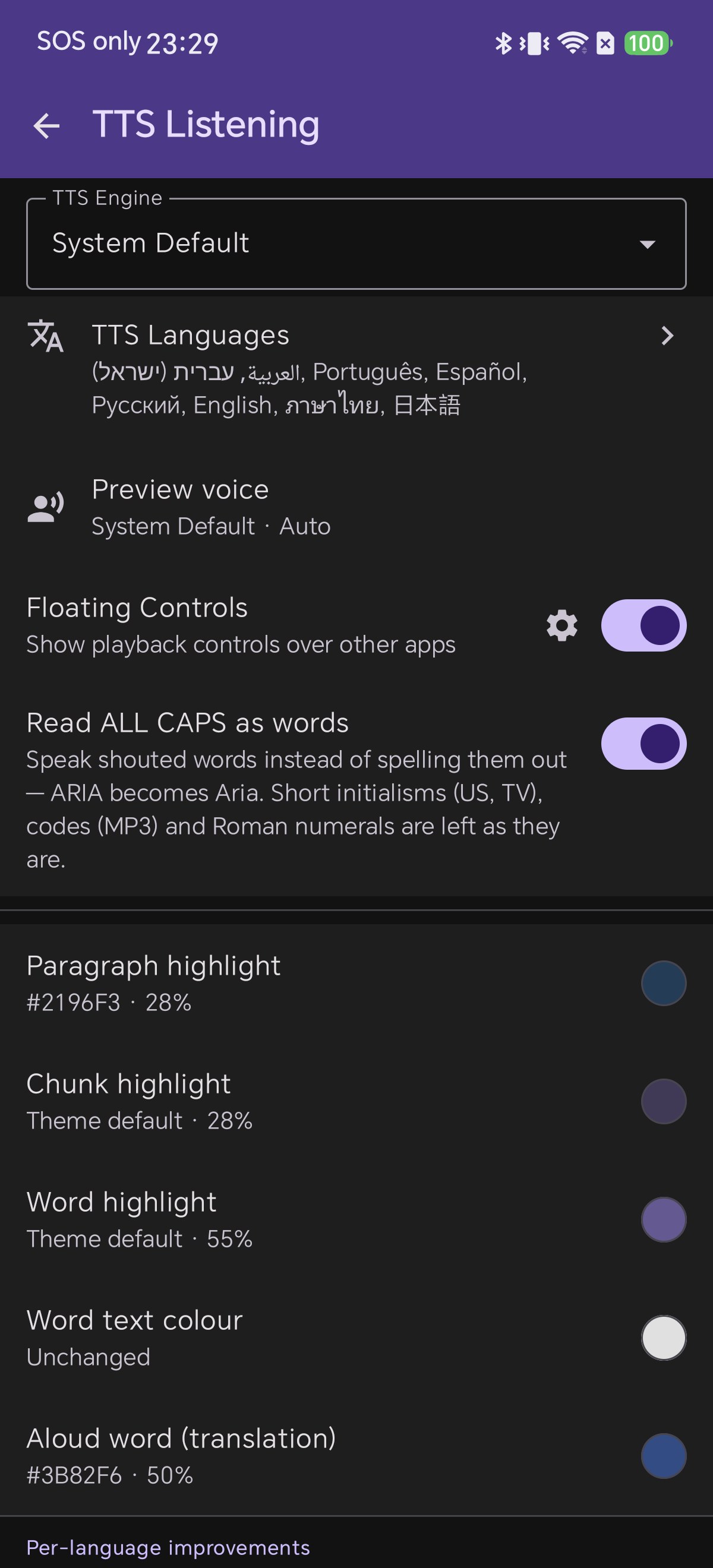
1Turn on Floating Controls

From the bookshelf, tap the Settings gear in the top toolbar, open TTS Listening, and find the row labelled Floating Controls — "Show playback controls over other apps".

The row has two parts: the toggle switch on the right turns the feature on, and the gear icon opens full appearance settings.

1เปิดใช้งาน Floating Controls

จากหน้าชั้นหนังสือ ให้แตะไอคอนฟันเฟือง Settings ที่แถบเครื่องมือด้านบน เลือกเมนู TTS Listening แล้วมองหาแถว Floating Controls ("Show playback controls over other apps")

แถวนี้จะมีสวิตช์เปิด/ปิดทางขวา และมีไอคอนฟันเฟืองเล็กๆ ด้านข้างสำหรับเข้าไปปรับแต่งรูปลักษณ์โดยละเอียด

1フローティングコントロールを有効化

本棚画面上部の歯車アイコン Settings をタップし、TTS Listening を開きます。Floating Controls(他アプリ上に再生コントロールを表示)の項目を見つけます。

右側のスイッチで機能をオンにし、隣の小さな歯車アイコンで外観設定画面を開くことができます。

1开启悬浮窗控制器开关

在书架主界面点击顶部工具栏的 Settings 设置齿轮,进入 TTS Listening,找到 Floating Controls(在其他应用上显示播控卡片)。

点击右侧开关即可开启功能,旁边的齿轮按钮可进入专属外观与参数配置页面。

1Ative os Controles Flutuantes

Na estante, toque na engrenagem de Settings, abra TTS Listening e localize a opção Floating Controls.

O interruptor à direita ativa a função e o ícone de engrenagem ao lado abre as preferências visuais.

1Activa los Controles Flotantes

En la estantería, toca la rueda de Settings, abre TTS Listening y localiza la fila Floating Controls.

El interruptor de la derecha activa la función y el icono de engranaje abre las opciones de apariencia.

Shiori's TTS Listening settings screen with the Floating Controls row switched on, showing its Show playback controls over other apps subtitle and the gear that opens the appearance page
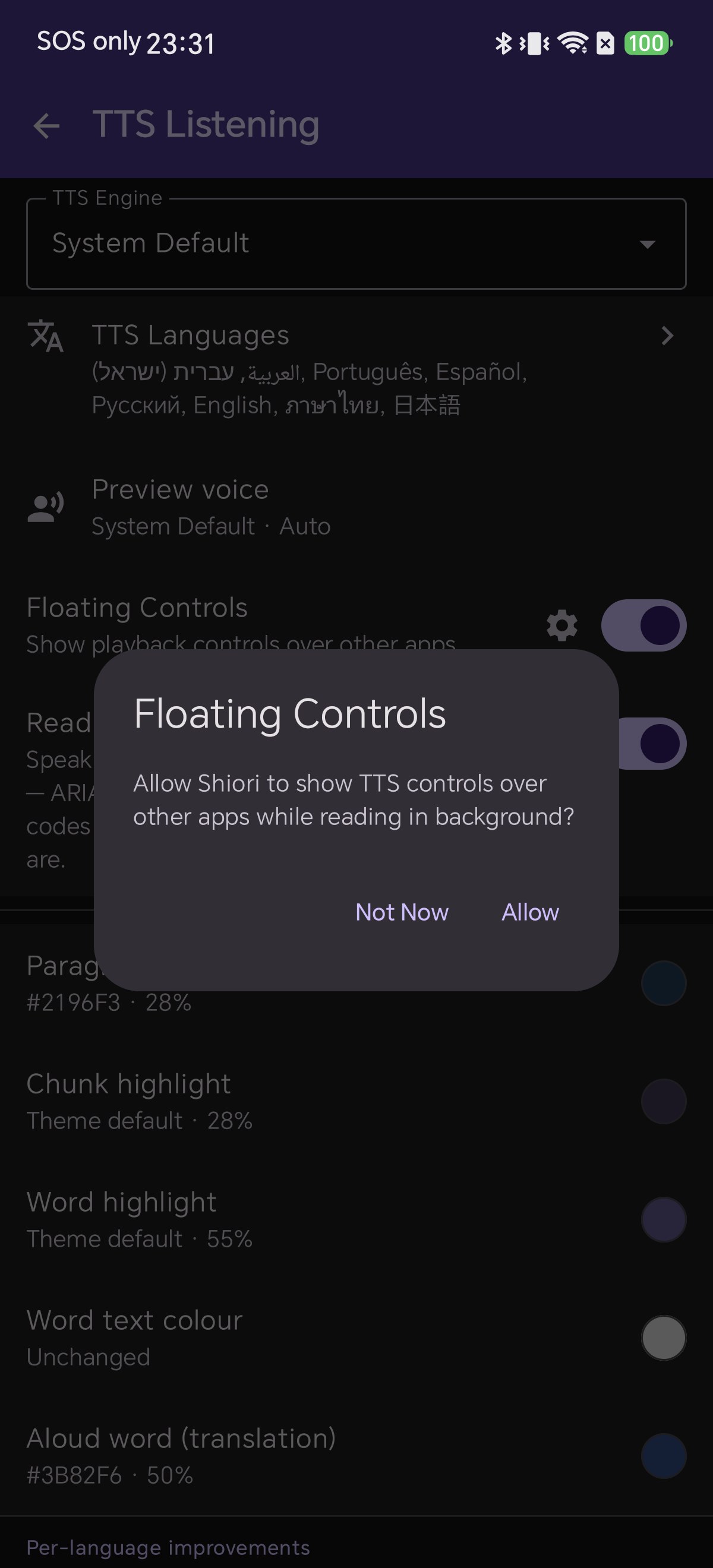
2Allow Shiori to Draw Over Other Apps

The moment you flip the switch, Shiori asks whether it may show TTS controls over other apps while reading in the background. Tap Allow.

This is Android's overlay permission: without it the operating system will not let any app paint on top of another. Choosing Not Now keeps TTS playback working, but without the floating card.

2อนุญาตสิทธิ์แสดงทับแอปอื่น

ทันทีที่คุณเปิดสวิตช์ ระบบจะแสดงกล่องข้อความขอสิทธิ์แสดงปุ่มควบคุมซ้อนทับแอปอื่น ให้แตะ Allow

นี่คือสิทธิ์ Overlay ของ Android ซึ่งจำเป็นต้องเปิดใช้งานเพื่อให้การ์ดลอยขึ้นมาได้ หากเลือก Not Now การฟังเสียง TTS ยังทำงานปกติเพียงแต่จะไม่มีการ์ดลอยแสดง

2他アプリへの重ねて表示を許可

スイッチをオンにすると、バックグラウンド読書時に他アプリ上へ表示する許可ダイアログが表示されます。Allow をタップしてください。

これはAndroidのオーバーレイ権限であり、許可しないとカードが表示されません。「Not Now」を選んだ場合でも通常のTTS再生は継続します。

2授予 Android 系统悬浮窗权限

打开开关后,Shiori 将弹出系统授权提示,询问是否允许在其他应用上层显示控制器,点击 Allow 授权。

这是 Android 系统的悬浮窗权限要求,若选择 Not Now,后台听书功能仍旧正常工作,但不会显示悬浮卡片。

2Permita a Sobreposição a Outros Apps

Ao ativar o recurso, o Shiori solicitará a permissão de sobreposição. Toque em Allow.

Sem essa permissão do Android o cartão não poderá aparecer sobre outros aplicativos.

2Concede el Permiso de Superposición

Al activar la casilla, Shiori solicitará permiso para mostrarse sobre otras apps. Pulsa Allow.

Este permiso del sistema es imprescindible para que la tarjeta flotante pueda dibujarse en pantalla.

The Floating Controls permission dialog asking to allow Shiori to show TTS controls over other apps while reading in background, with Not Now and Allow buttons
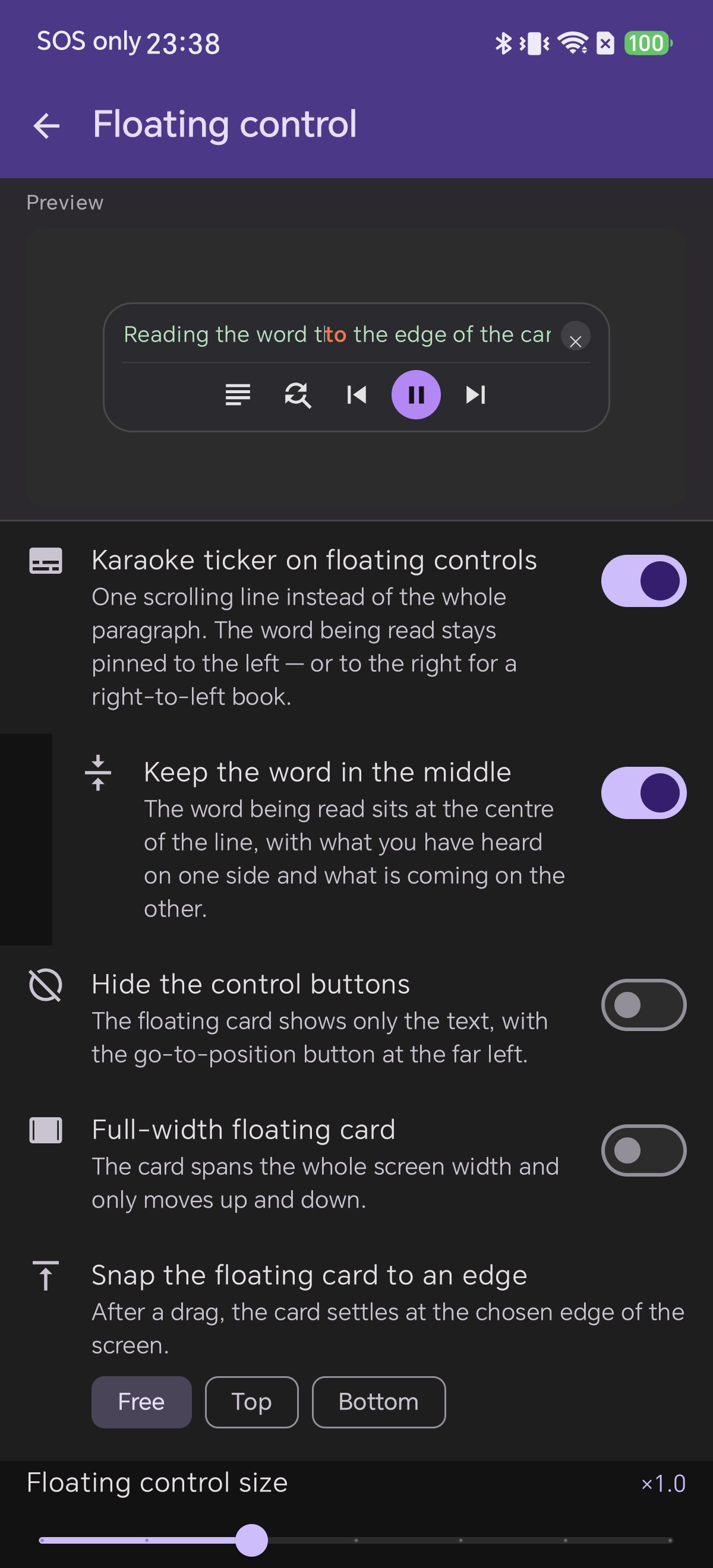
3Shape the Card on the Floating Control Page

Tap the gear next to the switch to open the Floating control page. A live Preview card at the top updates in real time with every adjustment.

Configure switches: Karaoke ticker (single scrolling line), Keep the word in the middle, Hide the control buttons (text-only card), Full-width floating card, and Snap to an edge (Free, Top, or Bottom).

3ปรับแต่งรูปแบบของการ์ดควบคุมลอย

แตะไอคอนฟันเฟืองเพื่อเปิดหน้า Floating control ด้านบนสุดจะมีหน้าต่าง Preview แสดงตัวอย่างแบบสดที่เปลี่ยนตามการตั้งค่าทันที

เลือกปรับตัวเลือกสำคัญ: Karaoke ticker (แสดงข้อความวิ่ง 1 บรรทัด), Keep the word in the middle (ตรึงคำอ่านไว้กึ่งกลาง), Hide the control buttons (ซ่อนปุ่มเหลือเฉพาะข้อความ), Full-width (ขยายเต็มความกว้างจอ) และการดูดติดขอบ (Snap to Top/Bottom)

3カードの形状と動作をカスタマイズ

歯車アイコンをタップすると設定画面が開き、上部の Preview で変更結果をリアルタイムに確認できます。

Karaoke ticker(1行スクロール表示)、Keep the word in the middle(発声単語を中央固定)、Hide the control buttons(ボタンを隠して文字のみ)、Full-width(画面全幅バー)、および画面端スナップ(Free / Top / Bottom)を設定できます。

3定制悬浮窗展示形态与吸附模式

点击齿轮进入 Floating control 设置页,顶部配有实时 Preview 预览卡片,任何改动所见即所得。

可自由配置:Karaoke ticker(单行滚动条)、Keep the word in the middle(当前朗读词居中)、Hide the control buttons(极简纯文字卡片)、Full-width(全屏宽横条)以及屏幕边缘智能吸附(Free 自由/Top 顶部/Bottom 底部)。

3Personalize a Forma do Cartão

Toque na engrenagem para abrir as opções de Floating control com pré-visualização em tempo real.

Ative a linha de karaokê, centralize a palavra narrada, oculte botões para exibir apenas texto ou fixe nas bordas superior/inferior da tela.

3Personaliza la Forma de la Tarjeta

Toca el engranaje para abrir la pantalla de Floating control con vista previa interactiva en vivo.

Elige modo karaoke, fija la palabra en el centro, oculta los botones para un diseño minimalista o activa el anclaje magnético a los bordes.

The Floating control settings page in Shiori showing the live preview card and the switches for karaoke ticker, keep the word in the middle, hide the control buttons, full-width card, and the Free Top Bottom snap options
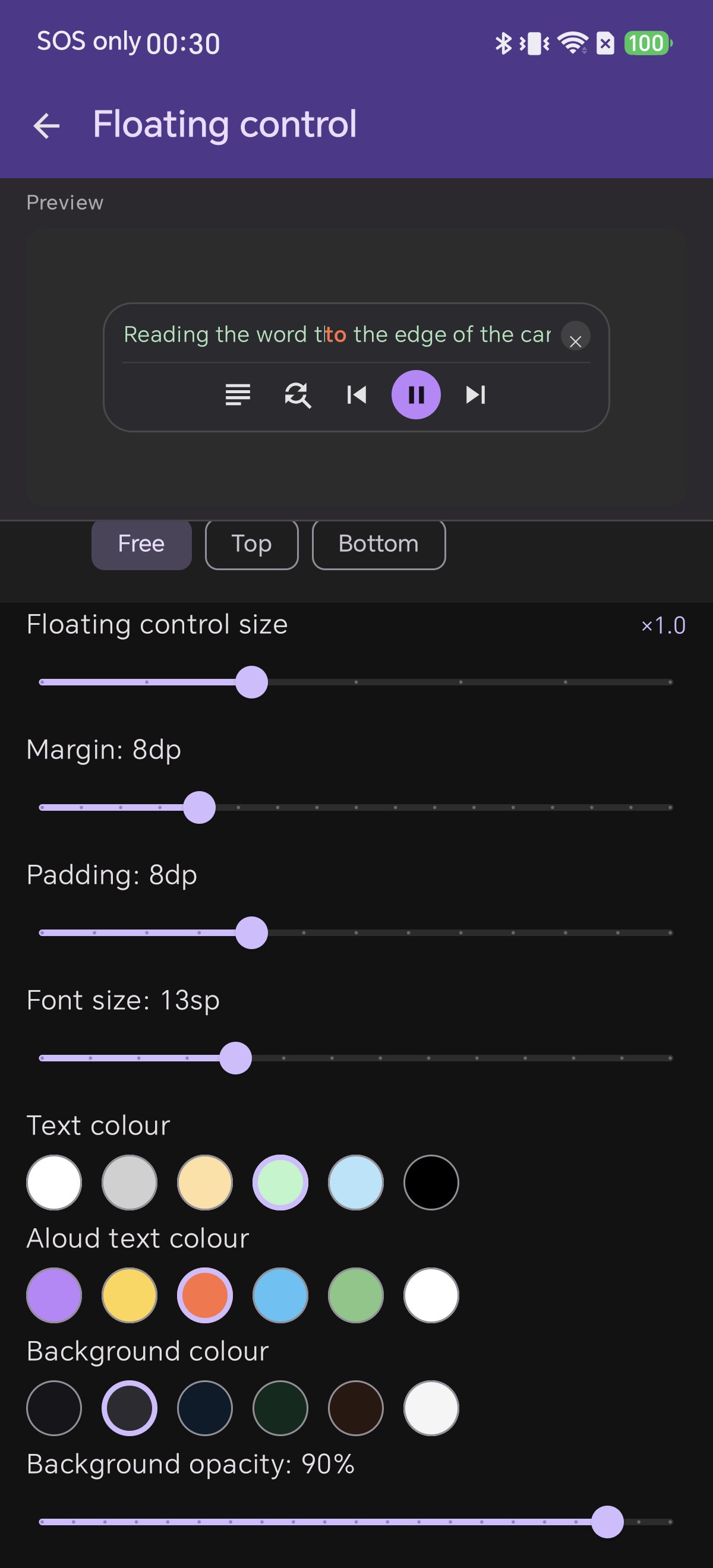
4Set the Size, Spacing and Colours

Scroll down for appearance sliders: Floating control size, Margin and Padding, Font size, and Background opacity.

Below them are palettes for Text colour, Aloud text colour (the active word), and Background colour. To keep the card subtle, reduce opacity rather than shrinking it.

4กำหนดขนาด ระยะห่าง และชุดสี

เลื่อนลงมาด้านล่างเพื่อปรับแถบเลื่อน: ขนาดการ์ดควบคุม (Size), ระยะขอบ (Margin), ช่องว่างด้านใน (Padding), ขนาดฟอนต์ (Font size) และความทึบแสง (Background opacity)

ด้านล่างมีจานสีให้เลือก: สีข้อความทั่วไป, สีข้อความที่กำลังอ่านออกเสียง (Aloud text colour) และสีพื้นหลังของการ์ด

4サイズ・余白・カラーを設定

画面下部のスライダーで、カードサイズ倍率、マージン、パディング、文字サイズ、背景不透明度を細かく調整できます。

さらに「通常テキスト色」「朗読中の文字色(Aloud text colour)」「カード背景色」の3つのカラーパレットから好みの配色を指定可能です。

4微调尺寸、内外边距与色彩配色

滑动至页面下方调节滑块参数:卡片尺寸比例、外部边距、内部留白、歌词字号大小以及背景不透明度。

下方提供三组调色板:常规文字颜色、当前朗读单词强调色(Aloud text colour)以及悬浮卡片背景色。

4Ajuste Tamanho, Espaçamento e Cores

Ajuste os controles deslizantes de tamanho, margem, espaçamento interno, tamanho da fonte e opacidade.

Escolha paletas para o texto comum, palavra destacada e fundo do cartão.

4Ajusta Tamaño, Espaciado y Colores

Configura los controles de escala, margen, relleno interno, tamaño de tipografía y opacidad.

Personaliza las paletas de color para el texto base, la palabra en locución y el fondo de la tarjeta.

The lower half of the Floating control page showing the size, margin, padding and font size sliders, the text, aloud text and background colour palettes, and the background opacity slider
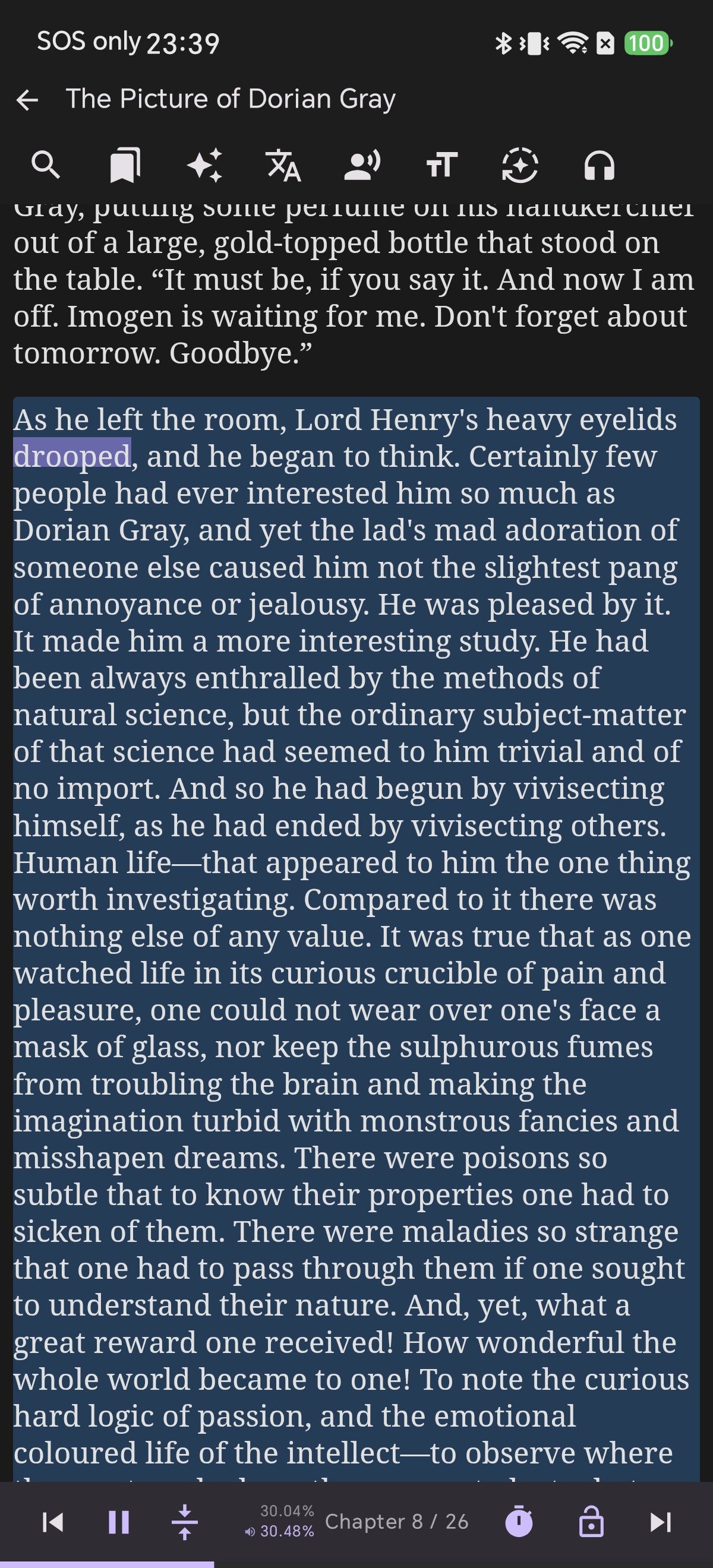
5Start Listening in the Reader

Nothing floats until playback is running. Open any book in your library and tap the Play button on the reader's bottom control bar.

While Shiori is open, you get the full in-app experience: paragraph highlighting, word tracking, and the bottom chapter progress bar.

5เริ่มเปิดฟังเสียงอ่านในหนังสือ

การ์ดควบคุมลอยจะเริ่มทำงานเมื่อมีการเล่นเสียงอ่านเท่านั้น ให้เปิดหนังสือเล่มที่ต้องการแล้วแตะปุ่ม Play ที่แถบควบคุมด้านล่าง

ขณะอยู่ในแอป Shiori คุณจะเห็นการไฮไลต์ทั้งย่อหน้าและคำที่กำลังอ่าน พร้อมแถบความคืบหน้าของบท

5リーダーで朗読を開始

再生が始まると同時にフローティング機能がスタンバイします。本を開き、下部バーの Play ボタンをタップして朗読を開始します。

Shioriの画面上では、段落と単語のハイライト、章の進捗バーが表示されます。

5在图书阅读界面开启 TTS 朗读

只有当处于朗读播放状态时悬浮窗才会激活。打开任意图书,点击底部控制栏的 Play 播放按钮。

在 Shiori 界面内,当前段落与词汇同步呈现完整的卡拉OK高亮状态。

5Inicie a Reprodução no Leitor

O cartão flutuante só aparece enquanto a leitura estiver tocando. Abra um livro e toque no botão Play na barra inferior.

No leitor, o parágrafo e a palavra atual ficam destacados com barra de progresso do capítulo.

5Inicia la Lectura en el Lector

La tarjeta flotante solo se activa durante la reproducción. Abre cualquier libro y pulsa Play en la barra inferior.

Dentro de la app disfrutarás del resaltado bimodal por párrafos y palabras con barra de avance.

The Picture of Dorian Gray open in Shiori with text-to-speech playing, the active paragraph highlighted and the current word marked, and the playback bar at the bottom of the screen
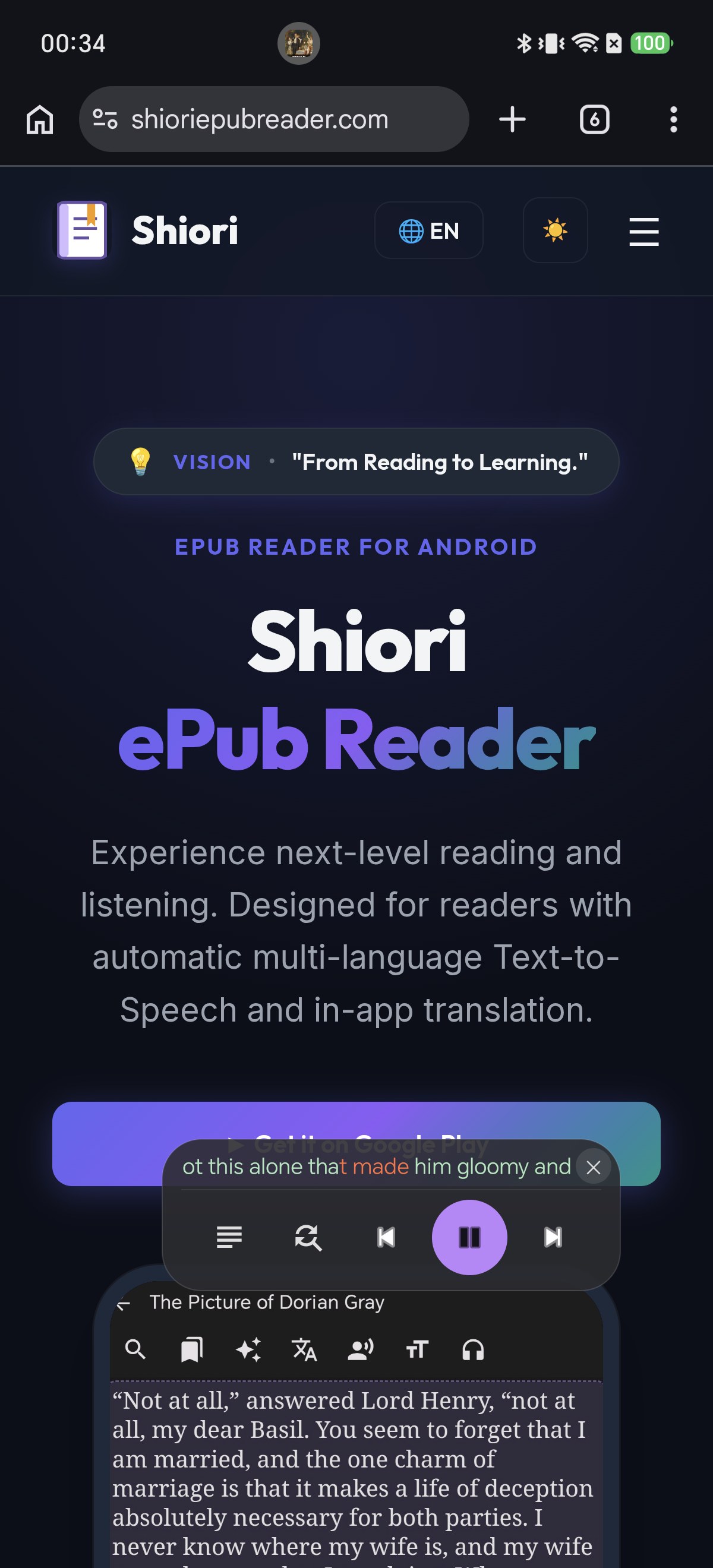
6Leave the App — the Card Follows You

Switch to another app or return to the home screen. The floating card immediately appears on top of it, tracking narration word by word.

Drag the card anywhere by its body. If you lose track of it, double-tap the card and it instantly snaps back to the center of your screen.

6สลับไปแอปอื่น — แผงควบคุมจะลอยตามไป

เมื่อสลับไปแอปอื่นหรือกลับสู่หน้าจอโฮม การ์ดควบคุมจะลอยขึ้นมาซ้อนทับหน้าจอทันที พร้อมแสดงข้อความวิ่งตามเสียงอ่านคำต่อคำ

คุณสามารถใช้นิ้วลากการ์ดไปวางจุดใดก็ได้บนจอ และหากการ์ดหลุดไปติดมุมจอ เพียง แตะสองครั้งติดกัน (Double-tap) การ์ดจะเด้งกลับมาอยู่ตรงกลางหน้าจอทันที

6他アプリへ移動 — カードが追従して表示

ホーム画面や他のアプリに切り替えると、画面上にフローティングカードが浮き上がり、単語単位で朗読を追跡し続けます。

カードは自由にドラッグして移動可能。位置を見失った時はカードを ダブルタップ すると即座に画面中央へ戻ります。

6切换至其他应用 — 悬浮卡片无缝跟随

切出至手机桌面或聊天、浏览器等应用,悬浮卡片立刻常驻在上层,逐词同步跟进朗读进度。

手指按住卡片主体即可随意拖拽位置。若拖动至不便点击的边缘,只需 双击卡片 即可立刻平滑归位至屏幕正中央。

6Mude de App — o Cartão Acompanha Você

Alterne para outro app. O cartão flutuante aparece sobre ele acompanhando a narração palavra por palavra.

Arraste para onde quiser. Se precisar reposicionar rapidamente, dê um toque duplo para trazê-lo de volta ao centro.

6Sal de la App — la Tarjeta te Acompaña

Cambia a otra aplicación. La tarjeta flotante aparecerá encima sincronizando la narración palabra por palabra.

Arrastra la tarjeta libremente. Si queda en un lugar incómodo, haz doble toque sobre ella para centrarla al instante.

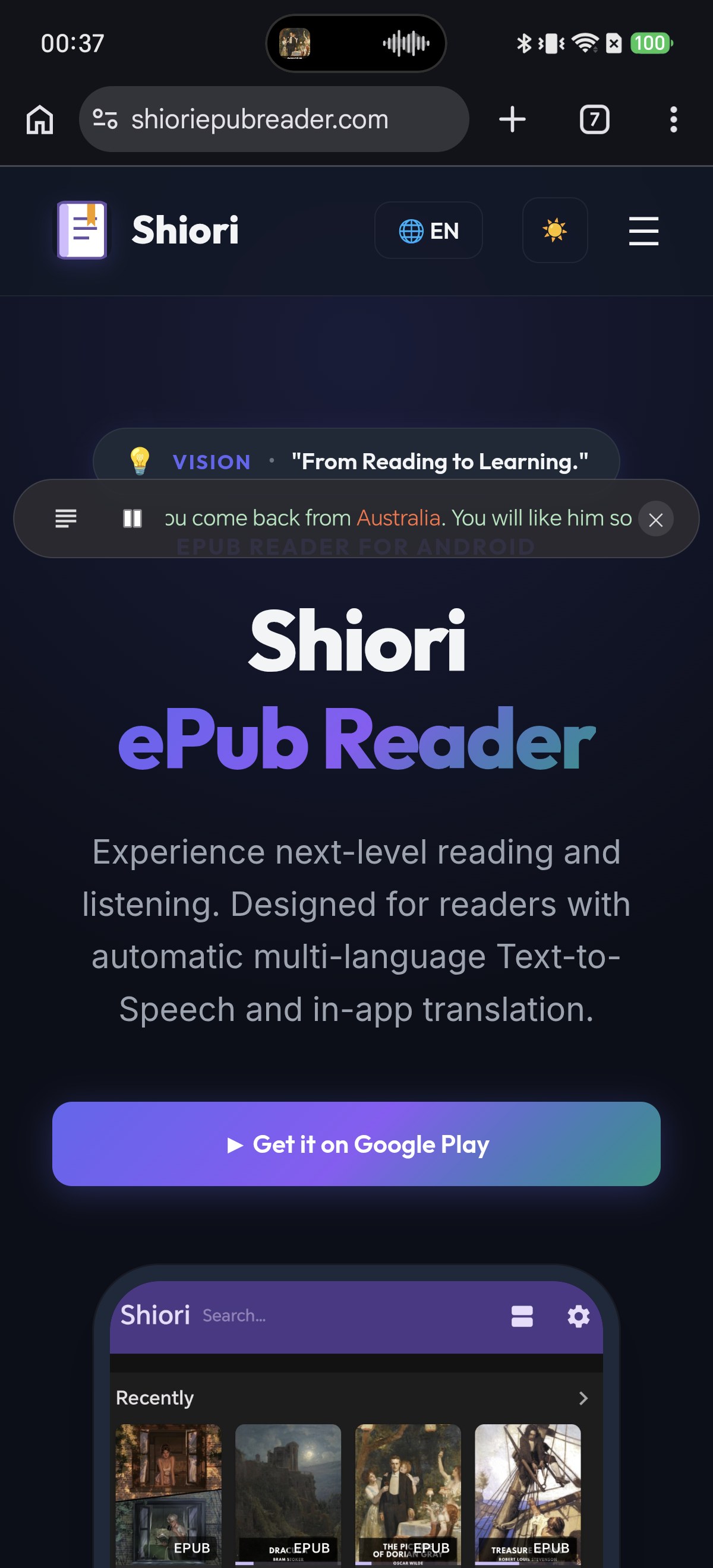
The Shiori floating control card sitting on top of a web browser, showing the current sentence with one word highlighted and the go-to-position, replacement, previous, play-pause and next buttons
7The Minimal, Full-Width Layout

Enable Hide the control buttons and Full-width floating card together to transform the card into an ultra-slim ticker bar across the screen.

This layout moves only vertically. Park it just below the status bar or just above the navigation area so it never competes with the app you are using.

7โหมดมินิมอลแบบแถบยาวเต็มจอ (Full-Width)

หากเปิดตัวเลือก Hide the control buttons ร่วมกับ Full-width floating card การ์ดจะเปลี่ยนเป็นแถบเพรียวบางยาวพาดขวางหน้าจอ

โหมดนี้สามารถเลื่อนขึ้นลงได้ในแนวตั้ง วางไว้ใต้แถบสถานะด้านบนหรือเหนือแถบนำทางด้านล่าง เพื่อให้ไม่บดบังเนื้อหาของแอปหลัก

7全幅スリムなミニマルレイアウト

「Hide the control buttons」と「Full-width floating card」を両方オンにすると、画面幅いっぱいに広がるスリムなティッカーバーに変身します。

上下方向にのみ移動できるため、ステータスバー直下や画面最下部に固定すれば、メインのアプリ操作を一切邪魔しません。

7全屏宽极简条状布局

同时开启 Hide the control buttons(隐藏播控按键)与 Full-width floating card(全屏宽卡片),卡片将化身为一条横贯屏幕的纤细信息条。

该模式仅支持上下垂直移动,停靠在手机顶部状态栏下方或底部手势栏上方,完全不遮挡正在使用的主要软件。

7Layout Minimalista em Largura Total

Ative Hide the control buttons e Full-width floating card juntos para transformar o cartão em uma barra ultrafina.

Essa barra move-se apenas na vertical, ideal para ficar abaixo da barra de status sem disputar espaço com outros apps.

7Diseño Minimalista de Ancho Completo

Activa Hide the control buttons y Full-width floating card a la vez para convertir el widget en una barra ultrafina de pantalla completa.

Solo se desliza verticalmente, ideal para situarse bajo la barra de estado superior sin estorbar.

The floating controls in minimal full-width mode, a slim bar spanning the browser window with only the go-to-position button, a pause button, the scrolling karaoke line and a close button
8Fix a Mispronounced Word Without Going Back

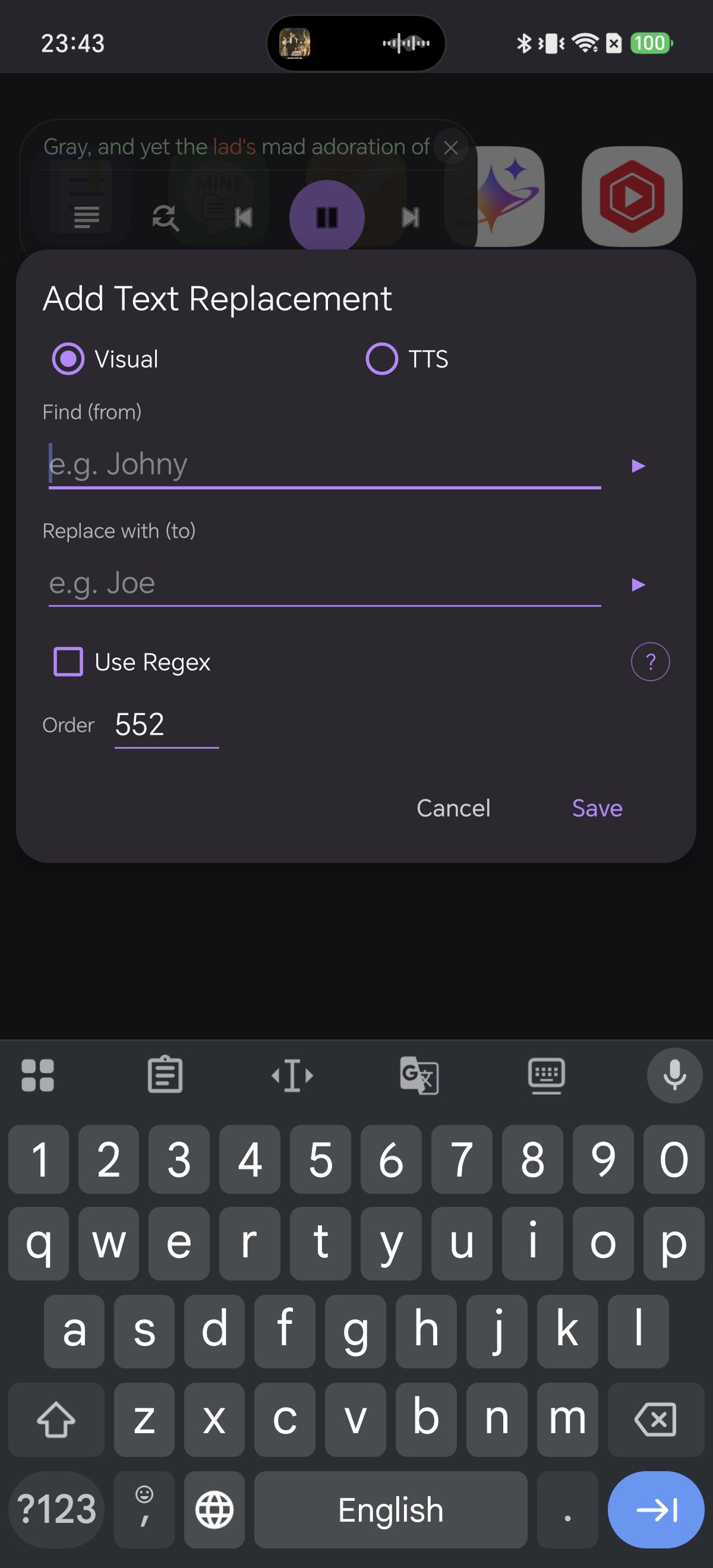
The second button on the floating card opens Add Text Replacement directly from whichever app you are in.

Type the original text under Find (from), the phonetic correction under Replace with (to), choose TTS mode so it only alters speech, and tap Save. Narration continues seamlessly.

8แก้คำอ่านออกเสียงผิดได้ทันทีโดยไม่ต้องสลับแอป

ปุ่มที่สองบนการ์ดลอยจะเปิดหน้าต่าง Add Text Replacement ขึ้นมาซ้อนบนหน้าจอที่คุณอยู่ได้ทันที

พิมพ์คำที่เขียนในหนังสือลงในช่อง Find (from) และพิมพ์คำอ่านที่ถูกต้องในช่อง Replace with (to) เลือกโหมด TTS เพื่อให้มีผลเฉพาะเสียงอ่าน แล้วกดบันทึก การอ่านจะดำเนินต่ออย่างลื่นไหล

8アプリを開き直さず誤読を即座に修正

フローティングカードの2番目のボタンをタップすると、作業中のアプリ画面の上に直接 Add Text Replacement(置換ルール追加)ダイアログが開きます。

Find に元の単語、Replace with に正しい読みを入力し、TTS モードを選択して保存するだけで、朗読を止めずに修正できます。

8无需返回阅读器,即时纠正多音字生词

点击悬浮卡片上的第二个替换图标,即可就地弹出 Add Text Replacement(添加文本替换规则)窗口。

在 Find (from) 中输入原文生词,在 Replace with (to) 中输入拼音纠正读音,选中 TTS 模式后保存,听书全程不中断。

8Corrija Pronúncias sem Voltar ao App

O segundo botão do cartão abre o diálogo Add Text Replacement diretamente de onde você estiver.

Preencha o termo original, digite a pronúncia desejada, selecione o modo TTS e salve para continuar ouvindo perfeitamente.

8Corrige la Pronunciación sin Volver al Lector

El segundo icono de la tarjeta flotante abre el cuadro de diálogo Add Text Replacement al instante.

Indica la palabra original, escribe la pronunciación fonética correcta, marca el modo TTS y guarda los cambios.

The Add Text Replacement dialog opened from the floating card, with Visual and TTS modes, Find from and Replace with to fields, a Use Regex checkbox and an order value

Troubleshooting & Frequently Asked Questions

การแก้ปัญหาและคำถามที่พบบ่อย (FAQ)

よくある質問&トラブルシューティング(FAQ)

常见问题排查与解答(FAQ)

Solução de Problemas e Perguntas Frequentes (FAQ)

Solución de Problemas y Preguntas Frecuentes (FAQ)

Why do the floating controls never appear?
The overlay permission was probably declined. Turn the Floating Controls switch off and on again to bring back the permission dialog, or grant "Display over other apps" for Shiori in Android's system settings.
ทำไมการ์ดควบคุมลอยถึงไม่ปรากฏขึ้นมาบนจอ?
อาจเกิดจากการปฏิเสธสิทธิ์การแสดงทับแอปอื่น (Overlay) แนะนำให้ปิดแล้วเปิดสวิตช์ Floating Controls ใหม่อีกครั้งเพื่อเรียกหน้าต่างขอสิทธิ์ หรือเข้าไปที่การตั้งค่าระบบ Android และเปิดสิทธิ์ "Display over other apps" ให้แก่แอป Shiori
フローティングカードが表示されない原因は?
オーバーレイ表示の権限が拒否された可能性があります。Floating Controls のスイッチを一度オフにしてから再度オンにするか、Androidのシステム設定からShioriの「他のアプリの上に重ねて表示」を許可してください。
为什么开启后悬浮窗依然没有显示?
通常是因为系统悬浮窗权限未成功授予。将 Floating Controls 开关关闭后重新开启以唤起权限授权弹窗,或直接前往 Android 系统“设置 - 应用权限”中为 Shiori 开启“在其他应用上层显示”权限。
Por que os controles flutuantes não aparecem?
A permissão de sobreposição pode ter sido recusada. Desative e ative o botão Floating Controls novamente ou vá às configurações do Android e conceda a permissão "Sobrepor a outros apps".
¿Por qué no aparecen los controles flotantes?
Es probable que el permiso de superposición no fuera concedido. Apaga y vuelve a encender el interruptor Floating Controls o concede el permiso "Mostrar sobre otras aplicaciones" en los ajustes de Android.
The card shows buttons but no text. Why?
Karaoke ticker on floating controls is switched off, putting the card in buttons-only mode. Turn it back on in Settings → TTS Listening → Floating control.
การ์ดลอยแสดงเฉพาะปุ่มแต่ไม่มีข้อความขึ้น เกิดจากอะไร?
ตัวเลือก Karaoke ticker on floating controls ถูกปิดอยู่ ทำให้การ์ดอยู่ในโหมดปุ่มควบคุมล้วน คุณสามารถเปิดให้แสดงข้อความได้ที่ Settings → TTS Listening → Floating control
カードにボタンだけ表示されて文字が出ない場合は?
「Karaoke ticker on floating controls」がオフになっており、ボタン専用モードになっています。Settings → TTS Listening → Floating control でオンに戻してください。
悬浮窗仅显示控制按钮而不显示文本怎么办?
这是因为关闭了 Karaoke ticker on floating controls 开关。前往 Settings → TTS Listening → Floating control 重新开启该选项即可恢复文字滚动显示。
O cartão mostra botões mas nenhum texto. O que fazer?
A opção Karaoke ticker on floating controls está desativada. Reative-a em Settings → TTS Listening → Floating control.
La tarjeta muestra botones pero no el texto. ¿Cómo lo arreglo?
La opción Karaoke ticker on floating controls está apagada. Vuelve a activarla en Settings → TTS Listening → Floating control.
The card is hard to read over bright apps.
Raise Background opacity to 90% or 100% and choose a darker Background colour with white or yellow text for dependable contrast over any screen.
อ่านข้อความบนการ์ดยากเมื่อเปิดแอปที่มีพื้นหลังสว่างจ้า
แนะนำให้เพิ่มค่าความทึบแสง Background opacity เป็น 90% หรือ 100% และเลือกสีพื้นหลังของการ์ดเป็นสีเข้ม พร้อมตั้งสีตัวอักษรเป็นสีสว่าง
明るいアプリの上で文字が読みにくいときは?
Background opacity(背景不透明度)を90%〜100%に引き上げ、濃い背景色と明るいテキスト色を組み合わせることで、どんな画面でも見やすくなります。
在白色或高亮背景软件上方文字辨识度不高怎么办?
请调高 Background opacity(背景不透明度)至 90% 或更高,并挑选深色卡片背景与明亮显眼的文字色彩以确保绝佳对比度。
O cartão é difícil de ler sobre aplicativos claros.
Aumente a Background opacity para 90%–100% e escolha um fundo escuro com texto claro para manter alto contraste em qualquer tela.
Cuesta leer la tarjeta sobre fondos muy claros o luminosos.
Aumenta la Background opacity al 90% o 100% y elige un color de fondo oscuro con texto claro para maximizar el contraste.
Playback stopped when I dismissed the card with ×.
That is expected behavior — the close button (×) dismisses the card and stops audio playback. To hide the card while keeping the audio narration running, turn off the Floating Controls switch in settings instead.
ทำไมเสียงอ่านหยุดลงเมื่อกดปุ่มกากบาท (×) ปิดการ์ด?
ปุ่มกากบาท (×) ออกแบบมาให้ปิดการ์ดพร้อมหยุดการเล่นเสียงอ่าน หากคุณต้องการฟังเสียงต่อเนื่องในพื้นหลังโดยไม่ให้มีหน้าต่างการ์ดลอย ให้เข้าไปปิดสวิตช์ Floating Controls ในการตั้งค่าแทน
カードの×ボタンを押したら朗読が止まってしまいました。
これは仕様です。×ボタンはカードを閉じるのと同時に音声再生を終了します。カードを消して朗読だけ続けたい場合は、設定画面で Floating Controls のスイッチのみをオフにしてください。
为什么点击卡片上的叉号(×)后听书会直接停止?
这是符合预期的设定——叉号用于彻底关闭悬浮窗并停止播放。如果希望在隐藏卡片的同时保持后台纯音频听书,只需在设置中将 Floating Controls 开关关闭即可。
A reprodução parou quando fechei o cartão no ×.
Esse é o comportamento padrão: o botão × fecha o cartão e para o áudio. Se quiser continuar ouvindo sem o cartão, desative a chave Floating Controls nas configurações.
La locución se detuvo al cerrar la tarjeta con la ×.
Es el comportamiento previsto: la cruz (×) cierra la tarjeta y finaliza la lectura. Si deseas seguir escuchando sin ventana flotante, desactiva la casilla Floating Controls en los ajustes.

Pro Tips for Floating Controls

  • RTL support for Arabic & Hebrew: In right-to-left books, the karaoke ticker automatically pins the active word to the right so reading flow stays natural.
  • One-tap bookmarking: Use the leftmost jump-to-position button to return your reader directly to the sentence you reached while multitasking.
  • Pinch and zoom: You can resize the floating card with two fingers directly while using other apps.

เคล็ดลับการใช้งาน Floating Controls ระดับโปร

  • รองรับภาษาเขียนขวาไปซ้าย (RTL): ในหนังสือภาษาอาหรับหรือฮิบรู ตัววิ่งคาราโอเกะจะจัดคำอ่านไว้ทางขวาโดยอัตโนมัติ สอดคล้องกับทิศทางการอ่าน
  • คั่นหน้าด่วนในแตะเดียว: แตะปุ่มกระโดดด้านซ้ายสุดเพื่อพาแอป Shiori กลับไปยังประโยคที่คุณฟังค้างไว้ทันที
  • ซูมย่อขยายด้วยสองนิ้ว: คุณสามารถใช้สองนิ้วจีบเข้าหรือกางออกบนตัวการ์ดเพื่อย่อขยายขนาดได้ทันทีขณะอยู่บนแอปอื่น

フローティングコントロール活用のプロTips

  • RTL(右横書き)にも対応: アラビア語などの書籍では、ティッカーの進行方向が自動で右揃えになります。
  • ワンタップしおり代わり: 左端のジャンプボタンを使えば、他アプリの作業中に耳で進んだ位置へリーダー画面を瞬時に戻せます。
  • ピンチ操作で直感サイズ変更: 他アプリを開いた状態でも、カード上で2本指ピンチ操作を行うことで手軽にサイズを拡大縮小できます。

悬浮控制进阶实用技巧

  • 原生兼容从右向左语言(RTL): 在阅读阿拉伯语等书目时,卡拉OK条会自动自右向左排版跟读。
  • 一键书签秒回现场: 点击最左侧定位按键,即可快速将阅读界面直接校准至听书刚刚到达的最新进度。
  • 双指捏合缩放: 在使用其他应用时,直接在悬浮窗上双指捏合或外扩即可即时调整卡片缩放比例。

Dicas Práticas para os Controles Flutuantes

  • Compatível com RTL (Direita para Esquerda): Em livros em árabe, a linha de texto alinha-se automaticamente à direita.
  • Marcador em um toque: Use o botão de salto para posicionar o leitor exatamente onde a narração parou.
  • Pinça para redimensionar: Use dois dedos sobre o cartão para ajustar o tamanho rapidamente sobre qualquer app.

Consejos Prácticos para Controles Flotantes

  • Compatibilidad con RTL (Derecha a Izquierda): En libros en árabe, el desplazamiento de texto fluye de derecha a izquierda.
  • Marcador de posición instantáneo: Pulsa el botón de salto para regresar el lector a la línea exacta narrada.
  • Pellizcar para redimensionar: Usa dos dedos sobre la tarjeta flotante para cambiar su tamaño sin entrar en ajustes.

Related Reading

บทความที่เกี่ยวข้อง

関連記事

相关阅读

Leitura Relacionada

Lecturas Relacionadas

Your Book, Wherever You Are on the Phone

Download Shiori EPUB Reader on Google Play, switch on Floating Controls, and keep the line you are listening to on screen no matter which app you open next.

ฟังหนังสือได้ต่อเนื่อง ไม่ว่าคุณจะเปิดแอปใดอยู่ก็ตาม

ดาวน์โหลด Shiori EPUB Reader บน Google Play เปิดใช้งาน Floating Controls แล้วเพลิดเพลินกับการฟังหนังสือพร้อมเนื้อเพลงคาราโอเกะได้ตลอดเวลา

スマホのどこにいても、読書がすぐそばに

Google PlayからShiori EPUB Readerをダウンロードし、フローティングコントロールをオンにして、マルチタスク中も快適な読書体験をお楽しみください。

多任务随心切,好书时刻相伴

前往 Google Play 下载 Shiori EPUB 阅读器,开启悬浮窗播控功能,无论打开哪个应用,都能随时随地尽情畅听。

Seu Livro Acompanha Você em Qualquer App

Baixe o Shiori no Google Play, ative os Controles Flutuantes e mantenha a leitura na sua tela enquanto realiza qualquer outra tarefa no celular.

Tu Libro Contigo en Cualquier Lugar del Móvil

Descarga Shiori en Google Play, activa los Controles Flotantes y no pierdas de vista la narración sin importar qué app estés usando.

▶ Get it on Google Play View All Blog Posts ➔