The top bar is the heart of your reading screen — it is where you search, bookmark, translate, listen, and tailor the reading experience to your liking. But on a mobile screen with limited width, squeezing the book title and a dozen handy tools into a single row often means making compromises. Shiori's experimental Two-Line Reader Top Bar solves this gracefully: it gives the book title its own dedicated line above, while laying out every single action in a smooth, scrollable row beneath it.
The Frustration with a Cramped Single-Line Bar
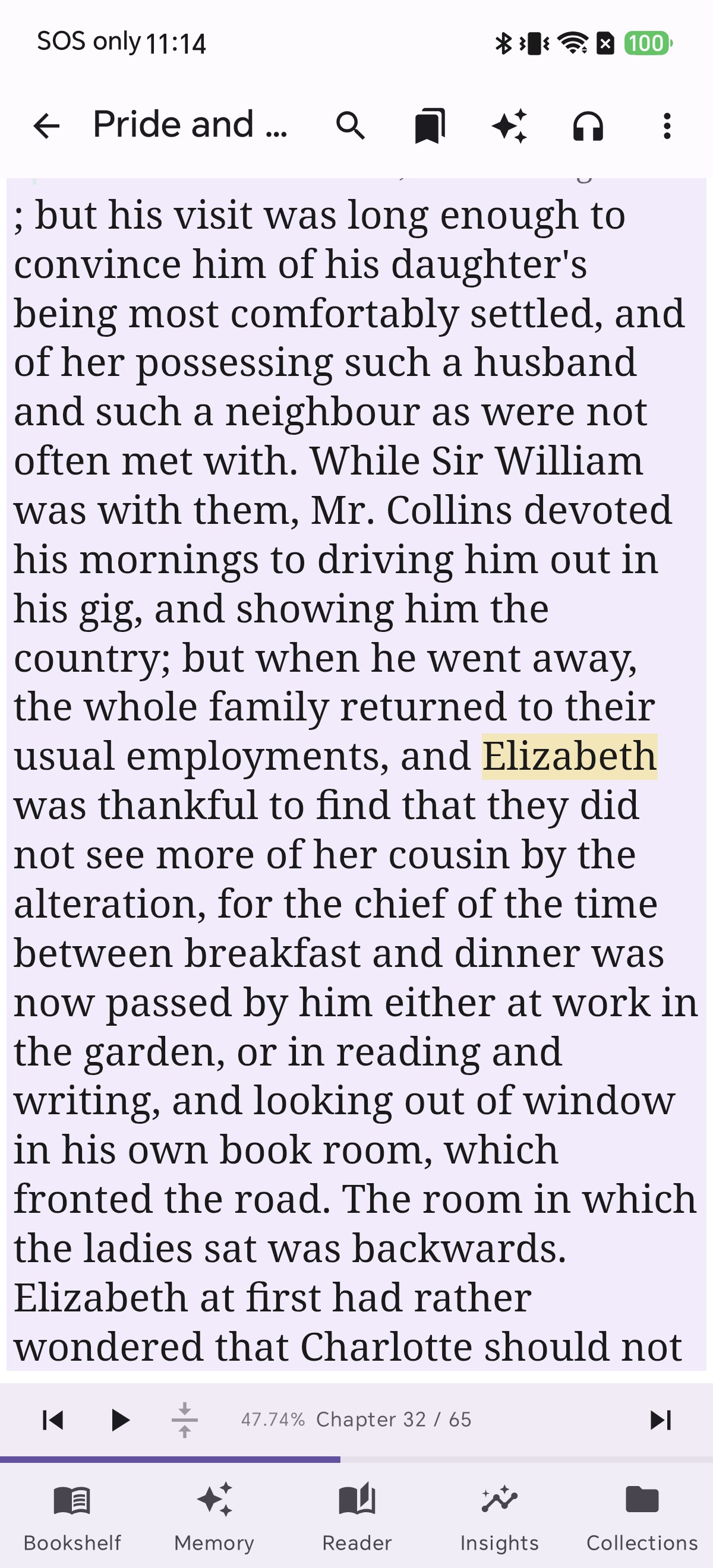
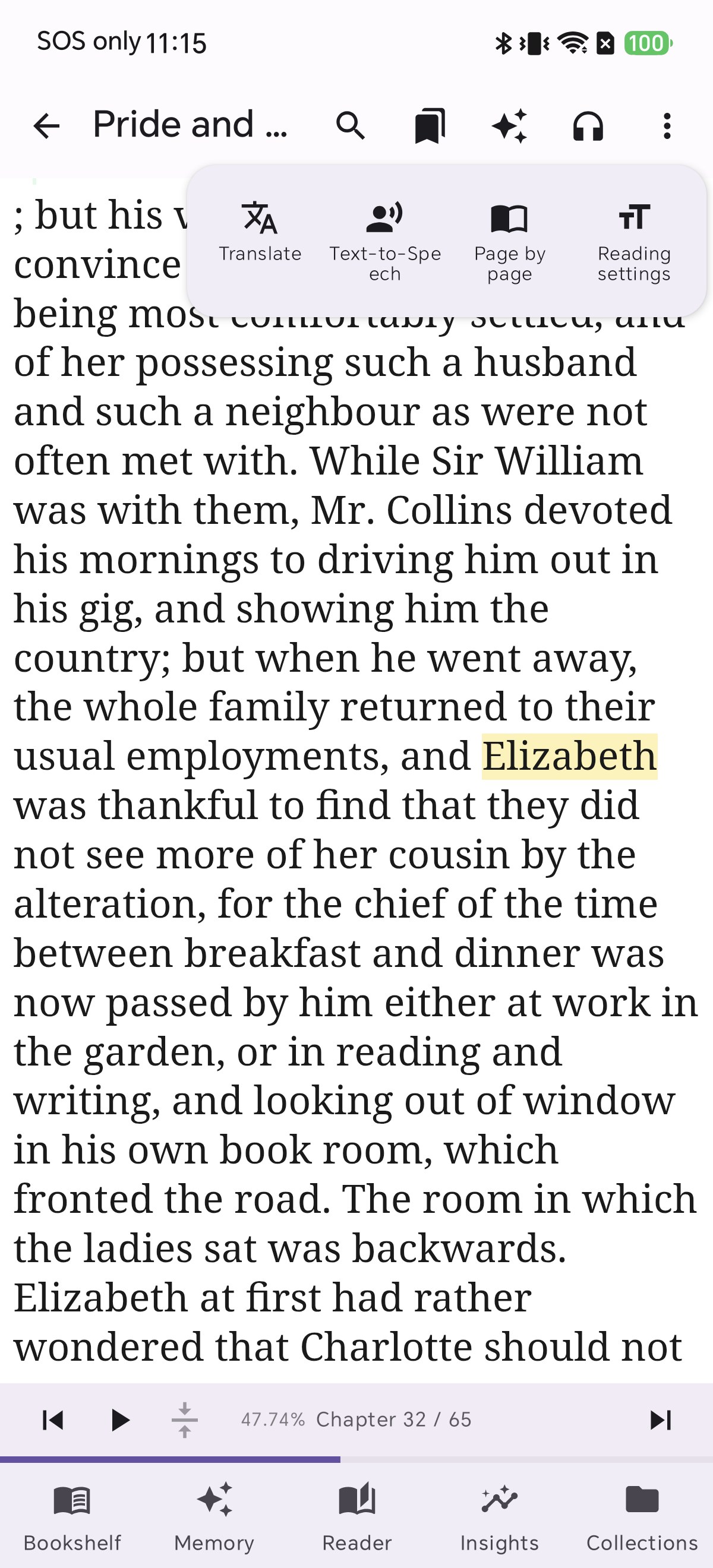
In the traditional single-line layout, title and tool buttons fight for the same narrow space. The result? Your book title gets cut short with ellipses ("..."), and most features are forced into a hidden ⋮ overflow menu. Whenever you want to translate a sentence, start Text-to-Speech, or change a font, it takes extra taps and interrupts your concentration.
The Two-Line Top Bar: Room to Breathe
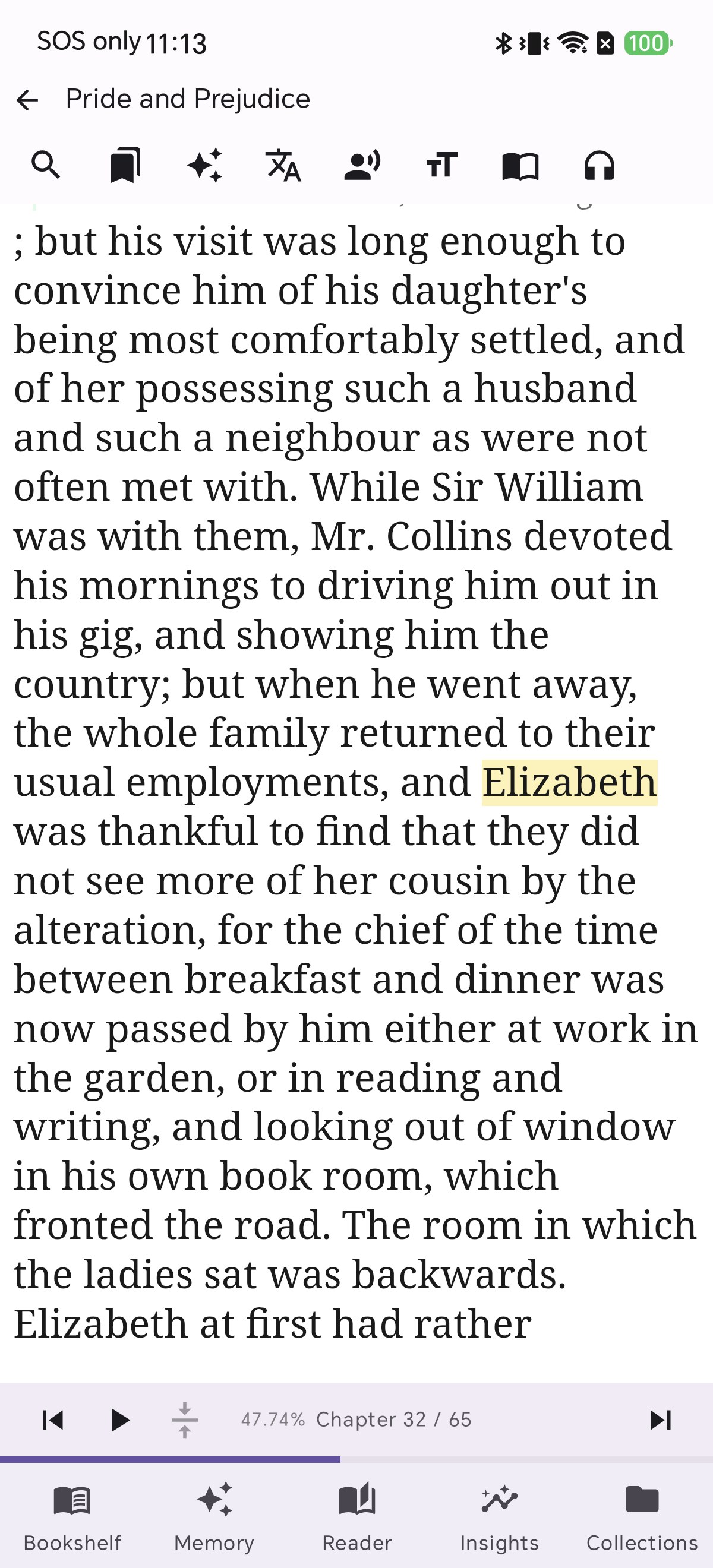
Turn on the two-line top bar, and the whole header opens up. The complete title of your book sits proudly on the top row. Right below it, all your reading companions — search, bookmarks, AI assistant, instant translation, Text-to-Speech, typography, reader settings, and playback controls — glide together in a scrollable row. Nothing is hidden away; whatever you need is always just a gentle tap away.
Designed for Effortless, Focused Reading
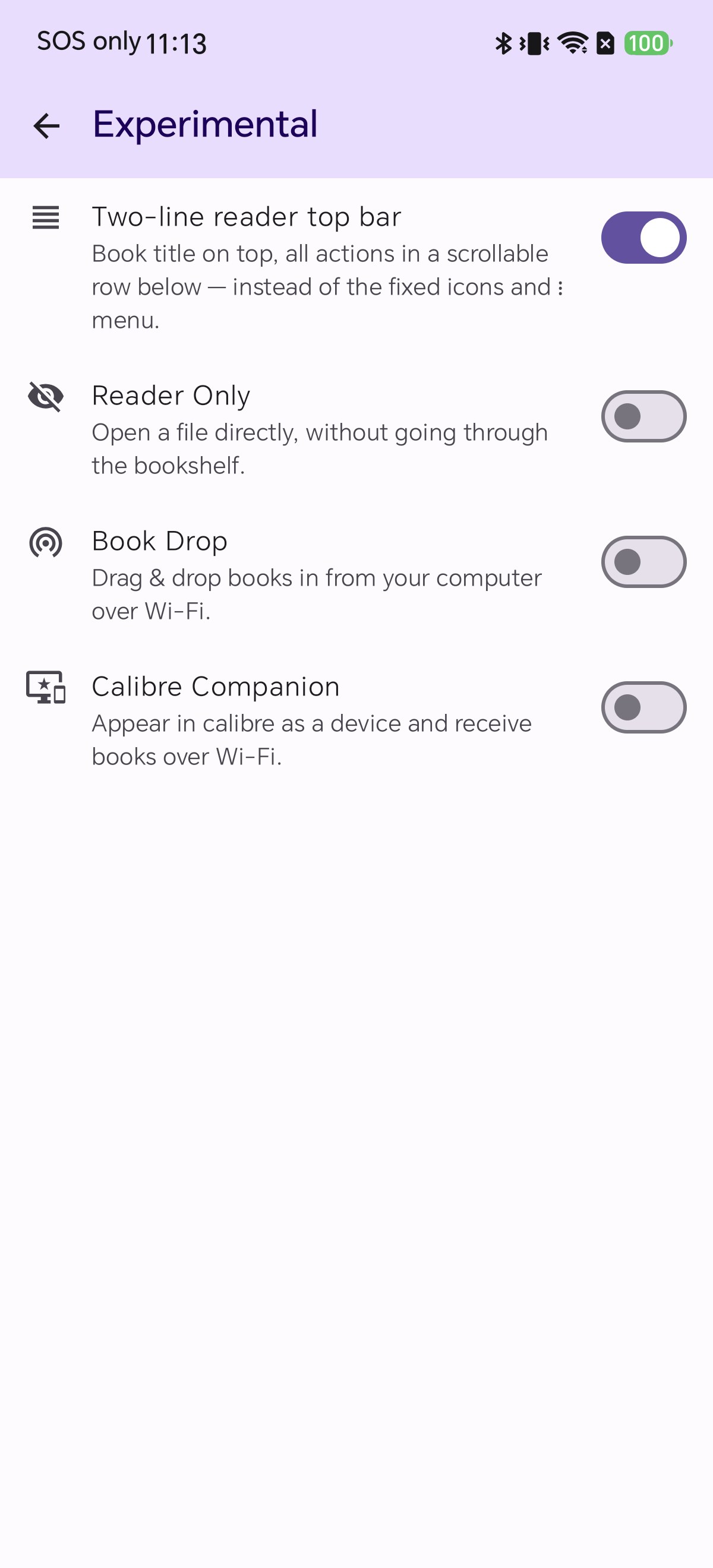
Shiori comes packed with thoughtful capabilities — from multi-language voice narration to on-device AI and dictionary lookup. The two-line top bar ensures that power never gets in the way of simplicity. You spend less time navigating menus and more time immersed in your story. (It is enabled by default for new installs; if you have been with us for a while, turning it on takes just a couple of taps.)
See the Difference in Action
Here is how the single-line layout compares to the clean, two-line layout, and how to enable it in your settings.
แถบด้านบนของหน้าอ่านหนังสือเปรียบเสมือนศูนย์รวมความสะดวกสบาย—ไม่ว่าจะเป็นการค้นหาคำ, คั่นหน้า, แปลภาษา, ฟังเสียงอ่าน หรือปรับแต่งหน้ากระดาษให้สบายตาที่สุด แต่เพราะหน้าจอมือถือมีความกว้างจำกัด การพยายามเบียดทั้งชื่อหนังสือและเครื่องมือทั้งหมดลงในแถวเดียว มักทำให้ต้องยอมแลกบางอย่างไป โหมดทดลอง แถบเครื่องมือด้านบนแบบ 2 แถว (Two-Line Reader Top Bar) ใน Shiori จึงถูกออกแบบมาเพื่อแก้ปัญหานี้อย่างลงตัว: โดยยกชื่อหนังสือให้อยู่บรรทัดบนอย่างสง่างาม พร้อมจัดวางเครื่องมือทุกชิ้นไว้ในแถวเลื่อนด้านล่างอย่างเป็นระเบียบ
ปัญหาของแถบด้านบนแบบแถวเดียวที่คุ้นเคย
ในเลย์เอาต์แถวเดียวแบบเดิม ชื่อหนังสือและปุ่มเครื่องมือต้องแย่งพื้นที่แคบๆ ร่วมกัน ทำให้ชื่อเรื่องยาวๆ ถูกตัดทอนจนเหลือเพียงจุดไข่ปลา ("...") และแสดงไอคอนได้เพียงไม่กี่อันเท่านั้น ฟังก์ชันดีๆ ที่เหลือจึงต้องถูกซ่อนไว้ใน เมนูจุดสามจุด (⋮) ทำให้ทุกครั้งที่คุณอยากแปลประโยค เปิดเสียงอ่าน หรือตั้งค่าฟอนต์ ต้องแตะเพิ่มอีกจังหวะเสมอ
แถบ 2 แถว — ปลอดโปร่ง ครบถ้วน สบายตา
เมื่อเปิดใช้งานแถบ 2 แถว พื้นที่ด้านบนจะโปร่งสบายขึ้นทันตา ชื่อหนังสือเล่มโปรดของคุณจะแสดงอย่างครบถ้วนที่บรรทัดบน ส่วนบรรทัดล่างจะรวบรวมเครื่องมือทั้งหมด—ทั้งการค้นหา, บุ๊กมาร์ก, ผู้ช่วย AI, แปลภาษา, เสียงอ่าน TTS, ฟอนต์, ตั้งค่าการอ่าน และการควบคุมเสียง—เรียงร้อยเป็นแถวแนวนอนที่คุณใช้นิ้วปาดเลื่อนได้ง่ายๆ ไม่มีอะไรถูกซ่อนไว้หลังเมนูอีกต่อไป ทุกสิ่งอยู่ใกล้แค่ปลายนิ้วสัมผัส
อ่านหนังสือได้ต่อเนื่อง ไม่สะดุดอารมณ์
Shiori มีฟังก์ชันที่หลากหลายเพื่อสนับสนุนการอ่านอย่างลึกซึ้ง แถบเครื่องมือ 2 แถวนี้ช่วยให้คุณเข้าถึงฟังก์ชันทรงพลังเหล่านั้นได้ทันทีโดยไม่ต้องเสียเวลาควานหาในเมนูย่อย ช่วยให้คุณจดจ่ออยู่กับเนื้อหาในหนังสือได้ยาวนานยิ่งขึ้น (สำหรับผู้ใช้ใหม่ระบบจะเปิดใช้งานไว้ให้อัตโนมัติ ส่วนผู้ใช้เดิมสามารถเปิดได้ง่ายๆ ในหน้าตั้งค่า)
เปรียบเทียบความแตกต่างอย่างชัดเจน
มาดูความแตกต่างระหว่างแถบแบบเดิมกับแถบ 2 แถวแบบใหม่ และวิธีเปิดใช้งานง่ายๆ ดังนี้ครับ
読書画面のトップバーは、検索、しおり、翻訳、音声読み上げ、表示設定などを素早く呼び出せる重要なコントロールセンターです。しかし、スマートフォンの画面幅には限りがあり、書籍タイトルと多彩な機能を1行に詰め込もうとすると、どうしても妥協が必要でした。Shioriの実験機能「**2行表示リーダートップバー(Two-Line Reader Top Bar)**」は、この課題を美しく解決します。上の行に書籍タイトルをゆったり配置し、下の行にすべてのツールを横スクロール可能なバーとして整理しました。
従来の1行トップバーが抱えていた悩み
1行表示では、タイトルとツールボタンが狭いスペースを取り合ってしまいます。その結果、タイトルが途中で途切れて「…」と省略されたり、一部のアイコンしか表示できず、残りの機能は **「⋮」オーバーフローメニュー** の奥に隠れてしまっていました。翻訳やTTS、設定変更のたびにメニューを開く余計なタップが発生し、読書の集中が途切れる原因になっていました。
2行トップバー:すべてが見渡せる快適さ
2行表示を有効にすると、ヘッダー全体が心地よく広がります。上の行には愛読書のタイトルが省略されずに美しく表示され、下の行には検索、しおり、AIアシスタント、翻訳、TTS読み上げ、フォント変更、読書設定、再生コントロールなど、あらゆるツールが一直線に並びます。指先でスワイプするだけで、使いたい機能へ瞬時にワンタップでアクセスできます。
没入感を邪魔しないスムーズな読書体験
多言語自動TTSやAI機能など、Shioriのパワフルな機能群も、探す手間があっては真価を発揮できません。2行トップバーなら、メニューを探し回る時間を減らし、物語や学びに没頭する時間を最大化できます。(新規インストール時は自動で有効になっています。既存のユーザー様も設定から簡単にオンに切り替えられます。)
実際の画面で違いをチェック
1行表示の課題と、2行表示のすっきりとした使い心地、そして設定方法をステップ順にご案内します。
阅读界面的顶部栏就像是整个阅读体验的中枢——无论是搜索文本、添加书签、划词翻译、听书朗读,还是精细调节排版,都需要通过它来完成。然而手机屏幕的横向空间有限,将长书名与十多项常用工具挤在同一行,往往只能做出妥协。Shiori 推出的实验性功能——双行阅读顶部栏(Two-Line Reader Top Bar) 巧妙化解了这一痛点:它让图书标题独占上方一行完整呈现,并在下方整齐排布可左右滑动的全部工具栏。
传统单行顶部栏的局限与不便
在传统的单行布局中,书名与功能图标必须共挤狭小空间。结果是:较长的书名被省略号(“…”)截断,且只能显示少数几个图标,其余强大功能都被收进右侧的 “⋮”折叠菜单 中。每次想要翻译长句、开启朗读或调整字号,都必须多点一次菜单,打断了沉浸的阅读心流。
双行顶部栏:舒展通透,尽收眼底
开启双行顶部栏后,整个界面豁然开朗。书名在第一行完整展现;而在第二行,搜索、书签、AI 助手、即时翻译、TTS 朗读、字体样式、阅读设置与播放控制等所有功能一字排开。只需轻轻滑动,任何工具都在一触之间,再无多余层级。
让每一次操作都行云流水
Shiori 具备多语言自动切换 TTS、端侧 AI 助手等丰富功能,而双行顶部栏正是让这些强大工具触手可及的绝佳设计。减少在菜单中翻找的时间,把更多精力留给书中的精彩世界。(新安装用户默认已开启;老用户只需在设置中轻松勾选即可体验。)
直观对比:双行顶部栏的独特优势
以下为您呈现单行与双行的直观对比,以及如何一键开启该功能。
A barra superior é o coração da sua tela de leitura — é por onde você pesquisa, marca páginas, traduz, ouve por voz e ajusta cada detalhe do texto. Contudo, em telas de celular com largura limitada, espremer o título do livro e dezenas de ferramentas úteis em uma única linha sempre exige concessões. A barra experimental Top Bar em Duas Linhas do Shiori resolve isso com maestria: ela eleva o título completo para uma linha própria e organiza todas as ações em uma fileira rolável logo abaixo.
O Problema da Barra Superior em Linha Única
No layout clássico de linha única, o título e os botões disputam o mesmo espaço estreito. O resultado? O título do livro acaba cortado com reticências ("...") e apenas alguns ícones cabem na tela. As demais funções acabam escondidas no menu de três pontos (⋮) — exigindo um toque extra toda vez que você deseja traduzir um trecho, iniciar o TTS ou alterar o tamanho da fonte.
Barra em Duas Linhas: Espaço para Respirar
Ao ativar a barra em duas linhas, o cabeçalho se torna muito mais agradável e funcional. O título completo do livro repousa com elegância na linha de cima. Logo abaixo, todas as suas ferramentas — busca, marcadores, assistente de IA, tradução, narração por voz, tipografia, ajustes de leitura e controles de áudio — deslizam juntas em uma fileira suave. Nada fica escondido em submenus.
Feito para uma Leitura Focada e Fluida
O Shiori é repleto de recursos avançados, e a barra em duas linhas garante que todo esse poder permaneça ao alcance do seu polegar. Você gasta menos tempo procurando em menus e mais tempo aproveitando sua leitura. (Já vem ativado por padrão em novas instalações; se você já usa o app há mais tempo, basta ativar em segundos nas configurações.)
Confira a Diferença na Prática
Veja como a barra em linha única se compara à nova barra em duas linhas e como ativá-la facilmente.
La barra superior es el centro de control de tu pantalla de lectura: desde allí buscas palabras, guardas marcadores, traduces frases, escuchas la narración y personalizas la página a tu gusto. Sin embargo, en la pantalla de un móvil con ancho limitado, comprimir el título del libro y decenas de herramientas en una sola fila siempre implica renuncias. La función experimental Barra Superior en Dos Líneas de Shiori soluciona esto con total elegancia: sitúa el título completo en su propia fila superior y coloca todas las herramientas en una fila deslizable justo debajo.
El Inconveniente de la Barra en una Sola Línea
En el diseño tradicional de una sola línea, el título y los iconos de herramientas compiten por el mismo espacio reducido. ¿El resultado? El título del libro se recorta con puntos suspensivos ("...") y solo caben unos pocos botones. El resto queda oculto tras el menú de opciones (⋮), obligándote a dar toques adicionales cada vez que quieres traducir, iniciar la lectura por voz o ajustar el tamaño de letra.
Barra en Dos Líneas: Todo a la Vista con Total Claridad
Al activar la barra en dos líneas, el encabezado gana amplitud y comodidad. El título completo de tu libro se muestra sin recortes en la fila superior. Justo debajo, todos tus aliados de lectura —búsqueda, marcadores, asistente de IA, traducción instantánea, voz TTS, tipografía, ajustes de lectura y controles de reproducción— se alinean en una fila horizontal por la que puedes deslizar el dedo. Nada se oculta en menús secundarios.
Diseñado para una Lectura Fluida y Sin Fricciones
Shiori está lleno de funciones pensadas para lectores exigentes. La barra en dos líneas garantiza que toda esa potencia esté siempre al alcance de tu mano, permitiéndote pasar menos tiempo buscando en menús y más tiempo sumergido en tu historia. (Viene activada por defecto en nuevas instalaciones; si eres usuario habitual, puedes activarla en un par de toques en los ajustes.)
Descubre la Diferencia Paso a Paso
Comprueba la diferencia entre ambos diseños y aprende a activar esta cómoda vista en tus ajustes.