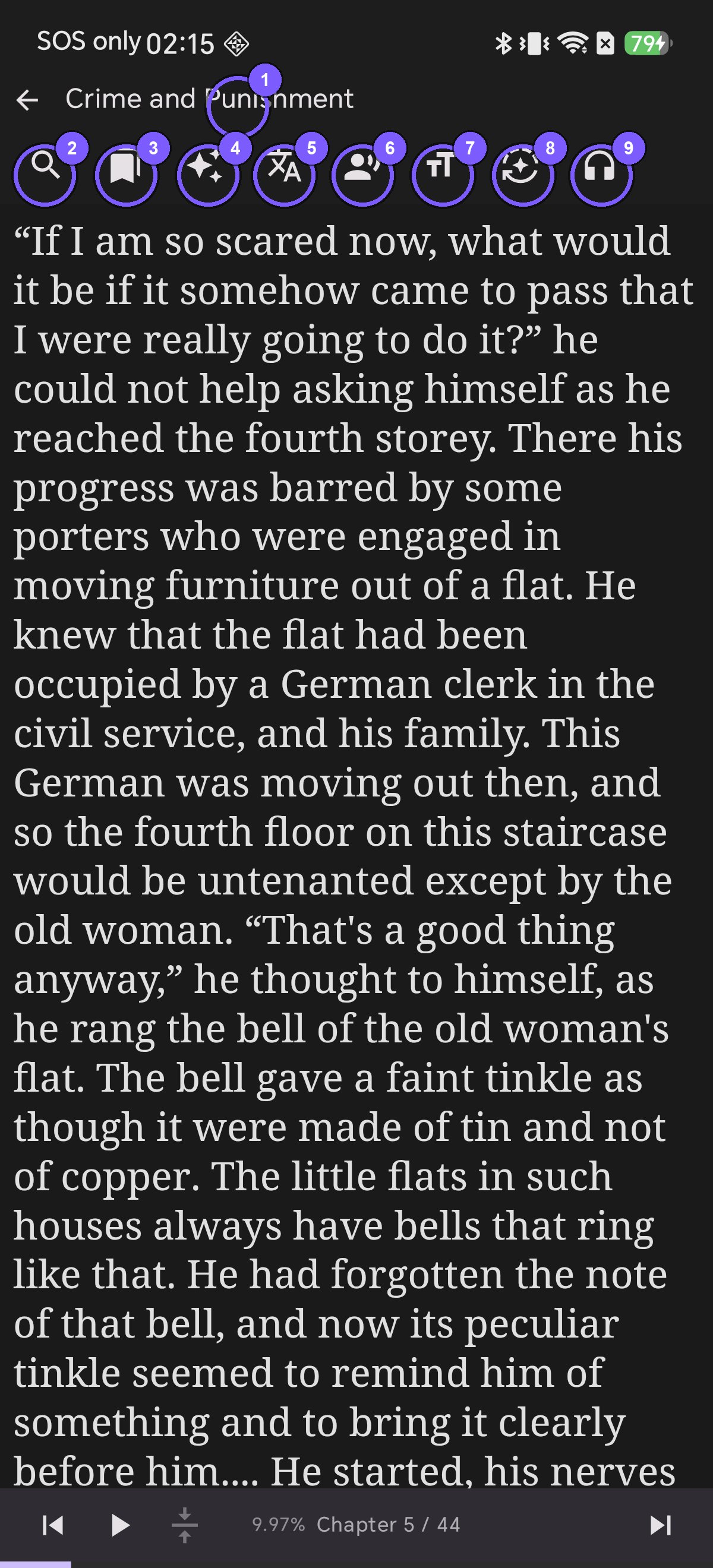
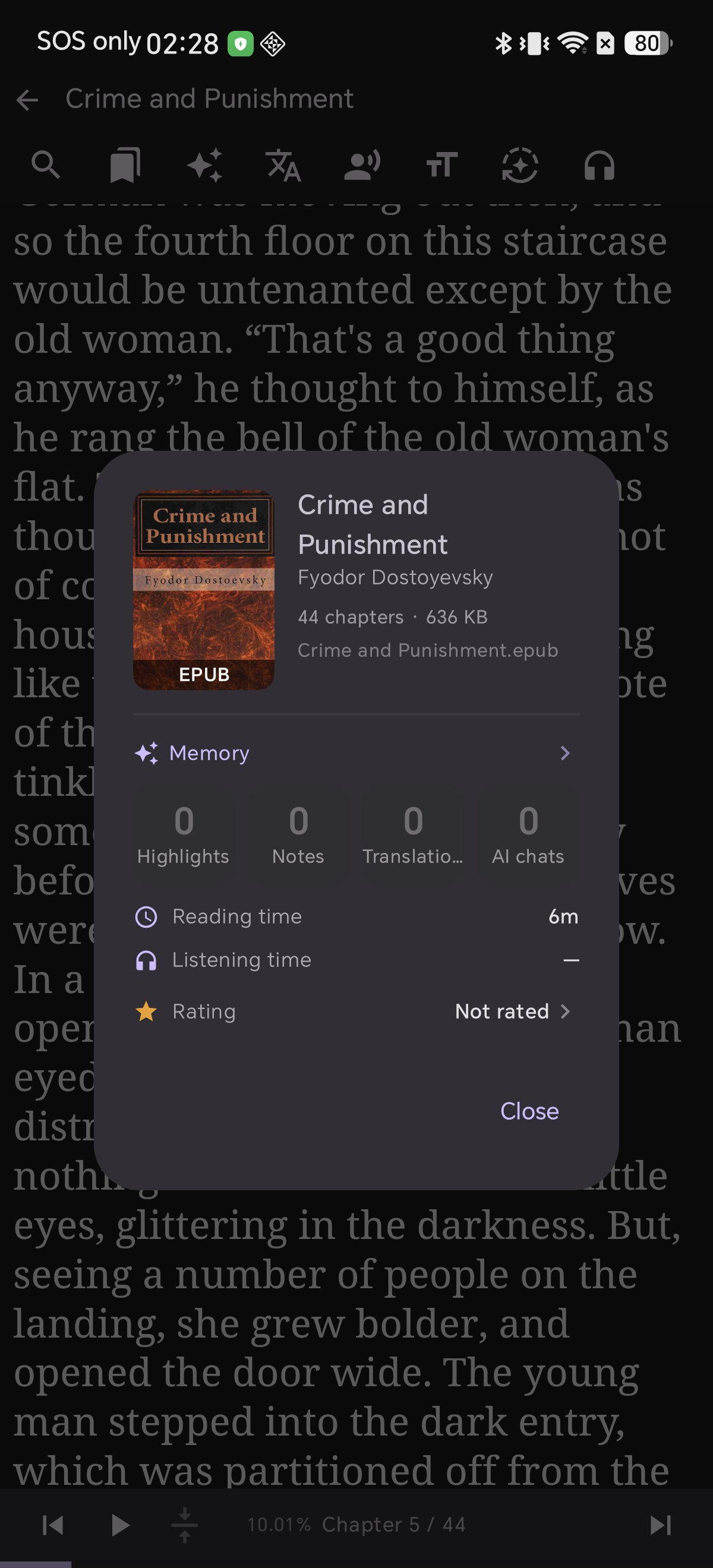
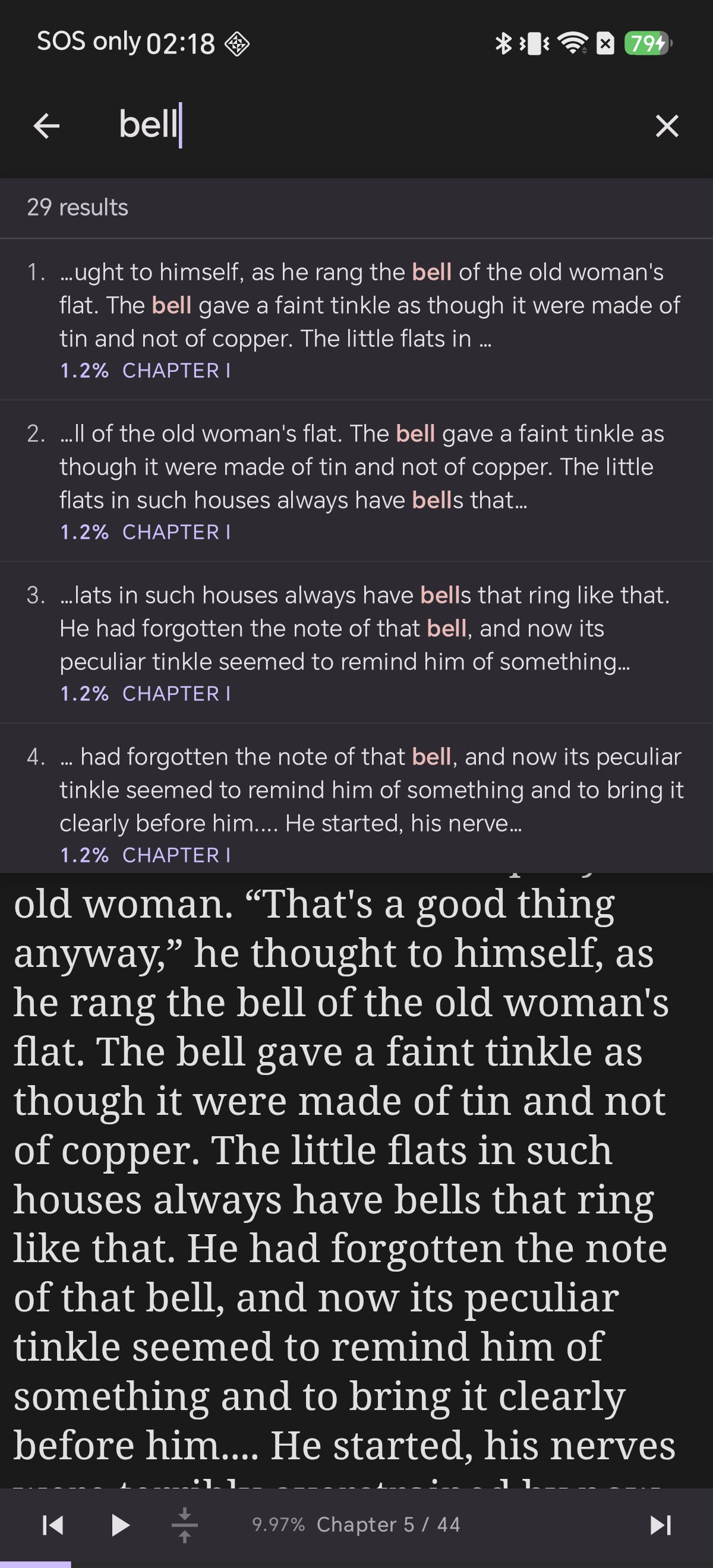
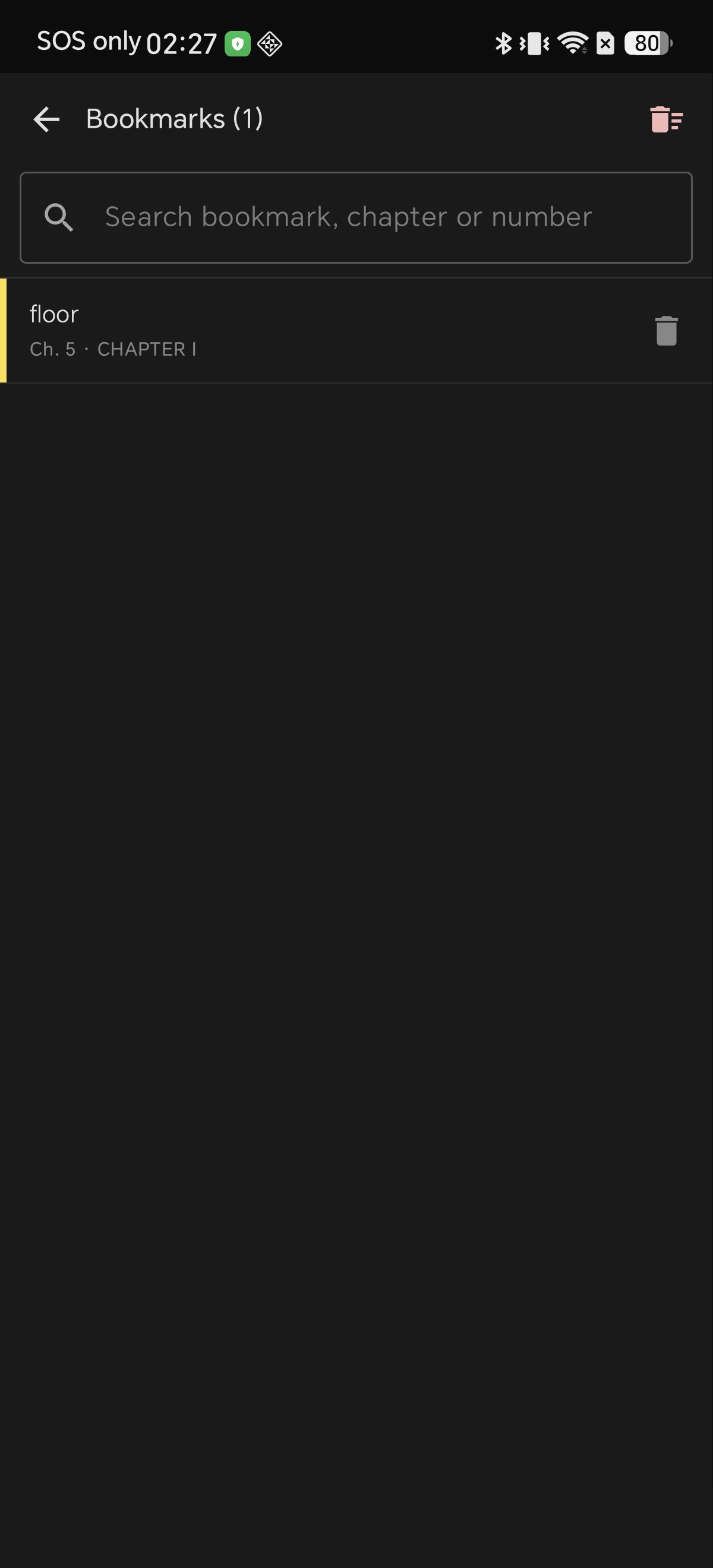
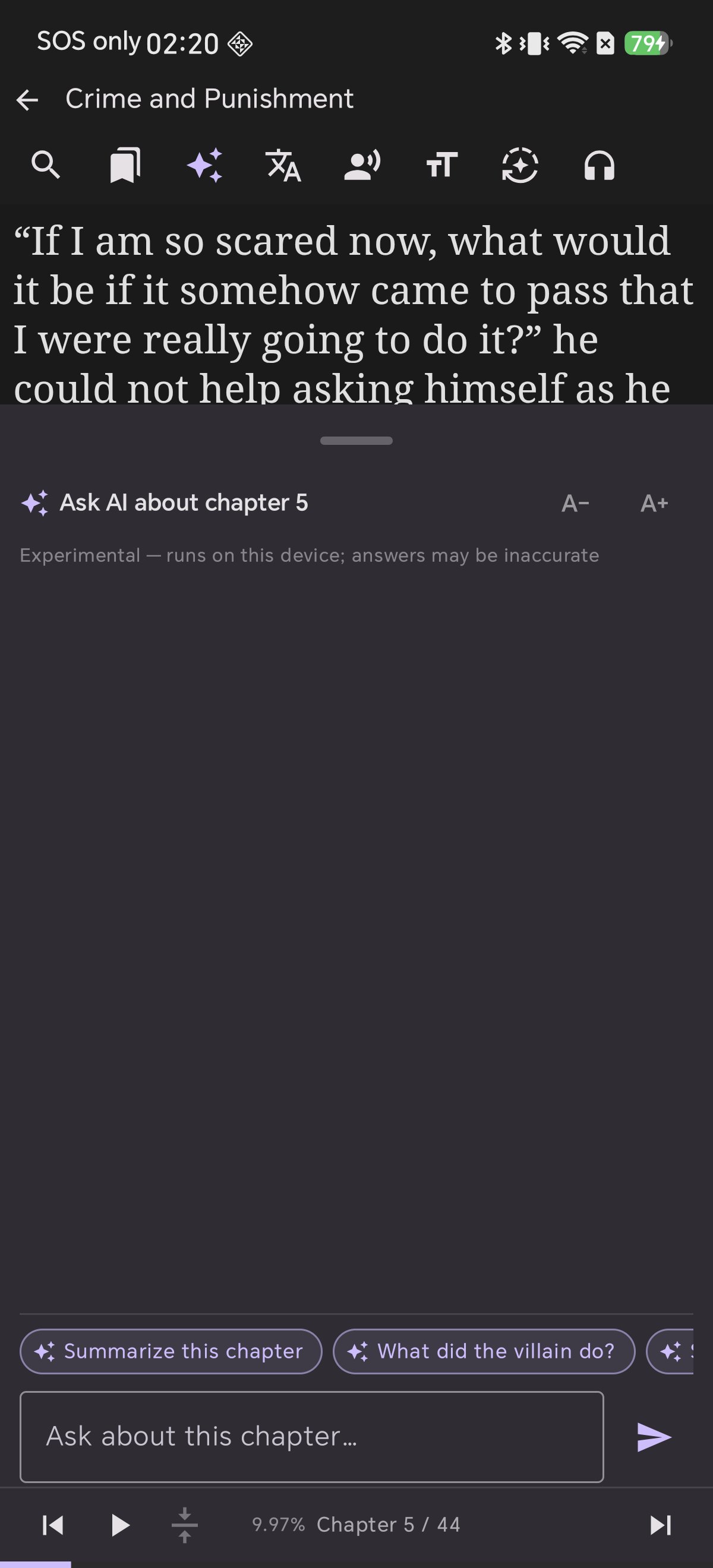
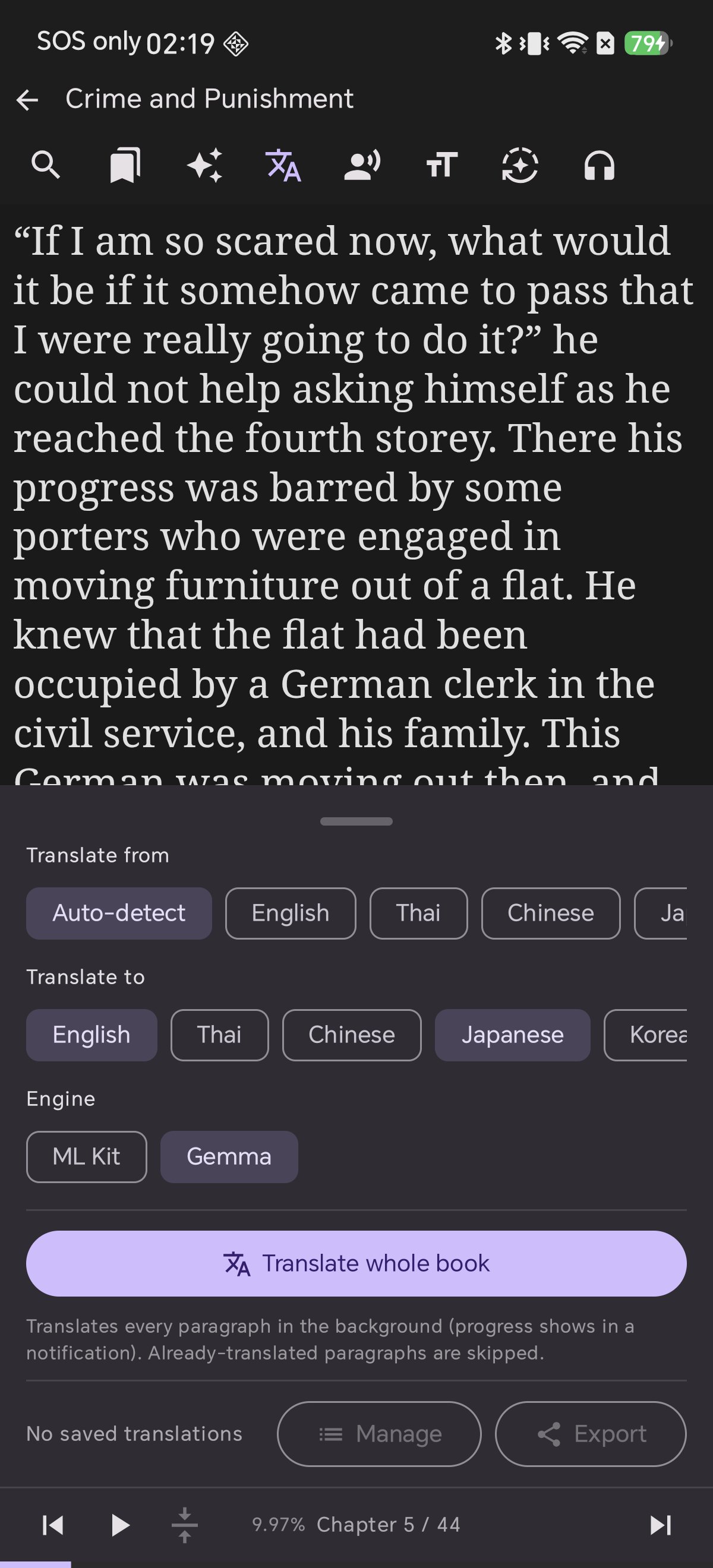
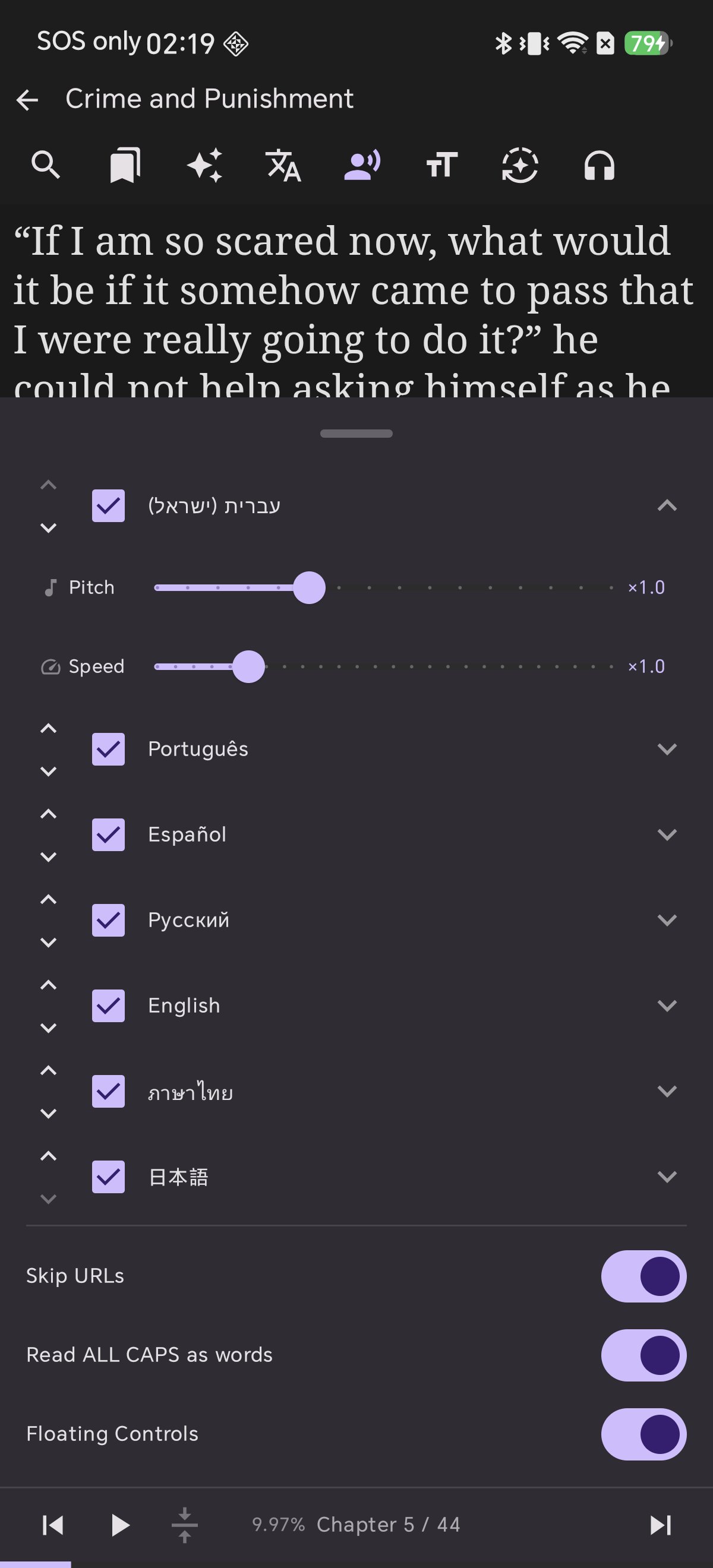
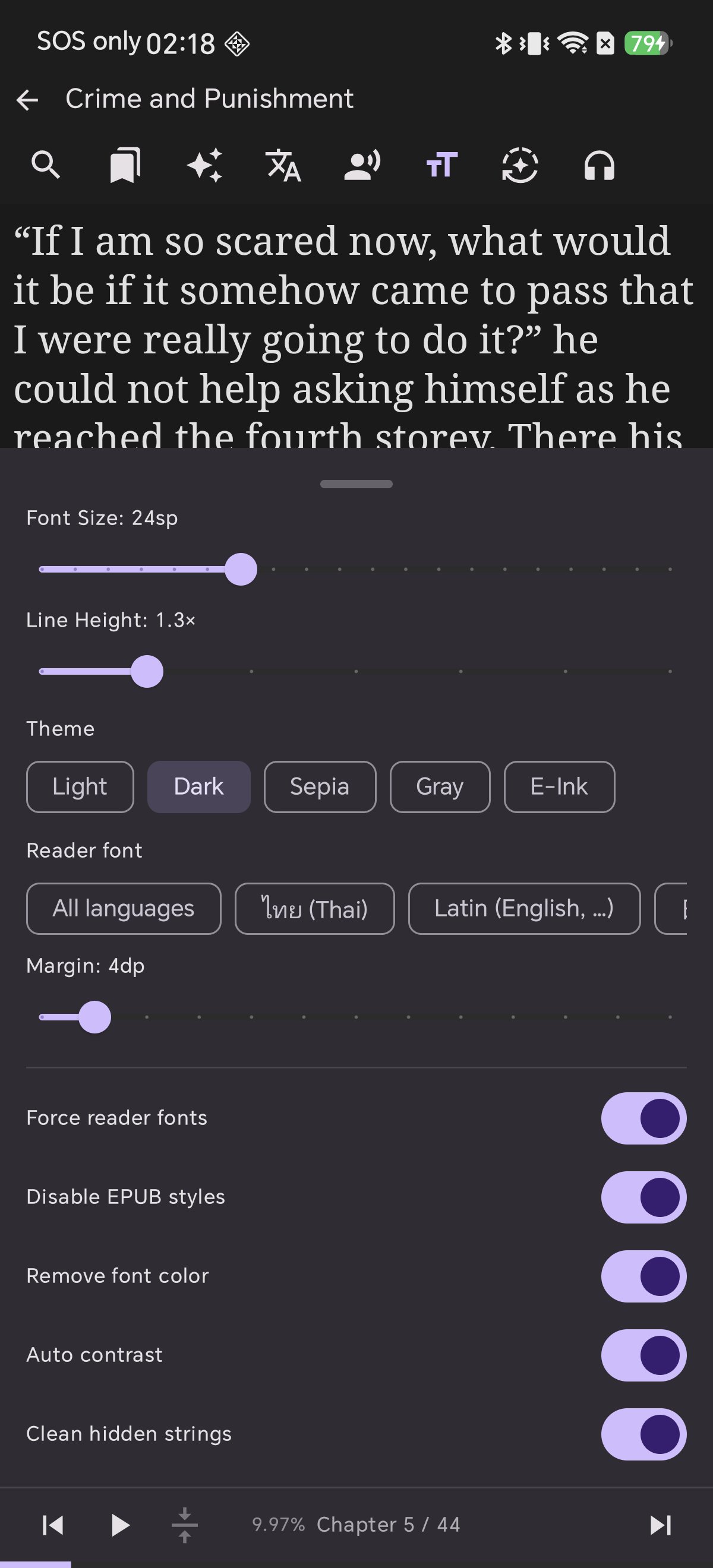
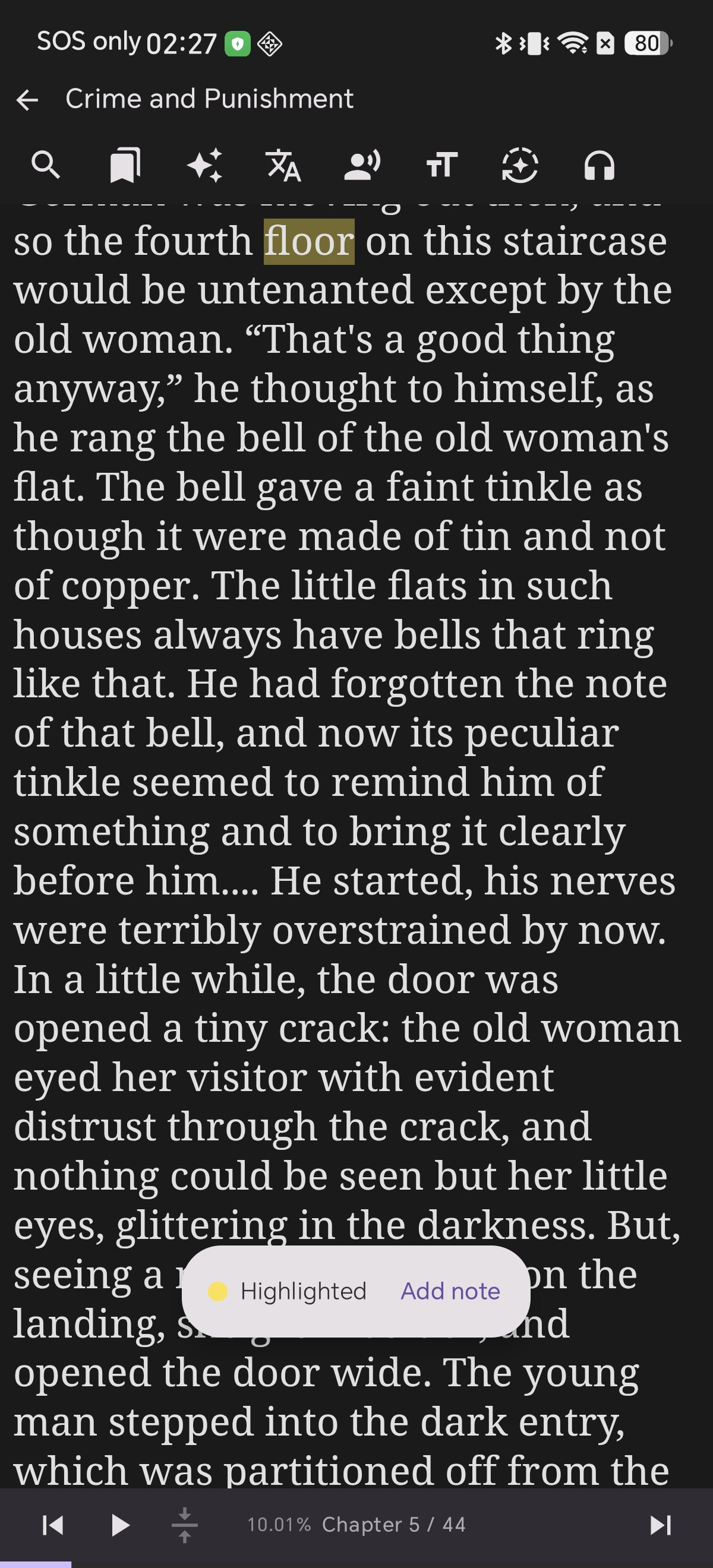
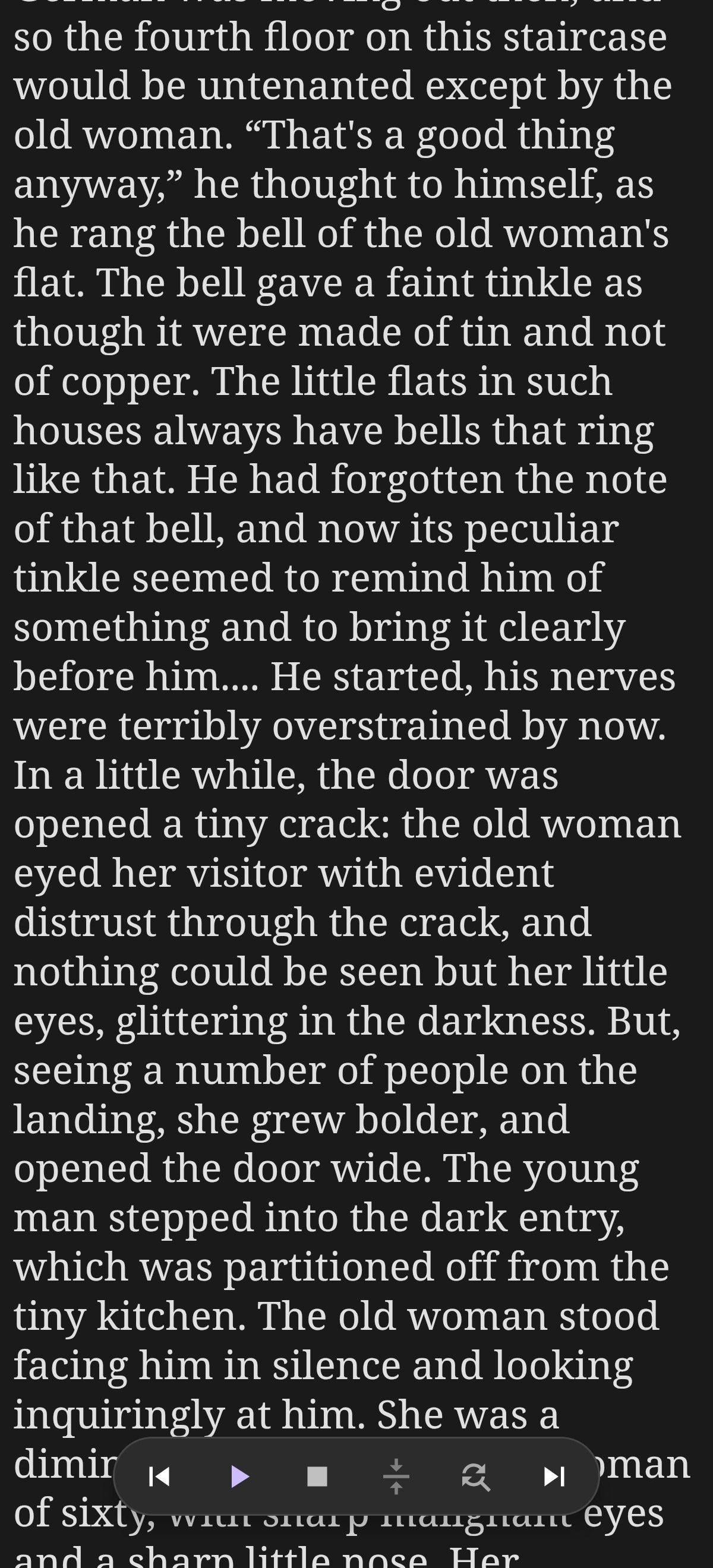
The reader screen is where you spend your most precious reading moments, and almost all of it is intentionally pure and clutter-free — just the page. The controls are always within reach, but they stay quietly out of your way. This guide walks you through every single touch target, explains what it does, and shows the exact panel it opens.
One thing to know first: Tapping the center of the page does nothing in Shiori. That is entirely by design — an accidental tap while reading should never cause toolbars to flicker. The toolbars remain stable until you tuck them away with the immersive full-screen button.
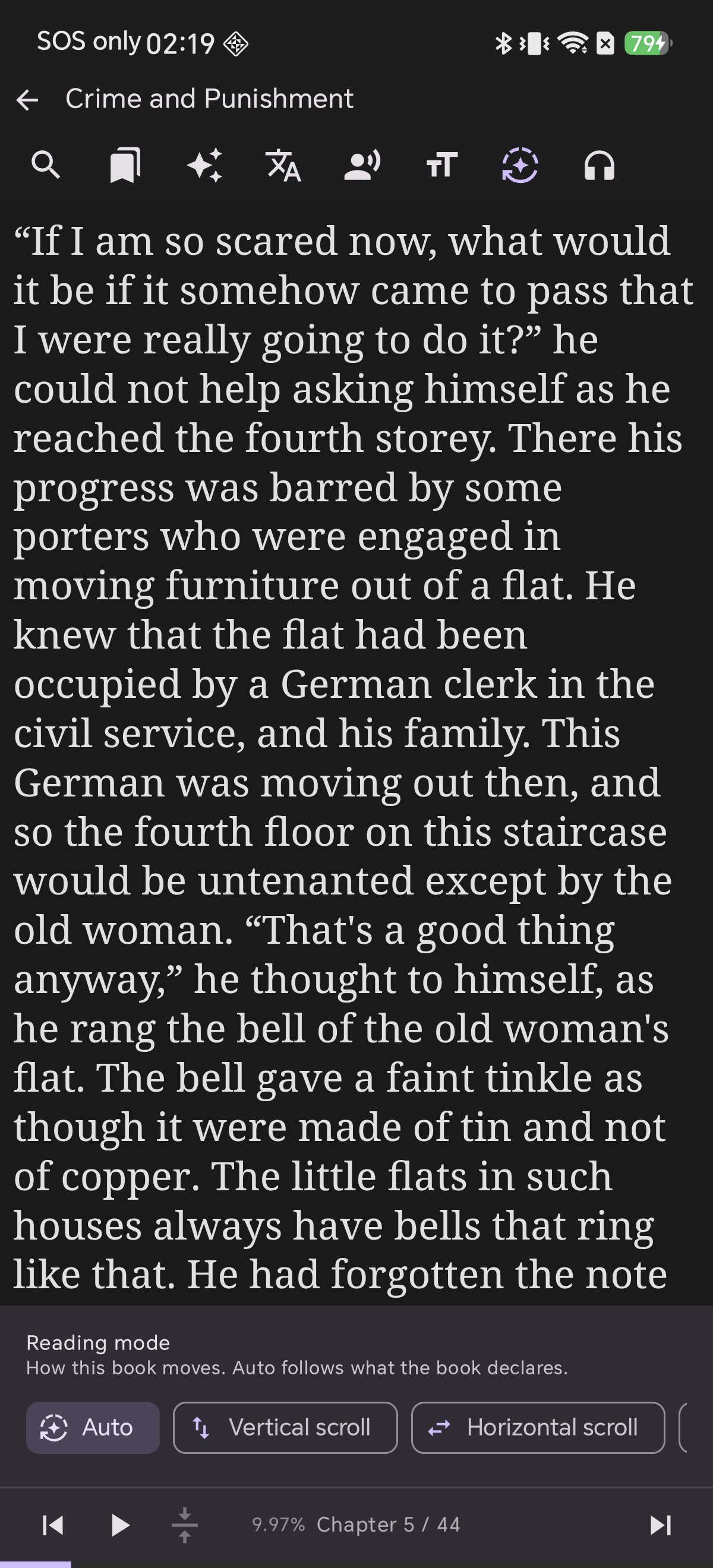
The Top Bar — 9 Touch Targets
The top area consists of the book title with the back navigation arrow, accompanied by eight dedicated function icons. Tapping any icon slides open its dedicated panel, and tapping it again cleanly dismisses it.
หน้าอ่านหนังสือคือพื้นที่ที่เราใช้เวลาด้วยมากที่สุด Shiori จึงออกแบบให้หน้าจอนี้เรียบง่าย สะอาดตา และเน้นเนื้อหาหนังสือเป็นหลัก โดยซ่อนความสามารถอันทรงพลังไว้หลังไอคอนที่เข้าถึงได้ง่าย คู่มือนี้จะพาคุณไปรู้จักกับทุกปุ่ม ทุกจุดสัมผัส พร้อมภาพประกอบว่าแต่ละปุ่มเปิดใช้งานฟังก์ชันอะไรบ้าง
ข้อควรรู้ก่อนเริ่มต้น: การแตะบริเวณกึ่งกลางหน้าจอใน Shiori จะ ไม่มีอะไรเกิดขึ้น ซึ่งเราตั้งใจออกแบบไว้แบบนี้ เพื่อไม่ให้แถบเครื่องมือกะพริบขึ้นลงกวนสายตาเวลาเผลอแตะโดน แถบเครื่องมือจะนิ่งสงบจนกว่าคุณจะกดซ่อนด้วยปุ่มโหมดอ่านเต็มจอ (Immersive Mode)
แถบเครื่องมือด้านบน — 9 จุดสัมผัสสำคัญ
ประกอบด้วยชื่อหนังสือพร้อมปุ่มย้อนกลับ และแถวไอคอนลัด 8 รายการ เมื่อแตะที่ไอคอนใด หน้าต่างตั้งค่าของไอคอนนั้นจะเลื่อนเปิดขึ้นมาอย่างนุ่มนวล และแตะซ้ำอีกครั้งเพื่อปิด
リーダー画面は読書に最も没頭する大切な場所です。Shioriは余計な要素を排し、美しい紙面そのものを存分に味わえるよう設計されています。必要な操作パネルはすべて指先に揃っています。本ガイドでは上部バー、下部バー、長押しメニューの全機能を画面写真付きで丁寧に解説します。
最初に知っておくべきこと: 画面中央をタップしてもツールバーは 点滅・反応しません。読書中の誤タップでバーがチラつくストレスを防ぐための親切設計です。全画面に集中したいときは「没入モード(Immersive)」ボタンをご活用ください。
上部バー — 9つのタッチターゲット
書籍タイトル(戻るボタン兼用)と、8つの機能アイコンが配置されています。アイコンをタップすると各機能パネルがスライド表示され、もう一度タップするとスマートに閉じます。
阅读界面是读者停留最久的核心空间。Shiori 刻意保持界面的纯粹与静谧,让书页本身成为唯一的主角。各项强大功能隐于简雅图标之后。本指南将逐一图解每个触控按键的具体作用与对应展开面板。
开始前的重要细节: 在 Shiori 中轻点屏幕中央 不会有任何弹窗闪烁。这是为了彻底杜绝误触导致工具栏频繁跳出的打扰。若希望完全隐藏上下栏,请使用沉浸式全屏按钮。
顶部操作栏 — 9 大核心触控点
包含带返回箭头的书籍标题,以及 8 个专属功能快捷图标。点击任一图标即可呼出对应功能面板,再次点击即可快速收起。
A tela de leitura foi feita para ser limpa e focada no texto. Os controles estão sempre à mão, mas não atrapalham sua concentração. Confira este guia visual de cada botão e menu do leitor.
Importante saber: Tocar no meio da página não abre nem fecha barras. Essa escolha de design evita que as ferramentas fiquem piscando por toques acidentais. Use o botão imersivo para ocultá-las.
Barra Superior — 9 Pontos de Toque
Composta pelo título do livro e 8 ícones de ferramentas com painéis deslizantes dedicados.
La pantalla de lectura de Shiori está diseñada para ofrecer la máxima inmersión en el texto, con controles siempre accesibles pero sin estorbos. Esta guía repasa cada icono y función disponible.
Dato importante: Tocar el centro de la pantalla no hace nada intencionadamente. Así se evita que las barras parpadeen con toques involuntarios. Usa el modo inmersivo para ocultarlas por completo.
Barra Superior: 9 Puntos de Contacto
Formada por el título del libro y 8 iconos de herramientas que abren paneles deslizables.
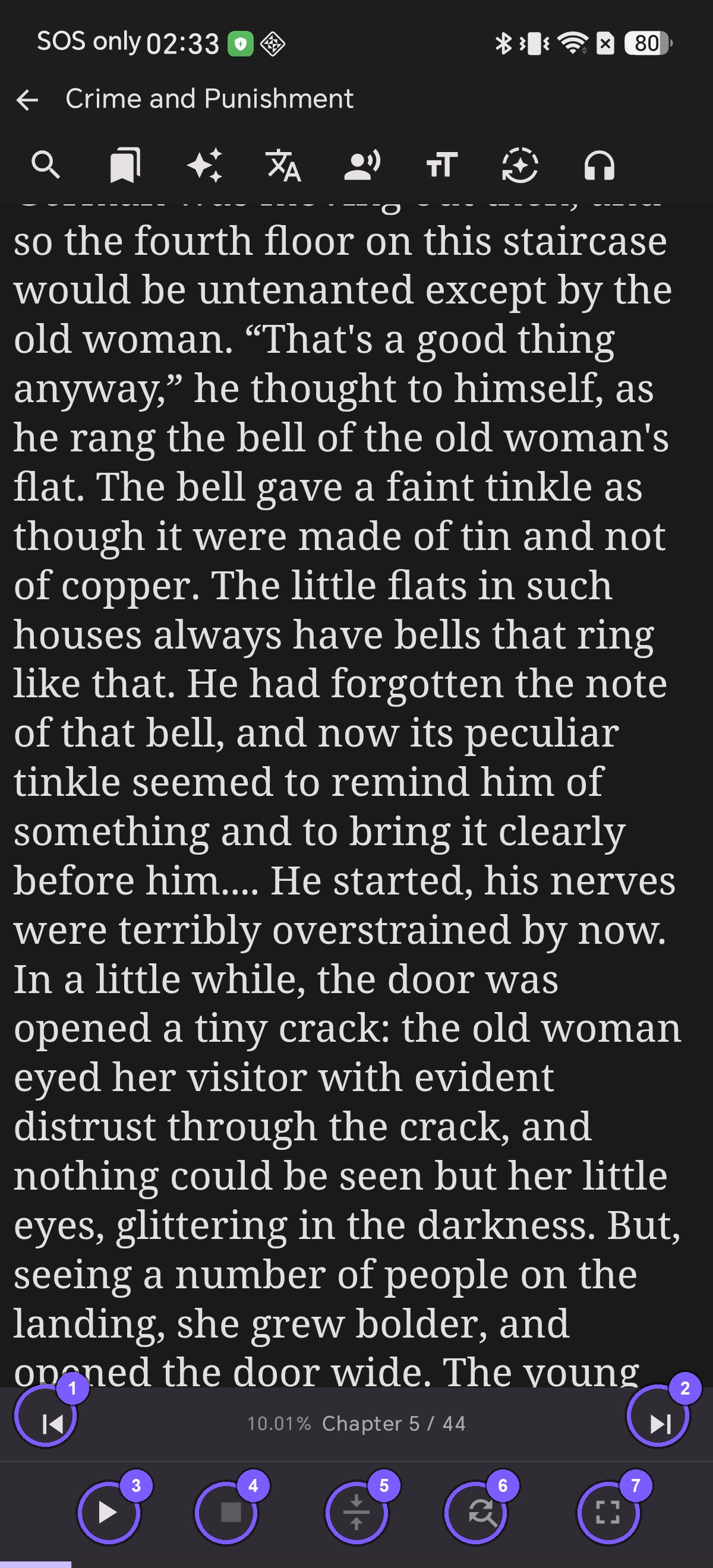
The Bottom Bar — Where Playback Lives
แถบควบคุมด้านล่าง — ศูนย์กลางการเล่นเสียงอ่านและการนำทาง
下部バー — 再生コントロールとクイック操作
底部操作栏 — 播放控制与沉浸阅读中枢
Barra Inferior — Controle de Reprodução
Barra Inferior — Control de Reproducción
The bottom of the screen hosts two functional rows. The upper navigation row displays chapter progress, while the optional lower row provides dedicated playback and immersive reading controls.
ด้านล่างของหน้าจอประกอบด้วย 2 แถว: แถวบนแสดงเปอร์เซ็นต์และชื่อบท ส่วนแถวล่างเป็นปุ่มควบคุมเสียงอ่าน TTS และปุ่มเปิดโหมดเต็มจอ
下部バーは2段構成です。上段には章の進捗とパーセンテージ、下段にはTTS読み上げボタンや全画面没入ボタンが並びます。
底部控制栏包含两层:上层展示进度与章节序号,下层则提供语音播放、段落居中跟随与全屏沉浸控制。
A barra inferior reúne navegação por capítulos, controles de áudio e modo tela cheia.
La barra inferior agrupa la navegación entre capítulos, controles de audio y pantalla completa.
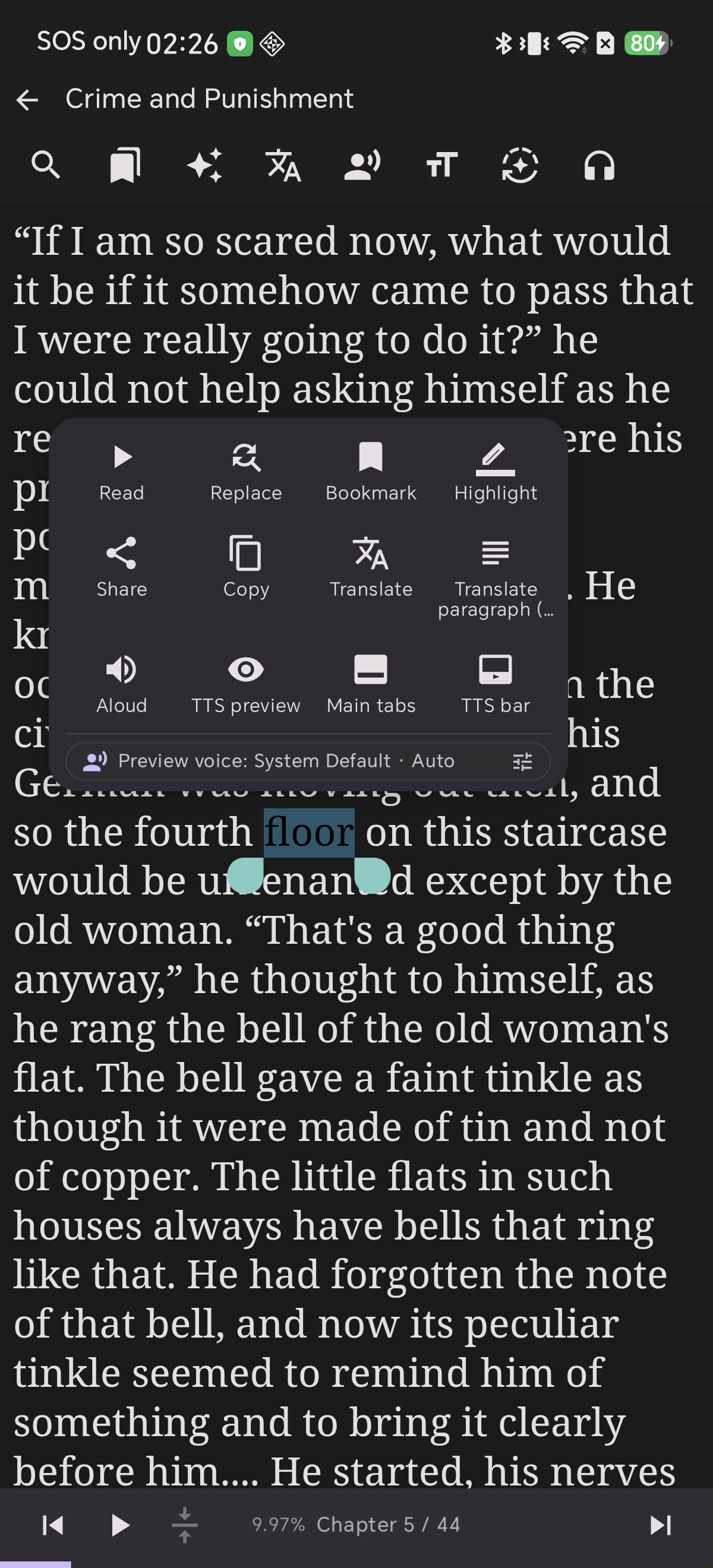
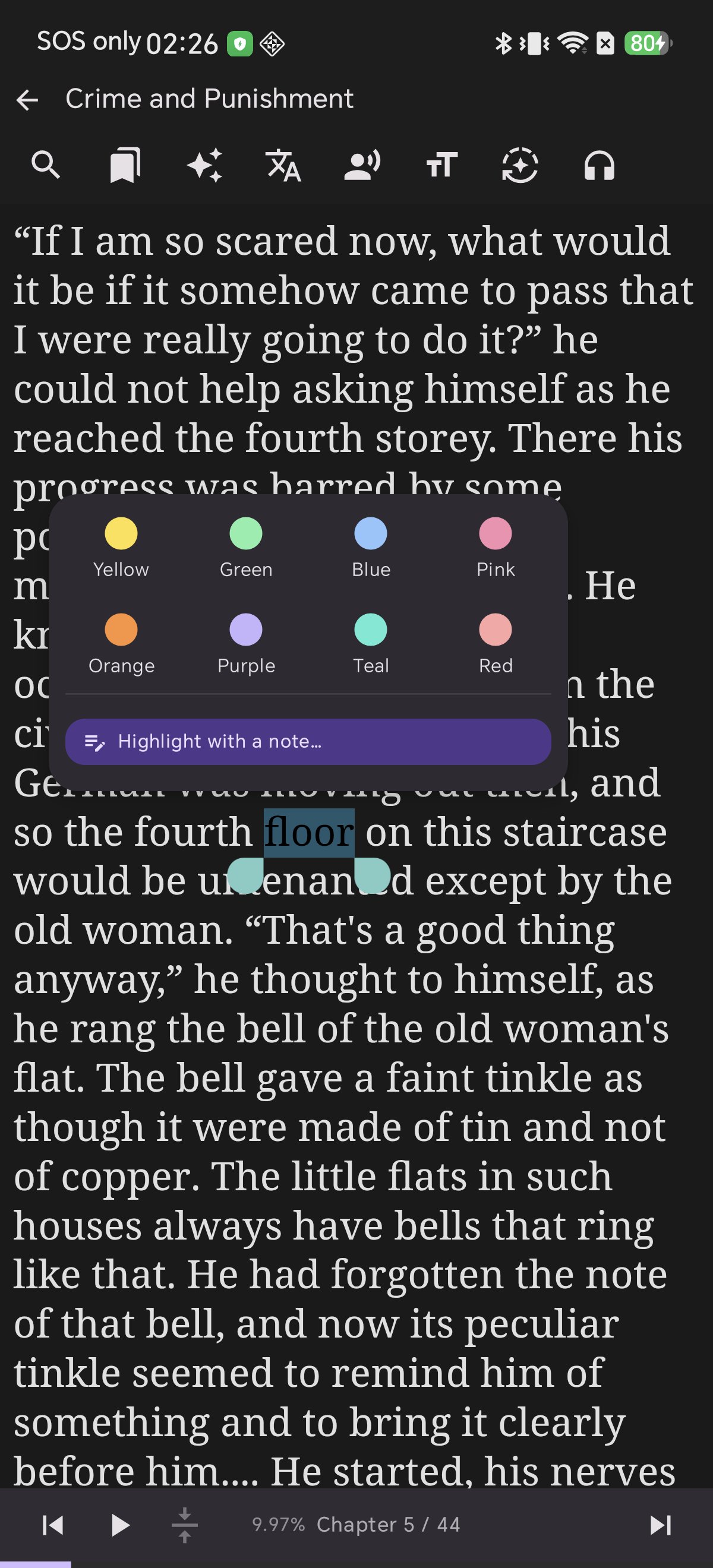
Long-Press Text: The 12-Action Selection Menu
กดค้างบนข้อความ: เมนูคำสั่งลัด 12 รายการ
テキスト長押し:12の便利機能が揃う選択メニュー
长按文字:唤醒 12 项高频快捷操作菜单
Toque Longo: Menu de 12 Ações
Pulsación Prolongada: Menú de 12 Acciones
Press and hold any word to open the floating contextual action menu:
เพียงกดค้างที่คำใดคำหนึ่งบนหน้ากระดาษ เมนูคำสั่งลัด 12 รายการจะปรากฏขึ้นข้างข้อความที่เลือก:
本文中の単語を長押しすると、12種類の多彩なアクションメニューが表示されます:
长按页面中任意字词,即可在划选区域旁弹出包含 12 种操作的快捷指令面板:
Pressione qualquer palavra para abrir o menu contextual completo:
Mantén pulsada cualquier palabra para abrir el menú contextual con todas sus herramientas:
Why does tapping the middle of the page do nothing?
This is an intentional design choice. Toolbars appearing on accidental taps interrupt reading immersion. Use the immersive button to hide toolbars, and the system back button to restore them.
ทำไมการแตะกลางหน้าจอถึงไม่มีแถบเครื่องมือเด้งขึ้นมา?
เป็นความตั้งใจในการออกแบบครับ เพื่อป้องกันไม่ให้แถบเครื่องมือกะพริบขึ้นลงเวลาเผลอแตะโดน หากต้องการซ่อนแถบเครื่องมือ ให้กดปุ่มโหมดเต็มจอ และกดปุ่มย้อนกลับของมือถือเพื่อเรียกแถบเครื่องมือกลับมา
画面中央をタップしてもバーが表示されないのはなぜ?
読書中の集中を妨げないための設計です。誤タップによる画面のチラつきを防ぎます。バーを非表示にするには「没入モード」を使い、復帰には「戻る」ボタンを押します。
为什么点击屏幕中央没有任何响应?
这是我们精心打造的防误触机制,避免翻页或持握时工具栏频繁闪烁打断思绪。点击底部沉浸图标即可全屏,按返回键即可恢复。
Por que tocar no meio da tela não faz nada?
Para evitar que as barras fiquem piscando com toques acidentais. Use o botão imersivo para esconder e o botão voltar para restaurar.
¿Por qué tocar el centro de la pantalla no muestra nada?
Es una decisión de diseño para evitar que las barras parpadeen por toques accidentales. Usa el botón de inmersión para ocultarlas y el botón Atrás para recuperarlas.
How do I switch from scrolling to page turning?
Open the reading mode panel (Icon 8 on the top bar) and select Page turn. Your choice is remembered individually for each book.
วิธีเปลี่ยนจากการเลื่อนหน้าจอ (Scroll) เป็นการพลิกหน้า (Page Turn)?
แตะไอคอนโหมดการอ่าน (ไอคอนที่ 8 บนแถบด้านบน) แล้วเลือก Page turn โดยระบบจะจำการตั้งค่านี้แยกเป็นรายเล่ม
スクロールからページめくりに変更するには?
上部バーの読書モードアイコン(8番)を開き、Page turn を選択します。設定は書籍ごとに個別に記憶されます。
如何从连续滚动切换为仿真翻页?
点击顶部栏第 8 个“阅读模式”图标,选择 Page turn 即可。每本书均会独立记忆该设定。
Como mudar da rolagem para virar páginas?
Abra o painel de modo de leitura (ícone 8) e escolha Page turn.
¿Cómo cambio del desplazamiento al paso de página tradicional?
Abre el panel de modo de lectura (icono 8) y selecciona Page turn.
How do I return to the sentence currently being read aloud?
Tap the Center Arrows 🎯 button on the bottom bar. It instantly scrolls back and keeps the currently spoken sentence centered.
ถ้าเลื่อนหน้าจอไปไกล จะกลับมาตรงประโยคที่เสียงกำลังอ่านอยู่ได้อย่างไร?
แตะปุ่ม ลูกศรจัดกึ่งกลาง 🎯 บนแถบควบคุมด้านล่าง หน้าจอจะเลื่อนกลับมายังประโยคที่กำลังอ่านออกเสียงอยู่ทันที
朗読中の現在位置へ一瞬で戻るには?
下部バーの 中央揃え矢印 🎯 ボタンをタップしてください。画面が即座にスクロールし、発話中の文を画面中央に捉えます。
滑动浏览其他段落后,如何快速回到正在朗读的句子?
只需轻点底部栏中的 居中跟随靶心 🎯 按钮,画面即刻平滑回滚至正在发声的文字位置。
Como voltar para a frase que está sendo lida em voz alta?
Toque no botão de setas centrais 🎯 na barra inferior para recentralizar o áudio.
¿Cómo regreso a la frase que se está leyendo en voz alta?
Pulsa el botón de diana / flechas centradas 🎯 en la barra inferior para volver de inmediato a la locución.
Do my highlights and bookmarks modify the EPUB file?
No. All annotations are safely managed by Shiori's internal store and sync seamlessly via Google Drive Cloud Sync without touching the original EPUB file.
ไฮไลต์และที่คั่นหน้าจะไปแก้ไขไฟล์ EPUB หรือไม่?
ไม่เลยครับ บันทึกทั้งหมดจะเก็บไว้ในแอปและซิงก์ผ่าน Cloud Sync อย่างปลอดภัย โดยไฟล์หนังสือ EPUB ในเครื่องจะไม่ถูกดัดแปลงใดๆ ทั้งสิ้น
ハイライトやしおりによってEPUBファイルは変更されますか?
いいえ、一切変更されません。すべての注釈はアプリ内で安全に管理され、Cloud Sync で他端末にもそのまま引き継がれます。
划线高亮与书签会改动我的 EPUB 文件吗?
完全不会。所有批注均保存在应用本地数据库中并通过 Google Drive 云端同步,绝不改动图书源文件。
Os destaques e marcadores alteram o arquivo EPUB?
Não. Todas as marcações são armazenadas no app e sincronizadas com o Google Drive sem mexer no arquivo original.
¿Modifican los subrayados y marcadores el archivo EPUB?
No. Todas las anotaciones se gestionan de forma segura en la base de datos de la app y se sincronizan en la nube sin tocar el archivo original.
Experience Pure Reading Control
Download Shiori EPUB Reader, open any book, and enjoy thoughtful controls designed by and for passionate readers.
สัมผัสประสบการณ์การอ่านที่ออกแบบมาเพื่อคุณ
ดาวน์โหลด Shiori EPUB Reader วันนี้ แล้วเพลิดเพลินกับการควบคุมที่ลื่นไหล ใส่ใจทุกรายละเอียดของนักอ่าน
読書家のための洗練された操作性を体感
Shiori EPUB リーダーをダウンロードし、細部までこだわり抜かれた快適な読書体験をお楽しみください。
感受为纯粹阅读量身定制的精妙操控
立即下载 Shiori EPUB 阅读器,打开任意图书,体验每一个懂读者的贴心功能设计。
Controle Total da Sua Leitura
Baixe o Shiori EPUB Reader e aproveite controles pensados para quem ama ler de verdade.
Control Total para Tu Lectura
Descarga Shiori EPUB Reader y disfruta de una interfaz diseñada al milímetro para amantes de la lectura.